CLOUD PBX
Unify calls, teams, and branches into a single intelligent experience, with no infrastructure requirements or physical limitations. Gain complete control, seamless continuity, and connectivity from anywhere.
Features
Cloud PBX not only enables businesses to reduce calling and equipment costs, but also improves productivity by providing access to advanced and efficient communication tools.
- Auto Attendant with unlimited channels
- High-definition audio with echo cancellation
- Real-time monitoring
- Find Me / Follow Me
- Call waiting
- Caller ID
- Fax to Email
- Voicemail with unlimited channels
- Dial by name directory
- Web-based Administration Panel
- Call recording
- Multilingual support
- Email notifications
- Audio conferencing rooms
- Simultaneous ringing
- Call queues
- Call pickup groups
- Ring groups
- Call parking
- Customizable hold music
- Call encryption for secure communications
- Software-based modular scalability
- No additional licensing investments required
Devices
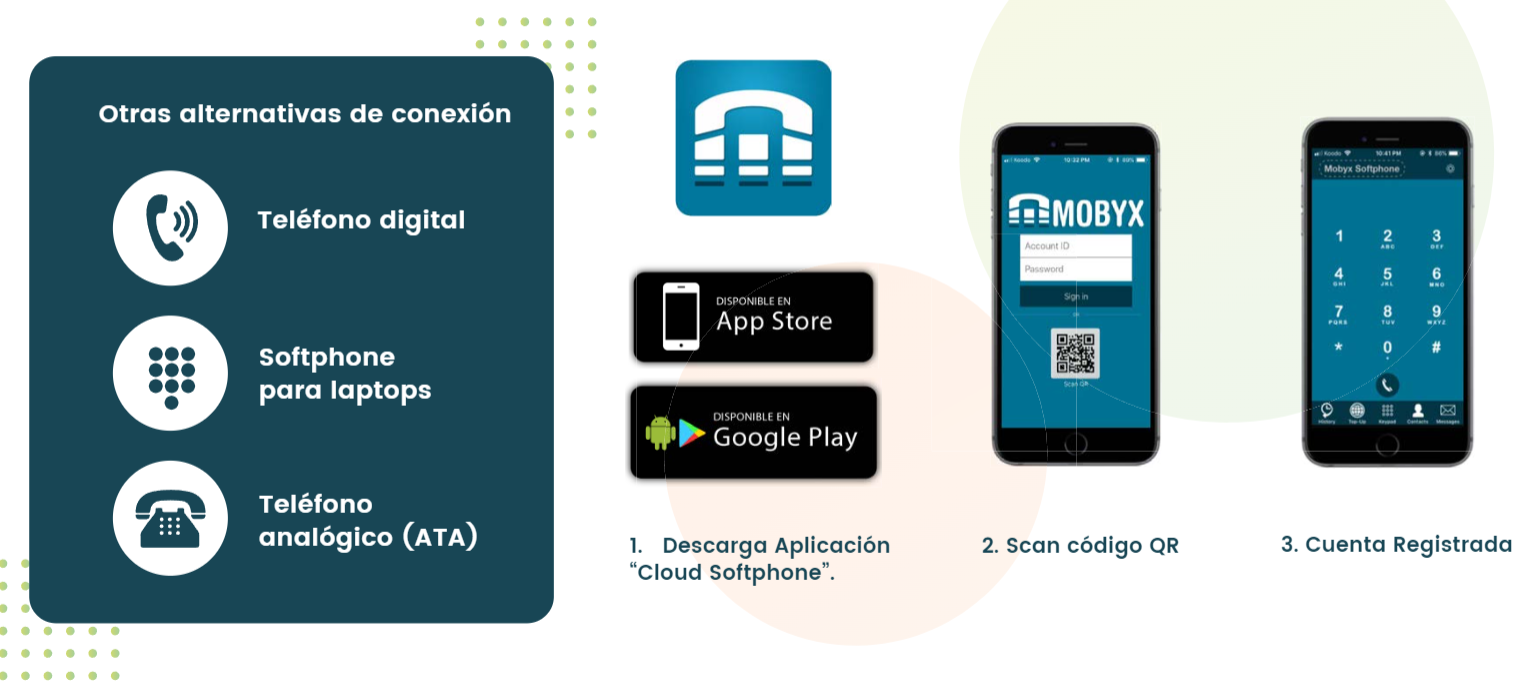
The Cloud Softphone mobile application enables users to make and receive calls from any mobile device using their assigned phone extension. It is available for iOS and Android, and activation can be completed in three simple steps: download the application, scan the QR code, and automatically register the account.
As part of the solution, additional connectivity options are available, including IP phones, laptop softphones, and analog phones connected through an ATA (Analog Telephone Adapter).
Infrastructure
Architecture
The following diagram illustrates the flow of IP telephony communications. The service can be accessed through different devices, including conventional telephones, smartphone apps, IP phones, and laptop softphones.
Conventional telephones connect through an ATA (Analog Telephone Adapter), which converts the analog signal into digital format. All traffic is routed through the customer's network/router, where a firewall or on-premises PBX may be present, and then reaches the Internet through a WISP or other network connection.
The Telephony as a Service (TaaS) platform manages the SIP trunk and telephone lines, enabling call termination to the end user through the public telephone network.
Technical Requirements – On-Premises
Network
To deploy a PBX on an on-premises server, the following minimum requirements must be met:
- Dedicated physical space for server installation in a telecommunications room with restricted access and climate control.
- One regulated and protected power outlet.
- One network port.
- One static public IP address.
- SIP traffic enabled on port 5060.
- VPN for remote access (optional).
Server
- Processor: Intel® Xeon® E7-8893 v4, 3.2 GHz
- Memory: 16 GB RAM
- Storage: 1 TB (RAID 1), 10K RPM (recommended) or higher
- Controller: Software RAID 0/1/10
- LAN: 100/1000 Mbps (Dual)
- Operating System: Compatible with Ubuntu Linux
Q&A
What is Cloud PBX?
It is a cloud-based business phone system that enables organizations to manage business calls without the need for on-premises hardware. The entire solution can be managed over the Internet from any location.
What are the advantages compared to a traditional PBX?
The advantages can be grouped into four key areas:
- Infrastructure: Work with a single provider for the entire solution, reducing complexity, improving response times, and simplifying management.
- Operations: Your staff can focus on the core business while technology, maintenance, and updates are managed by us. Services can also be enabled or disabled based on demand.
- Technology: Avoid technology obsolescence by always using an up-to-date solution without investing in hardware that depreciates over time.
- Economics: Minimal upfront investment in equipment. Costs are treated as operating expenses, with no mandatory long-term contracts.
Do I need to purchase expensive equipment?
No. You can use the Cloud Softphone app on your mobile device, a softphone on your laptop, or connect conventional phones through an ATA. Hardware investment is minimal.
What happens if my business grows or downsizes?
The solution is flexible and scalable. You can add or remove extensions and services on demand, paying only for what you use.
Who is responsible for maintenance?
We are. As a cloud-based service, updates, security, and technical support are included. Your team does not need to worry about hardware failures or technology obsolescence.
Are there mandatory contract terms?
No. The service offers flexible contracting without mandatory long-term commitments, adapting to the needs of your operation.