We will apply step 1 to the calls that we need to bring into the conference, as many times as necessary.
- **Step 3**: Once we have sent the required calls to the conference and without having any active call, we will press the ***conference button***, which will send us to the conference room where both people from the previously sent calls are already present. [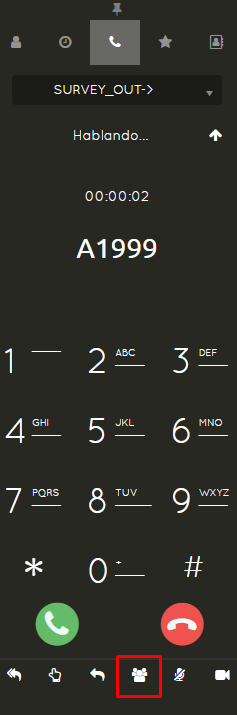](https://docs.cleverideas.com.mx/uploads/images/gallery/2024-04/u4DtrrTrJ97SEdO2-image-1712609569017.png)It's important to mention that the people/calls sent to the conference, while in the waiting room, will not be able to hear each other until the administrator joins the conference. Only then will the call have group communication between all participants. The administrator can remove the last person who entered the conference by pressing \*3, and so on if it's necessary to remove the last participants entered. Otherwise, they can simply end the call.
# Transfer calls - ENG #### In uContact, there are two features that will help us perform effective call transfers.**Attended Transfer**
**This transfer, as the name indicates, must be answered by the destination person to whom the call is being transferred. It allows communication between the person transferring and the person receiving the transfer, and until the latter answers the call, the transfer will not be completed****Blind Transfer**
**-Unlike the attended transfer, in this one it does not matter if the destination is available to take the call; it is simply transferred. If it is to an agent or campaign, and at that moment it cannot be attended to, it will go to the agent's or campaign's queue, respectively. In this transfer, there will be no communication between the person transferring and the destination.**The buttons for both types of transfers are located in the Softphone toolbar. The attended transfer is the first option, showing an icon of two arrows. The blind transfer is the third option, showing an icon of one arrow.
[](https://docs.cleverideas.com.mx/uploads/images/gallery/2024-07/7ANHE0upA2AVAd7T-image-1720209184394.png)When selecting either of the two transfer icons, whether **Attended** or **Blind**, the following menu will be displayed, offering 3 destination options for the transfer: **Agents**, **Campaigns**, and **External Number**
[](https://docs.cleverideas.com.mx/uploads/images/gallery/2024-07/5GizLEXYgy1mp3Ax-image-1720206406547.png)[](https://docs.cleverideas.com.mx/uploads/images/gallery/2024-07/aYcydWwvii9zAqyN-image-1720206420284.png) - The **Agents** option will display all agents and their statuses, whether they are offline, online, or busy either on a call or on a break, (this will depend on the permissions assigned in the security groups). [](https://docs.cleverideas.com.mx/uploads/images/gallery/2024-07/V4wlMrMrPOGg1zCn-image-1720208780070.png) - The **Campaigns** option will display all campaigns to which you can transfer (this will depend on the permissions assigned in the security groups). [](https://docs.cleverideas.com.mx/uploads/images/gallery/2024-07/ZbRZ7sovybjjNWP6-image-1720208903637.png) - In the **External Number** option, we can send the call to any external phone number outside of uContact. The number must be dialed with 10 digits. We can also select this option to transfer to an agent's direct extension, but this will also depend on the permissions assigned in the security groups. [](https://docs.cleverideas.com.mx/uploads/images/gallery/2024-07/ZXMdNOJ7DNyASVhu-image-1720209110008.png)