UCONTACT
Transform your customer experience. Centralize all customer interactions on a unified platform and improve your contact center efficiency.
- Features
- Profiles
- Voice
- Omnichannel
- Recordings
- Security
- Infrastructure
- guides
- Academy
- The Agent's Profile
- The Softphone
- The Agent's Interface
- The Unified Inbox
- The agent Workspace
- Training Agenda
- Q&A
Features
Feature
| Feature | Description | VOICE | OMNI |
| Core voice features | |||
| Voice campaign management | YES | YES | |
| Inbound campaigns | Deliver high-quality voice experiences through all inbound interactions. | YES | YES |
| Outbound campaigns | Deliver high-quality voice experiences through all outbound interactions. | YES | YES |
| Blended campaigns | Deliver high-quality voice experiences through all blended interactions. | YES | YES |
| Softphone | Start and/or pick up calls directly from uContact's native mobile & desktop softphone. | YES | YES |
| Multiple campaigns (at once) | Be active in more than one campaign at the same time. | YES | YES |
| Automatic Call Distribution (ACD) | Put your business in autopilot using uContact's native ACD software | YES | YES |
| Intelligent & Priority Routing | Intelligently route incoming calls to the most appropriate agent or department within your company. | YES | YES |
| Call Queuing | Route callers to the next available agent. | YES | YES |
| Virtual Hold (Queue Callbacks) | Allows callers to hung up and receive a call without losing their places in line. | YES | YES |
| Call recordings | Record & listen to interactions from all available channels. | YES | YES |
| Screen pop-up | Form appears automatically as soon as a call is finished | YES | YES |
| Wrap-up time | Time interval granted to the agent to manage calls after they ended. | YES | YES |
| Conference calling | Have a three-way conversation –and more! | YES | YES |
| Custom breaks | Assign different 'break' activities based on the agents' needs. | YES | YES |
| After-business hours & Holiday rules | Automatic & customizable notification when a call is executed outside campaign/business hours. | YES | YES |
| Estimated wait time | Callers are notified about the estimated time they have to wait before being attended by an agent | YES | YES |
| Disposition Management | Category codes | Categorize call outcomes (occupied, not connected, blocked/wrong number, abandoned & others). | YES | YES |
| Call monitoring | Listen to calls to manage call quality and agent performance. | YES | YES |
| Auto-dialers | YES | YES | |
| Predictive | Calls multiple numbers at once and connects the calls with the available agent when the client answers. | YES | YES |
| Powerdialer | Calls the client first but with a more real-time calculation of the overdial. | YES | YES |
| Preview | Calls the agent first and, based on his availability, amd then transfers the call to the client. | YES | YES |
| Progressive | Assigns a client to a specific agent and he only interacts with him. | YES | YES |
| Reverse Progressive | Exclusive configuration of the Progressive dialer, but calls the client first. | YES | YES |
| Voice Broadcast (Press-1 campaigns) | Mass broadcast of prerecorded voice messages (surveys, notifications, and more). | YES | YES |
| Answering Machine Detection (AMD) | Automatic detection of voice mails & distinction between human and robotic voice. | YES | YES |
| List mixing | Assign dialers a specific dialing percentage or priority to different lists and maintain high contactability levels. | YES | YES |
| Automatic list recycling | Select contacts you wish to keep trying to reach and generate a new list that includes them. | YES | YES |
| Do-Not-Call Registry (DNCR) list management | Create a 'blacklist' and avoid dialing certain contacts | YES | YES |
| Voice automation | YES | YES | |
| Interactive Voice Response (IVR) | Built with text-to-speech technology, allows computers to interact with human callers through voice commands | YES | YES |
| Text-to-Speech (TTS)* | Assistive technology that reads digital text aloud. | YES | YES |
| Automatic Speech Recognition | Converts an incoming human-spoken audio into text thanks to acoustic & language models. | YES | YES |
| Omnichannel features | |||
| Unified Inbox | Meet customers in the digital channel of their choice, integrating all touchpoints in the same place. | NO | YES |
| Unified Notification Center | Receive new interaction notifications from all channels in the same notification bar. | NO | YES |
| Transfer interaction (to agents and/or groups). | Transfer any interaction from one agent, group or campaign to the other. | NO | YES |
| Disposition Management | Category codes | Categorize digital interaction outcomes (occupied, not connected, blocked/wrong number, abandoned & others). | NO | YES |
| Post-interaction Satisfaction Surveys | Receive customer feedback at the completion of all interactions. | NO | YES |
| Omnichannel Interaction Recordings | Audio & screen recordings of all digital interactions. | NO | YES |
| Bot Automation | Automate all digital interactions using uContact's native & customizable Bots. | NO | YES |
| WhatsApp Business | NO | YES | |
| Official WhatsApp Business Provider Integration* | Officially integrated to several Facebook-certified WhatsApp Business providers (Gupshup, Infobip, Wavy & more). | NO | YES |
| Inbound WhatsApp Business Campaigns | Receive & answer interactions directly from uContact, just as you would from the app. | NO | YES |
| Pre-Approved Templates for Outbound Campaigns | Use WhatsApp Business-approved templates in your outbound campaigns | NO | YES |
| Facebook & Facebook Messenger | NO | YES | |
| Facebook wall & posts | Receive & handle notifications each time the company has been mentioned in a comment/post. | NO | YES |
| Facebook Messenger | Receive & answer direct messages from your Facebook page directly from uContact | NO | YES |
| WebChat | NO | YES | |
| Audio calls with WebRTC | Start and/or answer audio calls directly from your website using Web RTC technology. | NO | YES |
| Video calls with WebRTC | Start and/or answer HD video calls directly from your website using Web RTC technology. | NO | YES |
| Share screen | Share your screen directly from the WebChat. | NO | YES |
| Request screen | Request your client's screen. | NO | YES |
| NO | YES | ||
| Bulk & One-to-One email campaigns | Send emails to one or multiple recipients at one time. | NO | YES |
| Send & receive attachments | Send & receive files securely with File Transfer Protocol (FTP). | NO | YES |
| Customizable email templates | Use one of uContact's email templates or easily create/design your own. | NO | YES |
| SMS & MMS | NO | YES | |
| Bulk & One-to-One SMS campaigns | Send SMS campaigns to one or multiple recipients. | NO | YES |
| Multimedia Messaging Service (MMS) | Send multimedia messages to one or multiple recipients. | NO | YES |
| Low-code Development Tools | |||
| Workflow Designer | Build your own workflows with uContact’s low-code programming workflow designer. | YES | YES |
| Report Creator & Designer | Use a standard data capturing form, integrate your own CRM, or build your own forms from scratch. | YES | YES |
| Data-capturing Form Designer | Use one of uContact’s +200 available reports or use our low-code report designer to create your own. | YES | YES |
| Workforce Management | |||
| Omnichannel Recordings | Record interactions from all digital channels. | NO | YES |
| Call Recordings | Record inbound and/or outbound calls. | NO | YES |
| Screen Recordings ** | HD screen recordings | NO | YES |
| Agent Coaching (Spy, Whisper & Real-Time feedback) | Listen to your agent's conversations in real-time and whisper feedback in real-time. | NO | YES |
| Satisfaction Surveys | Receive customer feedback at the completion of all interactions. | NO | YES |
| Reporting & Analytics | |||
| Real-Time Dashboards | Omnichannel & real-time monitoring of daily performance. | YES | YES |
| Historical Reporting | Generate & access reports with information from the first day using uContact | YES | YES |
| Graphical Alerts | Receive graphic & automatic alerts whenever something happens in your Contact Center. | YES | YES |
| Omnichannel Reports | Report generation of statistics from all integrated channels. | YES | YES |
| Standard & Customizable Reports | Use one of uContact's +300 preset reports or tailor-make your own. | YES | YES |
| Schedule Reports | Schedule report generation for a date and time of your convenience. | YES | YES |
| Real-Time Supervision | Be aware of what's happening in your Contact Center at all times and in real-time. | YES | YES |
| Survey Reports | Report the answers of the satisfaction surveys sent. | YES | YES |
| Report Export (PDF, XLS, CSV). | Export reports in the format of your choice. | YES | YES |
| Gamification | |||
| Daily Customizable Games & Challenges | Set daily goals and challenges to keep motivation levels up. | NO | YES |
| Objectives by agent, group and/or area | Set objectives to your agents, groups and departments in your Contact Center. | NO | YES |
| Rewards & Recognitions | Give badges, rewards and/or monthly recognitions to your top-performing agents or groups. | NO | YES |
| Avatars | Each agent or supervisor has its own customizable avatar. | NO | YES |
| Rankings | Real-time ranking of your agents according to their performance in games and challenges. | NO | YES |
| Security & Quality Monitoring | |||
| Quality Monitoring | Formally score, evaluate & report in agent calls to measure success. | YES | YES |
| Standard COPC | Instrument to measure performance and quality of all interactions. | YES | YES |
| Encryption | All interactions are end-to-end encrypted to avoid unauthorized access to our clients' data. | YES | YES |
| Permissions per user-type | Each license has access to specific features and permissions. | YES | YES |
| General | Technical Features | |||
| CRM Lite | Powerful CRM system (native or integrated) for successful campaign management. | YES | YES |
| 100% Browser-based | Access uContact directly from a browser, no app download or plug-in install needed. | YES | YES |
| Home Agents | Thanks to its Web RTC technology, agents can access uContact anywhere. | YES | YES |
| Customizable Breaks | Status | Agents can change their status activity in real-time. | YES | YES |
| Multiple Languages | English, Spanish, Portuguese & Italian. | YES | YES |
Feature Codes
Introduction
This manual is oriented to know the operation of the telephone switchboard and PBX Integra processes and configuration management.
Is orient to resolve all operational functions of a traditional PBX adding administration and management modules with new technologies.
Added to the basic functionality, extending a series of quick options and services, integrated into one product, which will enable the management of multiple communication channels with a single centralized device.
Basic Functions
Pickup
Allows calls from other extensions be picked up in the following ways:
|
*8 |
Pick up a group call (section) |
|
* + XXX |
Pick up an extension call determined by XXX |
External Calls
Make calls out (depending on the permissions of the user), permissions are associated to each extension:
-
Make local calls.
-
Make international calls.
-
Make calls to cellular phones.
-
Make internal calls.
|
9 + number |
External call (according to internal permissions) |
|
*25 or |
External call with recall possibility |
Deviations
Deviations are possible based on the state of internal or directly based on a specific user requests.
|
*62 |
Enable deviation when the extension is busy |
|
*63 |
Disable deviation when the extension is busy |
|
*64 |
Enable deviation when the extension is not available |
|
*65 |
Disable deviation when the extension is not available |
|
*72 |
Enable total deviation of the extension. |
|
*73 |
Disable total deviation of the extension. |
|
*66 |
Check voicemail box |
|
*67 |
Erasing all messages in voicemail |
|
*88 |
Activation on demand Call Recording of an extension |
Deviation can be made:
-
To other extension (ej: 214).
-
To an external number dialing “9 + number” (ej: 94013864).
Telephone status
Set the phone in certain states if the user does not want to have certain services, or not be bothered.
|
*78 |
Activate the "do not disturb" mode |
|
*79 |
Deactivate the "do not disturb" mode |
|
*91 |
Activate voicemail |
|
*92 |
Disable voicemail |
Others
Check states or information.
|
*50 |
Extension Status (Indicates the services are activated) |
|
*75 |
Says my extension number |
Operative
Making a call
For external calls you have to type:
9 +4013864
9 +16
Dial all together.
Internal calls: Internal calls are made directly, for example: 205 or 207.
Note: For IP phones, after dialing can be marked "send" or "#" to send the call.
Pick up another extension call
* 8. Dialing * 8 pickup calls in the same group.
* 100 to lift the extension 100 if is ringing.
Simple transfer or Blind Transfer (##)
Case: A is talking to B and A wants to transfer the call to extension C, without asking if
C wants to take the call.
Steps:
-
When A and B are talking, A mark # #, the PBX plays "Transfer" and A digits the extension of C. After A digits the extension number B is transferred to C.
-
B is in communication with the extension C, or listening the ring tone until C answers or not.
-
If C does not answer the call is returned to the source.
Transfer with consultation or Attended Transfer (#0)
Case: A is talking to B and A wants to transfer the call to C, consulting if C wants to talk to B.
Steps:
-
When A and B are talking, A dials # 0, the PBX plays "Transfer" and gives a dial tone so that the extension C is dialed. B waits on hold.
-
A dials the extension of C and talk to C.
-
If C wants to take the call, A must hung up so C and B get connected.
-
If C does not want to take the call, A dials * or C Hangs up, this cuts communication between A - C while A keeps talking with B.
Call Parking
The PBX has the ability to put up calls. For example: you are talking to A and wants to talk to B but you do not know where B is, you can put up the call from A while B is found, is like letting someone wait in line for the caller.
Procedure to park:
-
When talking with A #3 is dialed.
-
The PBX indicates the position where It’s the call. Example, the PBX says: 701. So, that was the call parked at position 701.
Taking a parked call:
The position where the call is parked is dialed. In the above example, dial 701 to get the parked call.
Conference Room
If you want to set up a conference you should use one of the conference rooms of the PBX. The conference rooms are more like an extension with the difference that all internal callers can talk to that entity itself. The rooms are dynamic, are created by marking 555XXX, where XXX is the number of conference.
To access a conference room:
-
Call directly to the room: ex dial 555100.
-
Be transferred to the room.
To transfer to a room is typed, # # (The PBX says transfer) + 555 + room number.
Voicemail
Voicemail Notification:
Analog phones. The dialing tone when dialing is choppy.
IP Phones. It depends on the equipment, but generally is indicated on the screen.
You can configure a notification by mail to the mail box, waring that there is a voicemail. You can also attach voice mail.
Check the voice mail box:
-
You dial *66
-
The PBX asks for the password
You can access an account from another telephone dialing: * 66 + number (extension).
You can delete all messages in the box typing the * 67, for this is for the voicemail password will be asked and then played an audio query if you want to delete all messages, if so pressing 7 can erase all otherwise the transaction is aborted.
Do Not Disturb mode
When you are busy and do not want your phone rings you must enter the code * 78. From the moment we do this all calls to your extension will indicate that it is busy. To disable this mode must dial * 79.
Call Forwarding
Total (unconditional)
For calls to your extension being redirected to another, you must enter * 72 and then type the extension where you want to transfer calls. To disable this function must dial * 73.
When busy
If desired to redirected calls to one another extension, but only if the first is busy, it must enter * 62 followed by the extension number to which the calls they wish to transfer. To disable this mode you must dial * 63.
When not available
If you want the calls to be redirected to an extension, but only if the first is not available (when no answer after a while), you must enter * 64 followed by the extension number to which wish to transfer calls. To disable this mode you must dial * 65.
Enable and disable voicemail
To enable voicemail on an extension you must enter * 91 to disable it while you must enter * 92.
Profiles
There are two types of users inside uContact, those are:
Agent
uContact Agent is a module for the contact center agent as the total solution for integration with features relating to data capture, monitoring by states, and integrated communications with the uContact platform.
Supervisor
uContact Supervisor is responsible for all system management, it manages and monitors campaigns and dialers; permits, users, and suppliers can be created and workflows can be set up along with forms and reports.
Since the uContact access interface is 100% web-based, the user must use some of the following features for entering the portal:
Operative systems
:WindowsLogo: Windows :AppleLgo: MacOS :UbuntuLogo: Ubuntu
Browsers
:ChromeLogo: Chrome :FirefoxLogo: Firefox :Edge: Edge
Agent

Introduction
uContact Agent is a module for the call centre agent as the total solution for integration with features relating to data capture, monitoring by states and integrated communications with the uContact platform.
Login
uContact Agent has a security control module to identify agents with a created profile allowing to have a strict control of the campaigns of each of the call centre agents.
uContact Agent login is the main page that lets you select the language and role (Agent in this case) in which the user will work and validate his credentials, entering the URL : https://IPSERVER
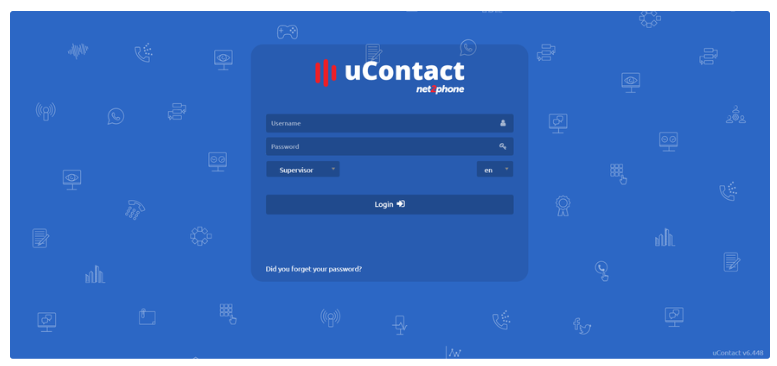
Once inside the agent portal we will find the following screen:
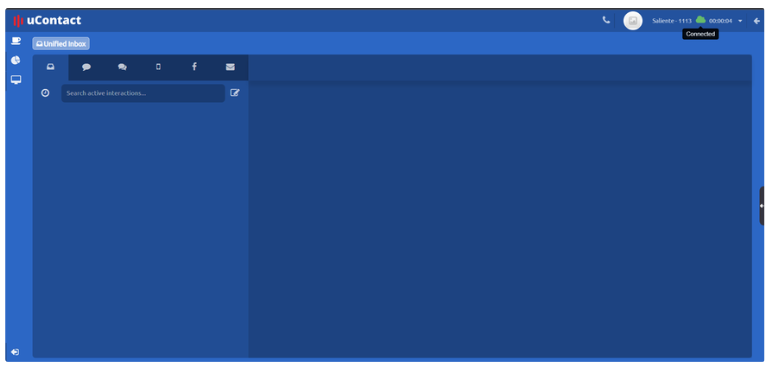
Inside the portal we can see the varied actions of the agent.
Telephone
Contacts
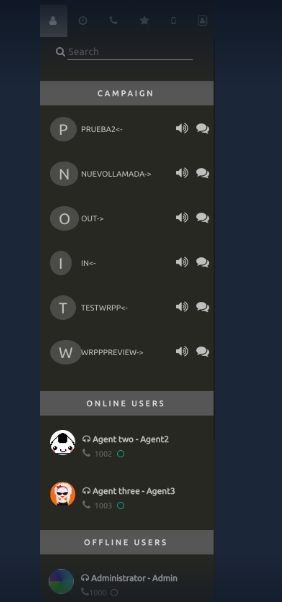
Allows to see every contact in the system, separated by online and offline users. A more specific contact search can be made by writing its username on the Search area.
Interactions
The user can interact with the contact on many ways, such as start a call, add to the favourite section and transfer an attended or blind call.
The chat allows the exchange of messages with other agents, mainly used to report actions or events among users when they are talking.
To initiate a chat, the agent selects from his phone the agent with whom you want to chat. Selecting the icon of chat on the contact, the conversation will open and there the agent can see the history of chats, send a receive messages.
%2014.52.11.png&size=128190&height=913&width=243&alt=)
When a new event reaches the agent, a beep sound will be heard and a notification with the name of the agent and his profile photo will be seen.
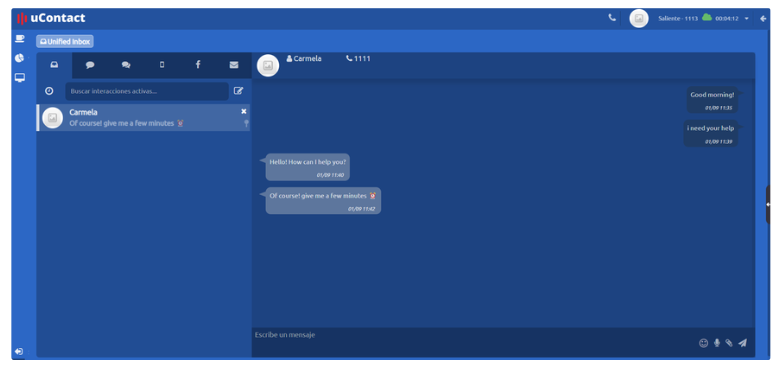
The chat also includes a feature that allows you to send a message to all active agents by broadcast.
The chat is located in the tab Unified Inbox, which contains other communication channels.
Group Chat
In addition to an agent-to-agent chat, there is also the possibility of group chat with members of the same campaign. This function can be accessed by selecting the desired campaign from the "contacts" section on the softphone

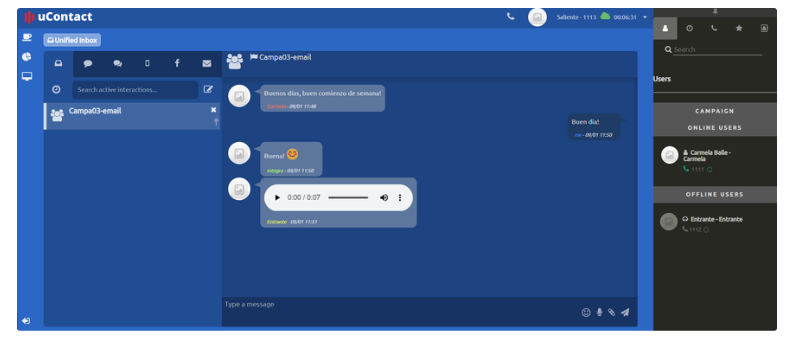
Broadcast
Agents can send a general message to EVERY online user in the portal. Just write the message on the Broadcast area and press enter to deliver it.
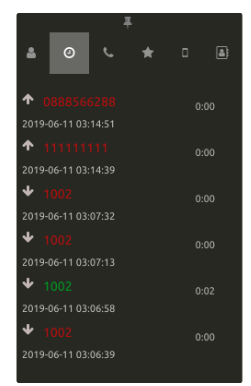
History
Allows to see the call log of the current session of the agent, if the call was incoming or outgoing, the called phone and the talked time.
Also, if a call was not answered or was rejected is indicated with a red colour.
When clicking on the phone number, it redirects itself leaving ready to dial.

Phone
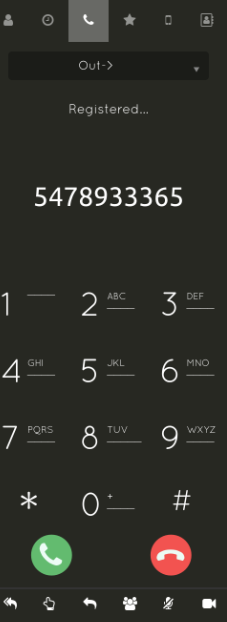
Allows interaction making external calls. Among the features that will be allowed is the selection of the campaign which will call (in case you have more than one assigned outbound campaign).
Moreover you can initiate a call (green button) cut a call (button red), indicate the number to call (text box) or by typing the phone number buttons to which you wish to call.
Other functionalities

-
Hold: Holds the call.
-
Conference: To start a conference follow the next steps.
-
If the agent is on an active call:
-
1. Press the conference button
-
2. The person at the other end of the phone will be transferred to the conference Room created and will be waiting for the speaker to arrive
-
3. The speaker can add more people to the conference Room by calling them. This can be done as many times as wanted
-
4. For the speaker to get in the conference Room, just click on the conference button and the conference will start.
-
-
If the agent is not on an active call:
-
1. Press the conference button
-
2. A conference Room will be created
-
3. the speaker, who started the conference, can add more poeple by calling them. This can be done as many times as wanted
-
4. For the speaker to get in the conference Room, just click on the conference button and the conference will start.
-
-
-
Mute: Put the Agent microphone in mute.
-
Video: Allow the video in the call, having the chance to video call a client.
-
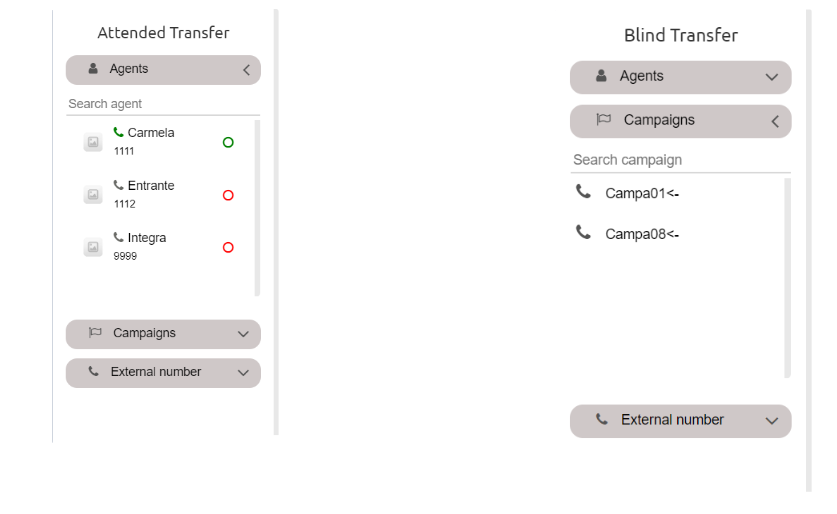
Attended Transfer: When the call is Attended transferred, the one who transfers the call gets in contact with the person that wants to be transferred to and if he accepts the call is transferred.
-
Blind Transfer: When the call is Blind transferred, the call is transferred directly to the number dialed.
Transfer Window
-
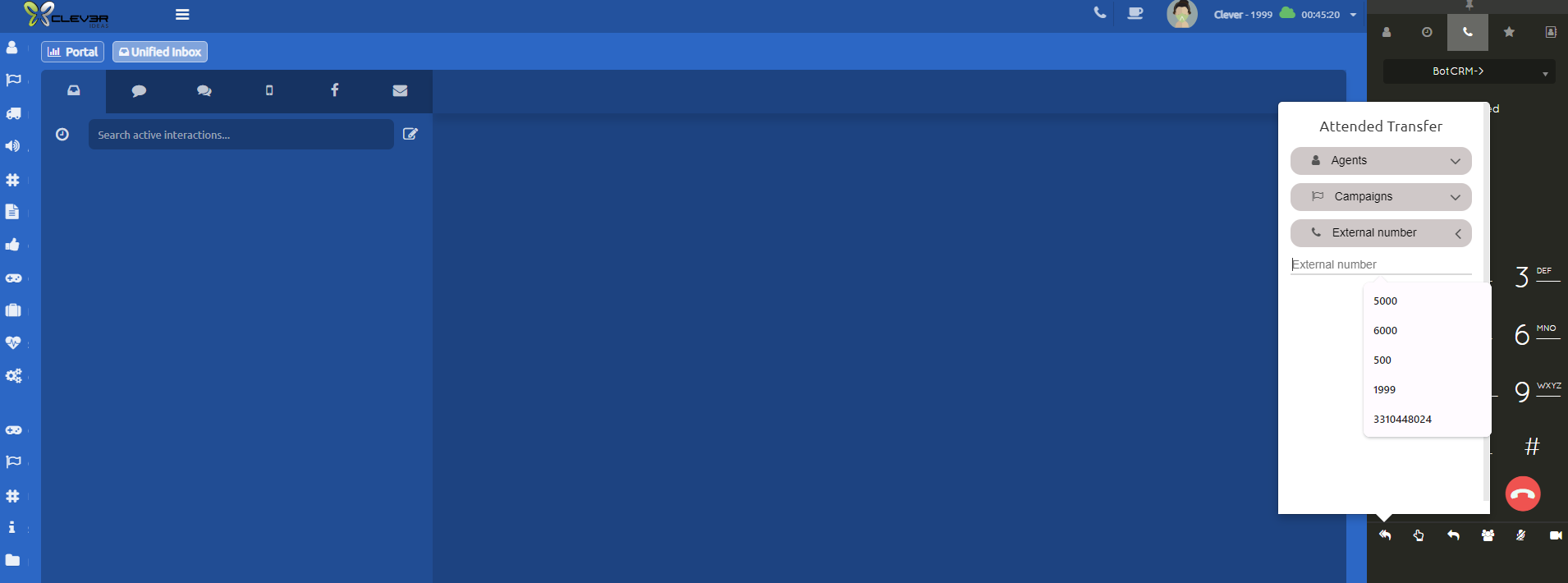
Agents: Transfer to agent belonging to a user campaign.
-
Campaigns: Transfer to an inbound campaign owned by the agent
-
External number: Transfer to a number outside of uContact.
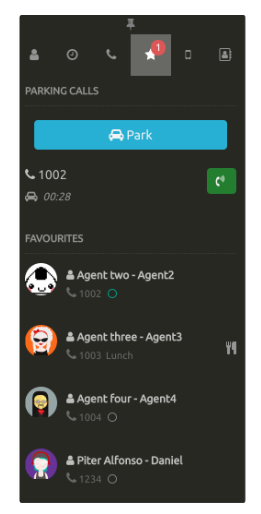
Favourites
List of agents added to favourite.
Park
When the agent has an active call and presses Parking, the receiver will be put on hold and the agent will be without an active call to make others. When you want to return to the call, press the green phone button. Another way to return to the call is to dial the list number, which is displayed to the right of the number, in the case of the previous example would be 701.
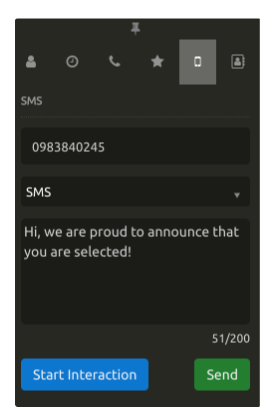
SMS
Allows sending text messages to cell phones, indicating the number to which you want to send, the campaign and the text to send.
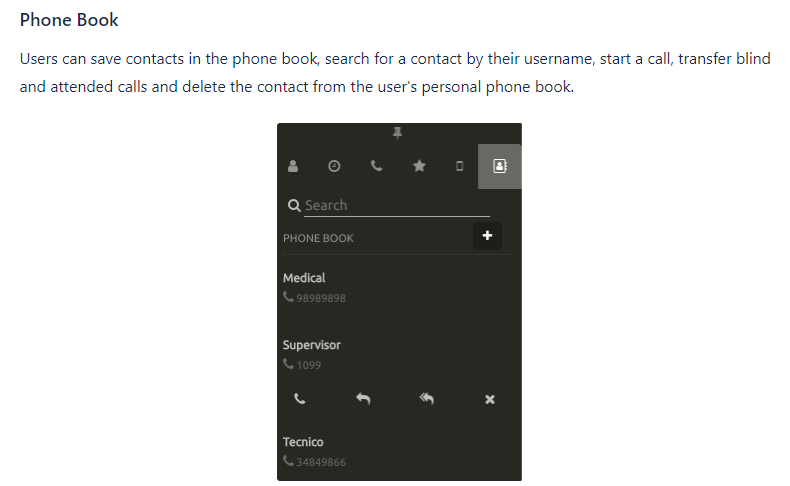
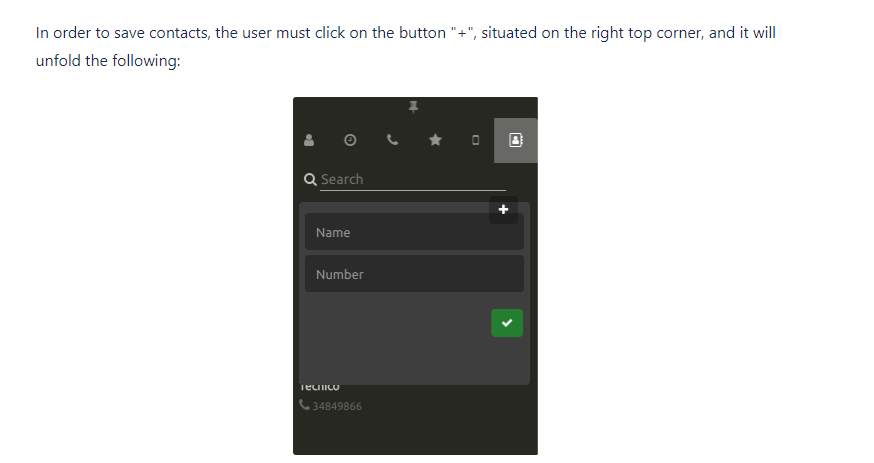
Name and number of the contact must be detailed. To finish the process click on the green button.
Show phone
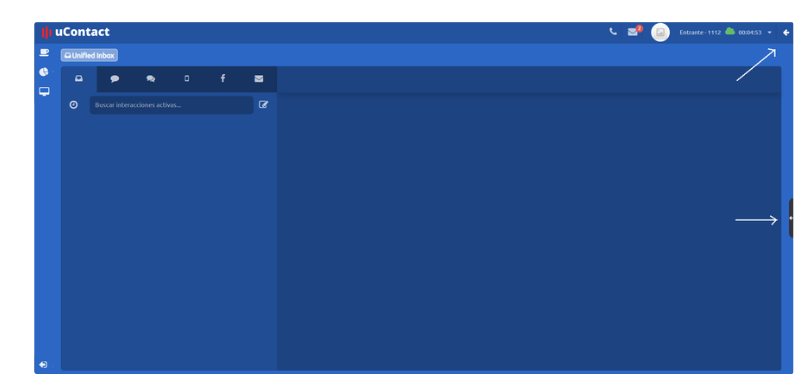
It's possible to show the tab on the right side by clicking the expand button which is located in the upper right corner or using the display button located in the right side of the screen.

Calls
Calls notification
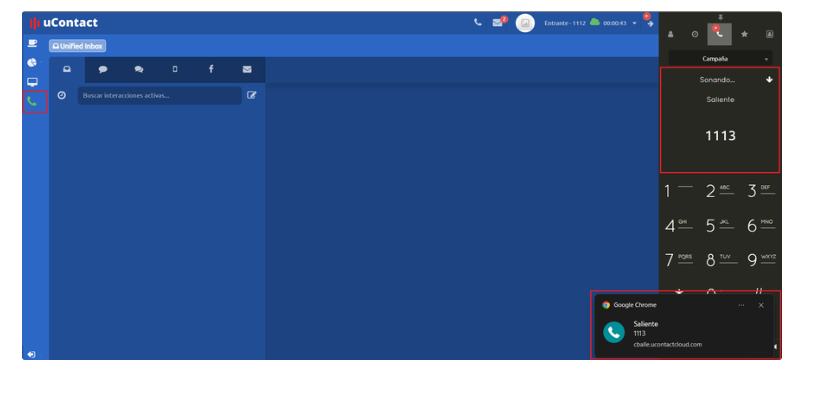
When the agent has an incoming call, he will be notified with a sound alert as well as a pop up outside the browser, or at the deploy button on the top right corner as shown in the picture.
Talking calls
On an incoming call, at the left margin an icon appears that the agent can use to take the call.
The call can also be taken by clicking the pop up as well as deploying the right margin and using the phone.
The call can be rejected by clicking on the cross to close the notification or using the hang up button of the phone.
The system also has AutoAnswer if this is defined to automatically answer the call beep sound will be heard by the Agent to know that you have a call in progress.
Once the call was attended, on the top side of the screen a timer will appear, showing the time that passed with the call being active.
Unanswered calls
In case that the agent does not take the call , it will be referred to the next available agent.
The system also has AutoAnswer. If it is defined, when taking a call, a beep sound can be heard by the agent to know that he has a call in progress.
The time that the agent has to answer the call is set to the campaign in which the agent is.
Ending calls
To end a call, the agent can click on the Cut button located on the left margin or from the agent's phone.
When a call ended by part of the agents or by client we will listen a double beep that indicates us that the call is finished.
Wrap-Up
The Wrap-Up is a time interval in which the agent can not receive any calls.
When the call ends, the agent will be on the Wrap-Up state. This is to have a controlled time to end the appropriate management.
The time can be seen in the top right of the screen as shown in the image.
Wrap-Up time is set to the campaign in which the agent is.
Unified Inbox
The agent will have all the interactions here.
The agent will look like the following interactions here
Each interaction will look like the following, having its channel icon and its details.


Interactions can be filtered by channel selecting its icon.
Transfer Interaction
The Agent may transfer the interaction to other agents or to other campaigns
Pin Interaction
By clicking on the pin, the agent will be able to maintain interactions at the top of the inbox.
Close Interaction
The Agent may end the interaction.
Search for interactions
Through this button the agent can access the search for interactions.
To access them, it must be fulfilled that: They belong to an active campaign, the agent must be the one who attended the interaction, it must be finalized and be in a range of one month.
By default, all completed interactions will be brought.
Currently you can search for interactions belonging to Email and SMS campaigns
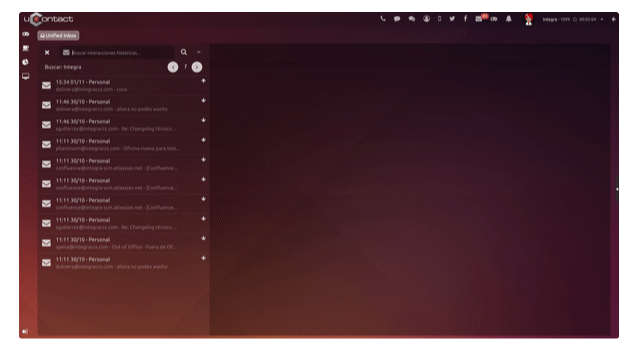
In the upper section we will find the Interaction Finder, it will look for matches in the destination mail box or the mails subject.
The same for SMS, the system will search for matches of destination numbers.
:lupa: To perform the search, the user can press the Enter key or click on the magnifying glass icon.
:Cruz: It allows to close the search engine of interactions and return to the unified inbox.
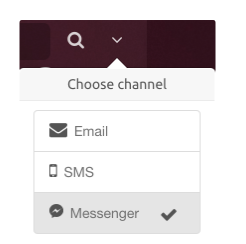
:FlechaAbajo: Allows you to change between Emails search SMS search or Messenger search (By default Emails). pressing it will display a modal like the following:
:CambioPagina: Allows you to search between results if you have more than 10 interactions that match the search criteria.
It should be noted that when you close the modal and open it again the system will show us the last search made with the current session.
The search for interactions will have a configuration option that will allow or not see interactions of other agents

Supervisor
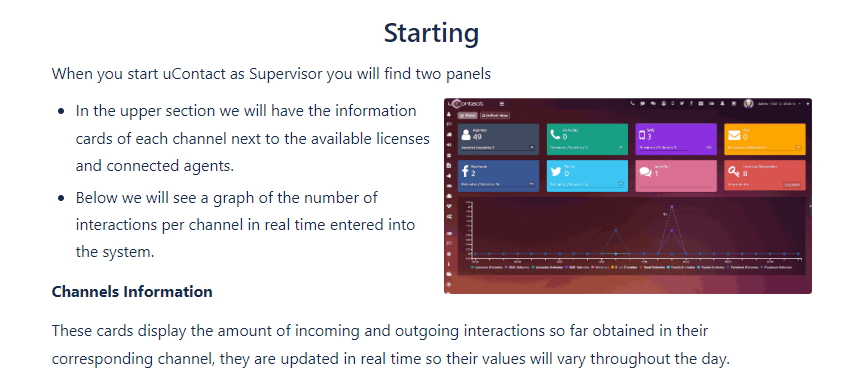
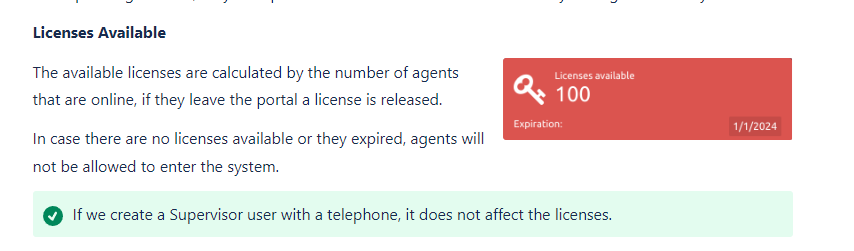
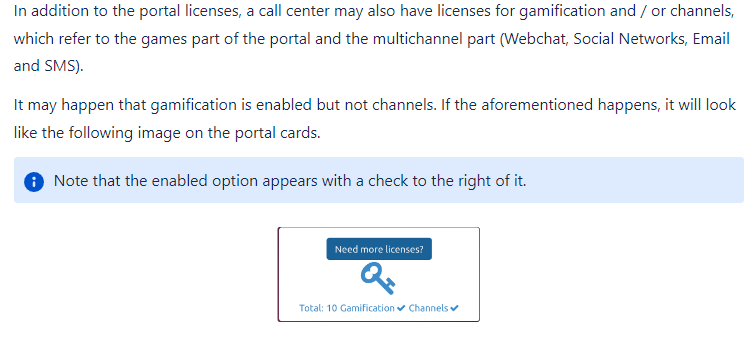
Types of licenses
Permissions
The Supervisor profile can see in the left side section all the features supported for your security group.
Administration
A user with administration permissions will have the following features in the portal.
Supervision
A user with supervision permissions will have the following features in the portal.
-
Gamification
-
Forms
Supervisor with Telephone
If we create an Agent user that has the same name and password as a Supervisor user, we will create the Supervisor with a telephone.
Unlike a normal Supervisor user, he can belong to campaigns, use the telephone and use the breaks that correspond to the following changes:
Breaks
On the top of the screen we can see a cup-shaped icon as the image shows.
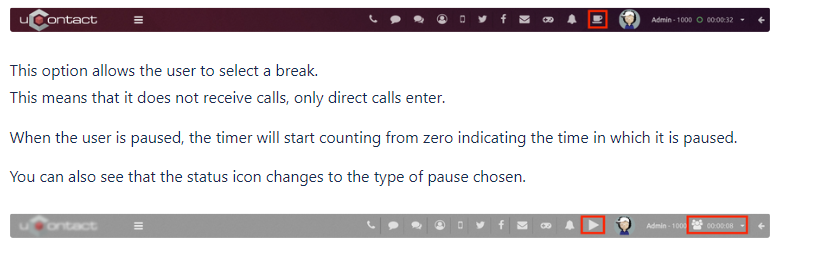
To exit the pause, just press the Play button.
Unified Inbox
Supervisor inbox works the same as Agent - Unified Inbox
Telephone
The functionalities of the telephone will work the same as in Agent - Telephone
Calls
Call options work the same as Agent - Calls
Voice
The dialers allow the creation of direct dialing campaigns using different types of channels and in different ways.
Voice Campaigns
Administration
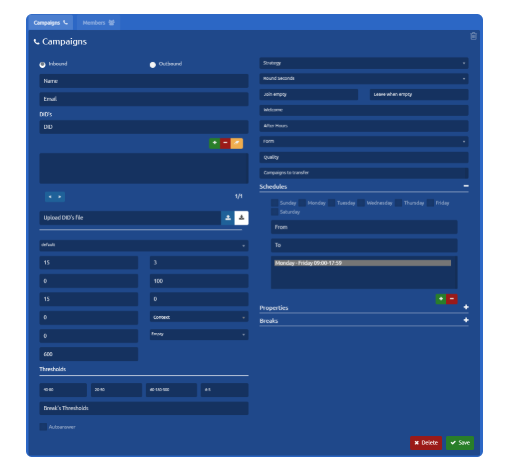
First, we must specify the type of the campaign.
There are two possibilities:
-
Inbound — Allows taking calls.
-
Outbound — Allows making calls.
Basic configuration
To create a new voice campaign, you must specify:
-
Name of the campaign.
-
DID
-
(telephone number) associated with the campaign for identification purposes.
-
-
Dial String: provider used on the outbound calls that are dialed manually.
-
Only for inbound campaigns.
-
-
Schedule
Days of the week and Hours between which the campaign will be available, that is, with agents available to answer calls.
To add a schedule setting:-
Select the Days of the week.
-
Set start and end time for selected days.
-
Add with the '+' button and our configuration will appear in the list.
-
To delete a schedule, we simply select it from the list and press the '-' button.
-

Now our campaign, it's ready to take and make calls.
Form
Here, you can define the Form that is going to be displayed when an Agent is talking to a client (as a pop-up). Read more about Forms.
But it can also be a URL, whose format must be:
-
blank:URL — In this way, indicating 'blank:' a new tab will open with the URL after each connected call
-
URL|Form Name|true — This way we open the URL in an iframe of uContact, we indicate a name with the first pipe "|" and we enable to close the form with the second.
Example
https://www.yourpage.com|FormName|true — This will display a URL in a uContact iframe.
blank:https://www.yourpage.com — This will open a browser tab with the indicated URL.

Audio
If our campaign is inbound, we can define different audios.
-
Welcome
-
A welcome message that the clients listens to when contacting the campaign.
-
-
Out of hours: Message reproduced when the campaign is out of hours.
-
In these cases, we have the Voicemail checkbox. When activated, a voicemail is assigned to the campaign.
-
In the displayed box, you must enter the voicemail number.
-
DID
-
If the DID is shorter than 5 numbers, Flow modifications are necessary. Otherwise, you can contact Integra Support.
-
Every DID corresponds to one campaign.
-
You will have more than one phone number for a campaign, joining them with the ampersand (&)
-
If you want the same DID for multiple campaigns, Flow modifications are necessary. Otherwise, you can contact Integra Support.
Caller ID for outgoing campaigns
The CALLERID can have the following format:
PREFIX#CALLERID-RANDINI-RANDFIN
The CALLERID is the only mandatory one.
By placing a prefix before the CALLERID, we indicate that we want to use it if the number to call has that prefix.
File format with different possibilities:
PREFIX1#CALLERID1-RANDINI-RANDFIN
PREFIX2#CALLERID2
PREFIX2#CALLERID1-RANDINI-RANDFIN
CALLERID3-RANDINI-RANDFIN
CALLERID4
How do you choose the dialer from the destination number?
If there are matching prefixes:
-
One is chosen at random from among them.
If no matching prefix exists:
-
It is randomly chosen among the generics. (Required at least one)
In all cases, RANDINI-RANDFIN can be used (they must have the same length).
This generates a random number within this range and concatenates that number to the chosen callerid.
You can also upload a Caller ID CSV file in the same format as shown above.
This also applies for https://integra-scm.atlassian.net/l/c/VpYZtB42
Breaks
Personalized breaks are defined for the campaign, these breaks will be seen by all the agents associated with it.
-
To add a break, Enter the name of the break, Press '+' to add the break (the break is added to the list).
-
To delete a break, select it from the list and press '-' to remove it.
When configuring a new campaign of Incoming or Outgoing type, we can find the following parameters:
Email
Campaigns email.
Wrap up
Time not to send another call after hanging up, allows the agent to finish what he is doing (ex. data entry).
Service Level
The threshold to calculate service level. The answered inside the service level in seconds.
Quality
Multiple quality models can be adjudicated here.
Transfer Campaigns
Campaigns enabled for transfers. If this field is left empty, all voice campaigns will be enabled.
Thresholds
This section allows you to set thresholds for monitoring the campaign.
Record
Whether record or not incoming calls to the inbound campaigns.
If you want to modify any of the following fields, it is important to understand the concepts and what value you add to your business.
For more information, do not hesitate to consult the following links:
Parameters
Music on Hold: Name of the type of music on hold (default: default)
Timeout: How much time the agent's phone rings.
Retry: How long to wait before trying again to all members (retry configuration does not apply to the leastrecent strategy).
Max: Maximum number of people waiting in the campaign line (0 for no limit).
Weight: Weight of the campaign, priority.
Member Delay: Waiting time that the Agent has before being able to speak to the client or listen to an advertisement.
Context: Context so that if something is typed while being in the campaign, to go to this last one.
Announce Frequency: How often, in seconds, the audio indicated in Periodic Announce is reproduced (0 is off). Time is taken from the beginning of the audio. For example: if it indicates 20, then every 20 seconds the audio will be reproduced, no matter how long this one is. Take into consideration depending on how long the audio is (it should be shorter than the announced time).
Periodic Announce: name of audio to be played from time to time during the wait. It uses the parameter “Announce frequency” to reproduce.
Auto-Answer: If checked, calls entering through this campaign will be automatically answered, not letting the agent take his/her time to answer.
Strategy:
Round Seconds:
Rounds the hold time announcement to the nearest rounding seconds configured in this option.
It controls the value to round to when we announce the caller’s hold time. For example, if the round seconds options is set to 30, instead of saying “1 minute and 23 seconds,” the value would be rounded to the nearest 30-second value, which would result in a prompt of “1 minute and 30 seconds.
Round seconds in 0, 5, 10, 15, 20, or 30 to report the caller.
Join Empty
Leave When empty: leave if the campaign is empty.
Out of time: Message reproduced when the campaign is out of time.
Voicemail: When this box is checked, the campaign gets a voicemail assigned to it with the 4-digit number the user must write. Voicemail details can be found in Voicemail.
Properties
Report Hold Time: Whether the hold time of the agents needs to be reported or not.
Timeout Restart: If selected to true, the timeout an agent has to answer the call is restarted if the actual state is BUSY or CONGESTION. This can be useful if agents are able to cancel a call with reject or similar. Also, when agents return NO ANSWER (ring, no-answer) this also causes the queue to move to the next agent in a round-robin.
Ring in Use: If it's possible to call an agent that is occupied more than one time.
Announce Time: Every how many seconds the campaign position is announced or the waiting time (0 is off).
Announce Position: If notify or not the waiting position of the client is in the queue.
Announce Hold: If the hold time is announced or not to the client.
Virtual Hold: When the client is in the queue waiting to be attended to, and he/she decides to end the call, this one remains under "virtual hold". Later in, when "virtually" is the client's turn, an automatic callback is made to her/him. (Happens with abandoned calls)
Dialing Strategies
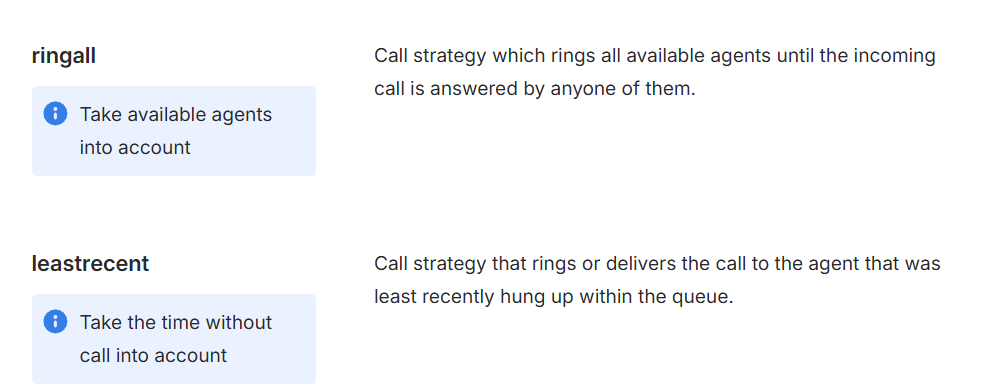
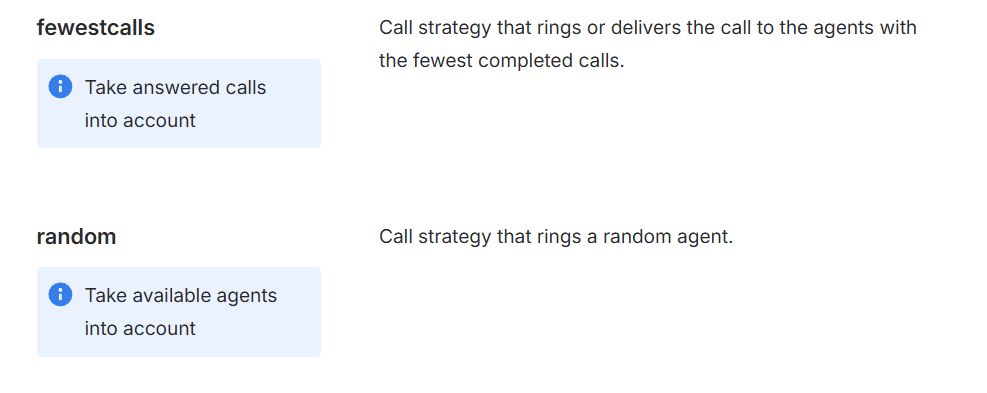
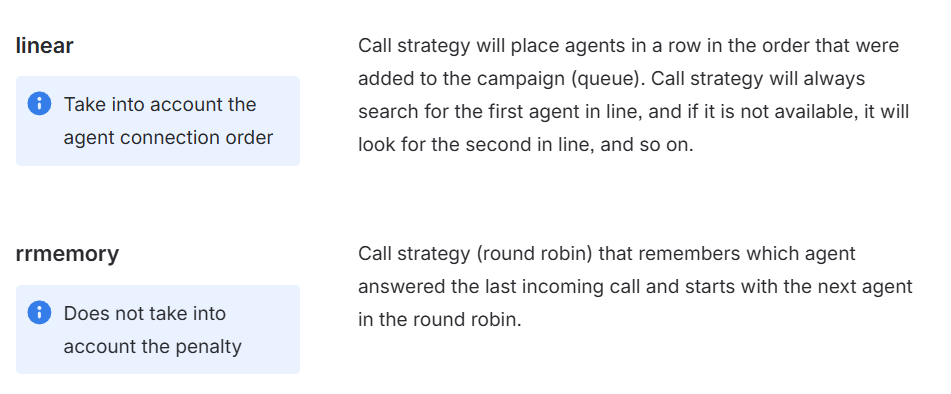
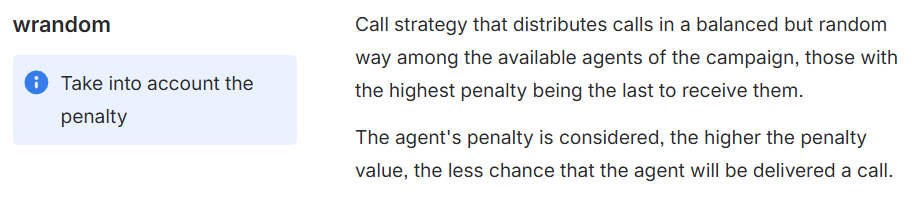
There are 7 call distribution strategies in uContact, which are:
-
ringall
-
leastrecent
-
fewestcalls
-
random
-
rrmemory
-
linear
-
wrandom
These types of strategies are determined by the agent's status at the time the call is delivered.
Flows Dialers
VoiceBroadCast
exten=> _X.,1,Set(CHANNEL(Language)=es)
exten=> _X.,2,Answer(5)
exten=> _X.,3,Set(CALLERID(num)=${EXTEN})
exten=> _X.,4,Set(CALLERID(name)=${CDR(campaign)})
exten=> _X.,5,Set(__dialed=${EXTEN})
exten=> _X.,6,Set(__REALDIALED=${EXTEN})
exten=> _X.,7,GUID(__guid)
exten=> _X.,8,Set(CDR(guid)=${guid})
exten=> _X.,9,Playback(${sound},)
exten=> _X.,10,Read(__confirma,IVRDemoDesicion,1,,1,5)
exten=> _X.,11,GotoIf($["${confirma}" = "1"]?14:12)
exten=> _X.,12,GotoIf($["${confirma}" = "2"]?9:13)
exten=> _X.,13,Hangup()
exten=> _X.,14,Set(CDR(campaign)=${CDR(campaign)})
exten=> _X.,15,Set(MONITOR_FILENAME=${guid})
exten=> _X.,16,Set(__Ani=${EXTEN})
exten=> _X.,17,Set(CDR(type)=record)
exten=> _X.,18,SipAddHeader(CTI: {"Guid": "${guid}" , "Screen": "FALSE" , "Form": "${FORM}" , "Campaign" : "${CDR(campaign)}" , "Callerid" : "${CALLERID(num)}" , "ParAndValues" : "${PARAVAL}" , "Beep" : "TRUE" , "Answer" : "TRUE" , "Dialer" : "${DIALERRECORD}"})
exten=> _X.,19,GotoIf($["${am}" = "1"]?22:20)
exten=> _X.,20,Queue(${VBQUEUE},TtKk,,,600,,,,,)
exten=> _X.,21,Goto(VoiceBroadCast,${EXTEN},13)
exten=> _X.,22,Background(silence/1,,,)
exten=> _X.,23,AMD(4000,9000,2250,15000,100,50,5,256)
exten=> _X.,24,GotoIf($["${AMDSTATUS}" = "MACHINE"]?27:25)
exten=> _X.,25,Set(__userfield=${AMDSTATUS} - ${AMDCAUSE})
exten=> _X.,26,Goto(VoiceBroadCast,${EXTEN},20)
exten=> _X.,27,Set(__userfield=${AMDSTATUS} - ${AMDCAUSE})
exten=> _X.,28,WaitForSilence(,,)
exten=> _X.,29,Playback(${amsound},)
exten=> _X.,30,Goto(VoiceBroadCast,${EXTEN},13)


exten=> h,1,Set(HASH(rates)=${ODBC_Data(select  rates.gateway\, rates.rate\, rates.cost\, rates.note FROM rates LEFT JOIN provider ON provider.name=rates.gateway WHERE provider.status = 'true' AND substring( '${EXTEN}'\, 1\, length( prefix_regexp ) ) REGEXP prefix_regexp ORDER BY length(prefix_regexp) DESC\,rates.rate ASC)})
exten=> h,2,Set(talkedminutes=${MATH(${CDR(billsec)} / 60,f)})
exten=> h,3,Set(talkedminutes=$[CEIL(${talkedminutes})])
exten=> h,4,Set(chargedbalance=${MATH(${talkedminutes} * ${HASH(rates,rate)},f)})
exten=> h,5,Set(realbalance=${MATH(${talkedminutes} * ${HASH(rates,cost)},f)})
exten=> h,6,Set(CDR(charged_balance)=${chargedbalance})
exten=> h,7,Set(CDR(real_balance)=${realbalance})
exten=> h,8,Set(CDR(note)=${HASH(rates,note)})
exten=> h,9,Set(CDR(carrier)=${HASH(rates,gateway)})
exten=> h,10,Set(CDR(userfield)=${userfield})
exten=> h,11,Set(CDR(direction)=outgoing)
exten=> h,12,Set(CDR(causecode)=${HANGUPCAUSE})
exten=> h,13,Hangup()
Progressive, Preview
exten=> _XXXXX.,1,Set(VOLUME(TX)=2)
exten=> _XXXXX.,2,Set(VOLUME(RX)=2)
exten=> _XXXXX.,3,Set(__OUTQUEUE=${CDR(campaign)})
exten=> _XXXXX.,4,Set(__DIALED=${EXTEN})
exten=> _XXXXX.,5,Set(__AGENT=${OUTAGENT})
exten=> _XXXXX.,6,Set(__guid=${OUTGUID})
exten=> _XXXXX.,7,Set(did1=${CUT(OUTDID,-,1)})
exten=> _XXXXX.,8,Set(did2=${CUT(OUTDID,-,2)})
exten=> _XXXXX.,9,GotoIf($["${did2}"==""]?26:10)
exten=> _XXXXX.,10,Set(digit1len=${LEN(${did1})})
exten=> _XXXXX.,11,Set(digit1len=${MATH(${digit1len} - 2,i)})
exten=> _XXXXX.,12,Set(randDID=${RAND(${did1:-2},${did2})})
exten=> _XXXXX.,13,Set(CALLERID(num)=${did1:0:${digit1len}}${randDID})
exten=> _XXXXX.,14,Set(CALLERID(name-pres)=${CALLERPRESS})
exten=> _XXXXX.,15,Set(dummy=${ODBC_Data(UPDATE calls_spool set status =0\, retries = retries + 1 WHERE contact = ${CDR(contact)} AND destination = '${EXTEN}')})
exten=> _XXXXX.,16,Set(CDR(guid)=${guid})
exten=> _XXXXX.,17,Set(CDR(type)=record)
exten=> _XXXXX.,18,MixMonitor(${guid}.gsm,b,)
exten=> _XXXXX.,19,Set(CDR(accountcode)=${AGENT})
exten=> _XXXXX.,20,Set(__idLlamada=${guid})
exten=> _XXXXX.,21,Set(__REALDIALED=${EXTEN})
exten=> _XXXXX.,22,Dial(${DIALSTRING:0:-1}/${EXTEN},30,ctTM(RECORD),)
exten=> _XXXXX.,23,Set(CDR(causecode)=${HANGUPCAUSE})
exten=> _XXXXX.,24,NoOp(${DIALSTATUS} - ${HASH(SIP_CAUSE,${CDR(dstchannel)})} -  ${HANGUPCAUSE})
exten=> _XXXXX.,25,Hangup()
exten=> _XXXXX.,26,Set(CALLERID(num)=${OUTDID})
exten=> _XXXXX.,27,Goto(Progressive,${EXTEN},14)


exten=> h,1,Set(HASH(rates)=${ODBC_Data(select  rates.gateway\, rates.rate\, rates.cost\, rates.note FROM rates LEFT JOIN provider ON provider.name=rates.gateway WHERE provider.status = 'true' AND substring( '${EXTEN}'\, 1\, length( prefix_regexp ) ) REGEXP prefix_regexp ORDER BY length(prefix_regexp) DESC\,rates.rate ASC)})
exten=> h,2,Set(talkedminutes=${MATH(${CDR(billsec)} / 60,f)})
exten=> h,3,Set(talkedminutes=$[CEIL(${talkedminutes})])
exten=> h,4,Set(chargedbalance=${MATH(${talkedminutes} * ${HASH(rates,rate)},f)})
exten=> h,5,Set(realbalance=${MATH(${talkedminutes} * ${HASH(rates,cost)},f)})
exten=> h,6,Set(CDR(charged_balance)=${chargedbalance})
exten=> h,7,Set(CDR(real_balance)=${realbalance})
exten=> h,8,Set(CDR(note)=${HASH(rates,note)})
exten=> h,9,Set(CDR(carrier)=${HASH(rates,gateway)})
exten=> h,10,Set(CDR(userfield)=${userfield})
exten=> h,11,Set(CDR(direction)=outgoing)
exten=> h,12,Set(CDR(causecode)=${HANGUPCAUSE})
exten=> h,13,NoCDR()
exten=> h,14,QueueUpdate(${OUTQUEUE},${UNIQUEID},${AGENT},${DIALSTATUS},${ANSWEREDTIME},${DIALEDTIME}|${DIALED}|${IdLlamada}|)
exten=> h,15,Hangup()
PowerDialer, Predictive
exten=> _X.,1,Set(CHANNEL(Language)=es)
exten=> _X.,2,Answer(0)
exten=> _X.,3,Set(CALLERID(num)=${EXTEN})
exten=> _X.,4,Set(__dialed=${EXTEN})
exten=> _X.,5,Set(__REALDIALED=${EXTEN})
exten=> _X.,6,Set(__Ani=${EXTEN})
exten=> _X.,7,GUID(__guid)
exten=> _X.,8,Set(CDR(guid)=${guid})
exten=> _X.,9,Set(CDR(campaign)=${CDR(campaign)})
exten=> _X.,10,Set(MONITOR_FILENAME=${guid})
exten=> _X.,11,Set(CDR(type)=record)
exten=> _X.,12,SipAddHeader(CTI: {"Guid": "${guid}" , "Screen": "FALSE" , "Form": "${FORM}" , "Campaign" : "${CDR(campaign)}" , "Callerid" : "${CALLERID(num)}" , "ParAndValues" : "${PARAVAL}" , "Beep" : "TRUE" , "Answer" : "TRUE" , "Dialer" : "${DIALERRECORD}"})
exten=> _X.,13,GotoIf($["${am}" = "1"]?16:14)
exten=> _X.,14,Queue(${CDR(campaign)},TtKk,,,600,,,,,)
exten=> _X.,15,Hangup()
exten=> _X.,16,Background(silence/1,,,)
exten=> _X.,17,AMD(6000,1500,800,2500,100,50,3,256)
exten=> _X.,18,GotoIf($["${AMDSTATUS}" = "MACHINE"]?19:14)
exten=> _X.,19,Set(__userfield=${AMDSTATUS} - ${AMDCAUSE})
exten=> _X.,20,GotoIf($[${RETRY} <= ${MAXRETRIES}]?22:21)
exten=> _X.,21,Hangup()
exten=> _X.,22,Set(dummy=${ODBC_Data(DELETE FROM calls_spool  WHERE  contact = ${CDR(contact)} )})
exten=> _X.,23,Set(dummy=${ODBC_Data(INSERT INTO calls_spool VALUES(${DIALERRECORD}))})
exten=> _X.,24,Goto(PowerDialer,${EXTEN},21)


exten=> h,1,Set(HASH(rates)=${ODBC_Data(select  rates.gateway\, rates.rate\, rates.cost\, rates.note FROM rates LEFT JOIN provider ON provider.name=rates.gateway WHERE provider.status = 'true' AND substring( '${EXTEN}'\, 1\, length( prefix_regexp ) ) REGEXP prefix_regexp ORDER BY length(prefix_regexp) DESC\,rates.rate ASC)})
exten=> h,2,Set(talkedminutes=${MATH(${CDR(billsec)} / 60,f)})
exten=> h,3,Set(talkedminutes=$[CEIL(${talkedminutes})])
exten=> h,4,Set(chargedbalance=${MATH(${talkedminutes} * ${HASH(rates,rate)},f)})
exten=> h,5,Set(realbalance=${MATH(${talkedminutes} * ${HASH(rates,cost)},f)})
exten=> h,6,Set(CDR(charged_balance)=${chargedbalance})
exten=> h,7,Set(CDR(real_balance)=${realbalance})
exten=> h,8,Set(CDR(note)=${HASH(rates,note)})
exten=> h,9,Set(CDR(carrier)=${HASH(rates,gateway)})
exten=> h,10,Set(CDR(userfield)=${userfield})
exten=> h,11,Set(CDR(direction)=outgoing)
exten=> h,12,Set(CDR(causecode)=${HANGUPCAUSE})
exten=> h,13,GotoIf($["${ABANDONED}" == "TRUE"]?15:14)
exten=> h,14,Hangup()
exten=> h,15,Set(dummy=${ODBC_Data(DELETE FROM calls_spool  WHERE  contact = ${CDR(contact)})})
exten=> h,16,Set(dummy=${ODBC_Data(INSERT INTO calls_spool VALUES(${DIALERRECORD}))})
exten=> h,17,Goto(PowerDialer,${EXTEN},14)
Omnichannel
Ring Strategies
Webchat
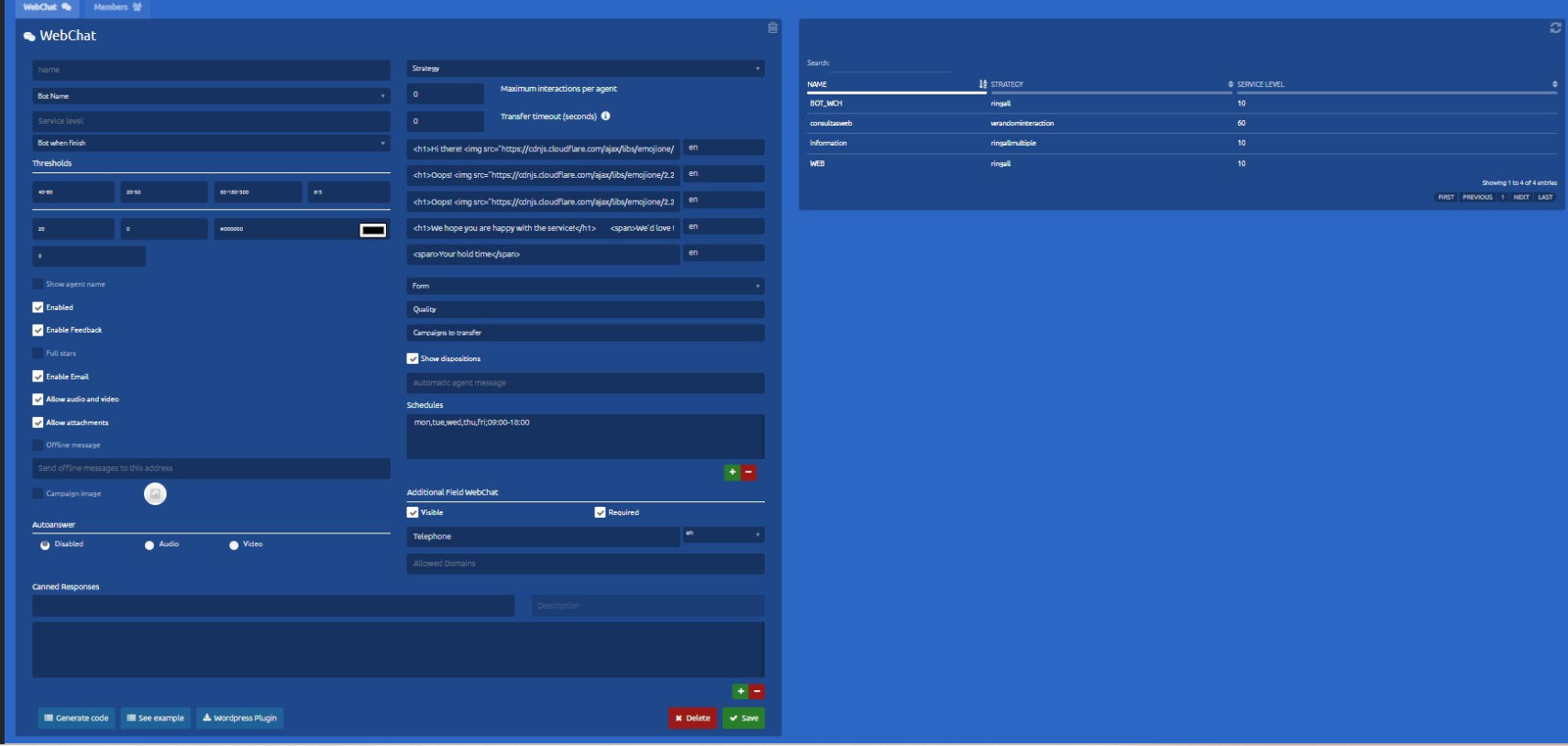
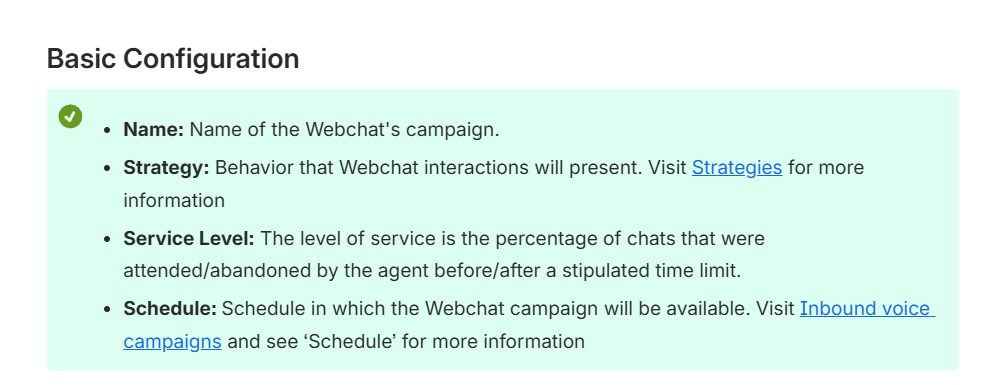
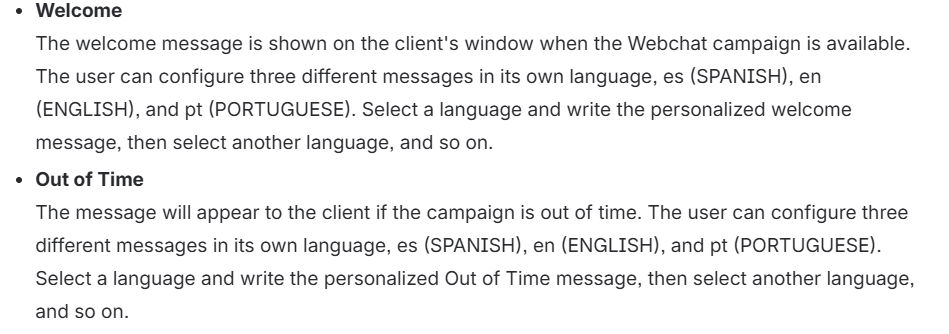
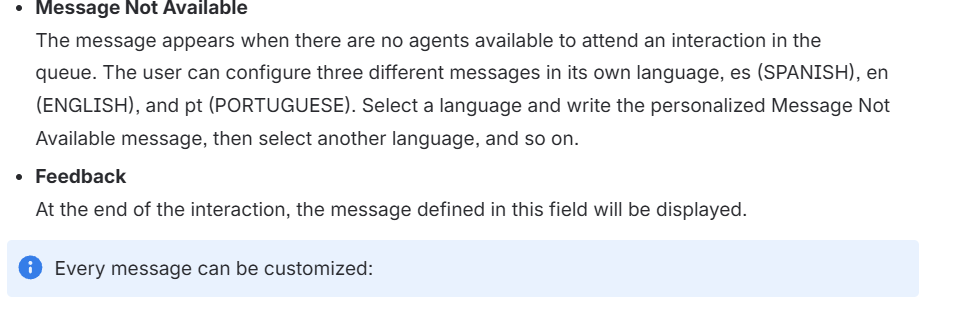
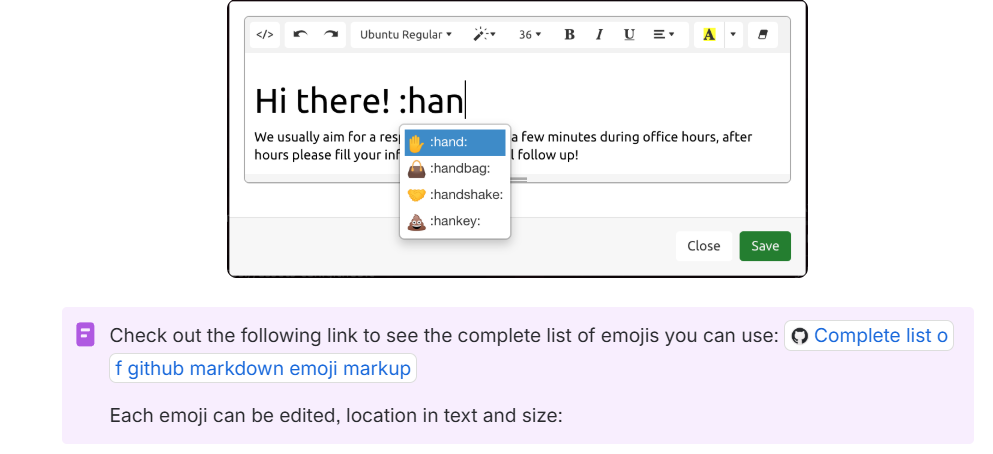
Campaign Settings
Here Webchat campaigns will be created.
The configuration screen looks like the following:
Email Management
To manage the configuration of the email campaigns in uContact, it is necessary to have a user with administrator permissions in the system.
Basic email settings
Here you can create email campaigns.
Campaign data
-
Name
Name of the email campaign. -
Service level
It is the time in which the interactions that arrive at the campaign must be answered, if the waiting time is greater than that stipulated in the field, the level of service drops. -
Strategy
It is the behavior that the campaign will have. For more information on the different strategies. -
Schedules
Schedule in which the campaign will be available, that is, with available agents to handle interactions. To add a schedule configuration is with the '+' button or remove a selected one from the list with the '-' button. -
From name
It is the name with which the email account assigned to the campaign is displayed when it reaches the recipient.
Email Data
-
Account
It is the mail by which emails will be received. -
Password
The password assigned to the account. If it is written incorrectly, it will not be possible to create the new campaign, the user will be warned in case this happens. -
Outbound SMTP
Protocol for simple transfer of assigned mail. This is mandatory to send emails. -
Inbound IMAP
Internet message access protocol assigned. This is mandatory only if Receive Emails is active. -
Port
Port number assigned for each protocol.

Parameters
Maximum interactions per agent
The number of interactions of this campaign that the agent can have at the same time. It is only required for the nocall strategy.
Enabled
If it is checked, the campaign can be used.
Receive Emails
If enabled, emails sent to the configured email address will be queued as an interaction to the portal. In addition, the IMAP and POP fields will be mandatory. If this checkbox is empty, the campaign will not require incoming ports and will not receive emails either, but it will be able to send.
Signature
Within the Templates section, a signature template can be created and assigned here. When an agent answers/composes an email via this campaign, the assigned signature will be loaded automatically.
Enable qualification
When this check is active, it enables two more fields that are used to configure the qualification of outgoing emails.
SMS / WAB
SMS/Whatsapp Providers
For more information on the creation of SMS or Whatsapp providers, go to the corresponding pages: SMS Whatsapp APIs
SMS/Whatsapp Campaigns
After creating the provider, we can start creating SMS/Whatsapp campaigns.
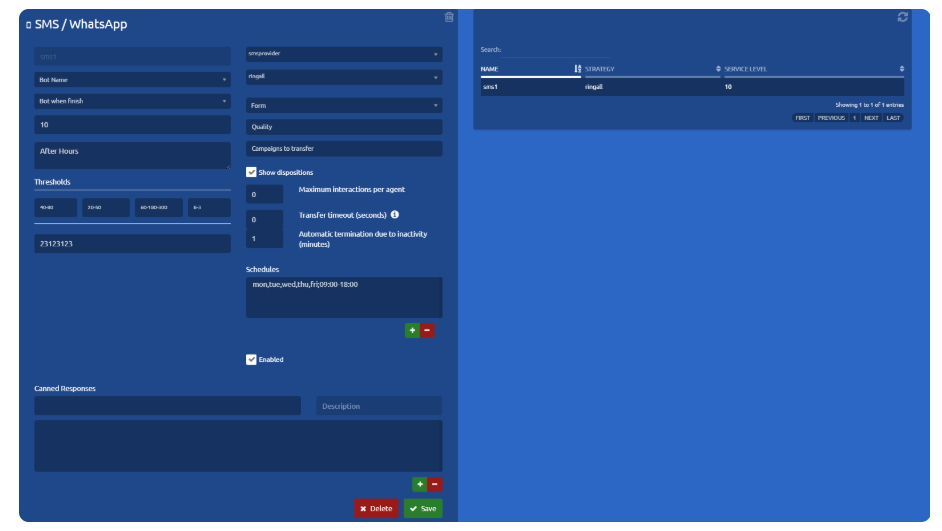
Basic settings
-
Name
Name to identify the SMS/Whatsapp campaign. -
Service level
The service level is the percentage of interactions that were attended/abandoned by the agent before/after a stipulated time limit. -
DID-Ports
In this field, you must enter a code (telephone number, alphanumeric, id, etc.) associated with the campaign for identification purposes. Generally, this information is provided by the provider and may vary. -
SMS provider
Clicking on the combo displays a list of all the SMS/Whatsapp providers that are registered in the system. -
Strategy
It is the behavior that the campaign will have. To learn more about the different strategies go to Strategies - Omnichannel. -
Schedule
The hours in which the SMS campaign will be available, that is, with agents available to answer customer SMS. To add a schedule configuration you must add with the '+' button and a new window will appear or remove a selected one from the list with the '-' button.

Advanced settings
These parameters already have a default value for the correct operation of the campaign.
To know more go to Important Concepts - Omnichannel.
Out of time
This will be the message that will be sent to the client if he sends a message while the campaign is out of hours.
Thresholds
These are metrics to carry out the statistics of the campaigns in real-time, they are measured in time (seconds).
-
Service level
It is the expected time limit for the response of the chats by an agent. -
Churn rate
It is the elapsed time of chats to consider that they were abandoned by customers during the day. -
Chat time
Time elapsed to consider that the chat between agent and client reached the limit. -
ACD
The maximum number of customers waiting to be answered by a chat agent.
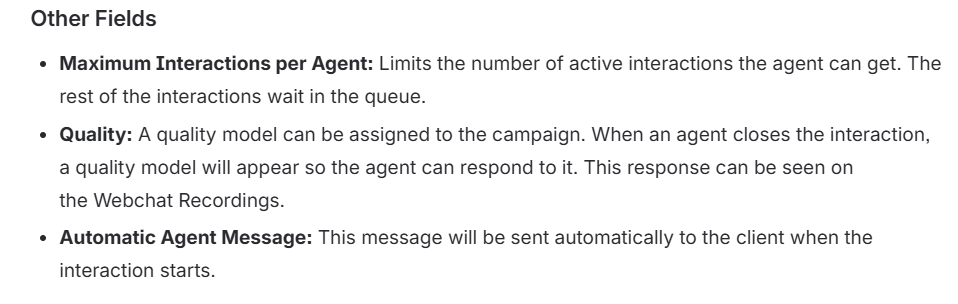
Maximum interactions by agent
Limits the number of active interactions an agent can have. The remaining interactions are queued. It is only used for nocall strategies.
Automatic termination due to inactivity (minutes):
This setting allows you to configure the inactivity timeout (in minutes) after which an interaction will be automatically terminated. The timer starts only when an agent has the interaction assigned.
If the interaction is in a queue (for example, in a campaign) or is being transferred, the timeout does not run. Once the interaction is attended again, the inactivity timer resets to zero.
The same applies to incoming interactions: the inactivity timer begins only when an agent starts handling the interaction, not when it enters the queue.
If the configured value is 0, automatic termination is disabled, meaning interactions will not be automatically closed due to inactivity.
Campaigns to Transfer: At this point, one or more campaigns can be selected; these will be the only ones to which generated interactions can be transferred. If none are specifically selected, transfers will be allowed to all campaigns. Additionally, dialers can also be selected. Selecting a dialer as a “campaign to transfer” does not enable transferring interactions to the dialersthemselves. However, when both settings — “Historic interactions from all campaigns” and “Show only campaigns available for transfer” — are enabled, the active interaction history will also load messages sent by the dialers selected as “campaigns for transfer” when loading previous messages.
Enabled
The system can have a campaign registered that is not running without having to delete it completely, in this way the supervisor will not lose relevant data. If it is checked, the campaign can be used.
Pre-setted responses
The campaign may have pre-written responses, which makes it easier and faster for the agent to interact with the customer.
Recordings
Sending to external storage
Security
Based on these considerations, they must also be taken into account for the antivirus scanning policies that may be installed on the computers, avoiding scanning or denial of access for security reasons.
Considerations
The network where agents are working, must consider the following
-
Port 3478 UDP/TCP must be opened at least for the host stun.ucontactcloud.com
-
Port 8089 UDP/TCP must be opened at least for the host (ucontactinstance).ucontactcloud.com
-
Port 443 UDP/TCP must be opened at least for the host (ucontactinstance).ucontactcloud.com
-
Ports 10000-2000 UDP must be opened at least for the host (ucontactinstance).ucontactcloud.com
-
Access to the site http://cacerts.geotrust.com/GeoTrustRSACA2018.crt and redirector.gvt1.com/ must be enabled in order to allow browsers to validate uContact SSL certificate.
-
Enable access to the activator license site: us-central1-licenciator.cloudfunctions.net/api/servers/getLicence
-
Enable access to monitoring tool: monitor.ucontactcloud.com
-
Access to the following IP´s (104.197.204.63 , 74.125.134.127) used by google chrome.
-
Verify that SIP - ALG is not active on the local or border network devices.
-
Verify that IPS - detection is not active because it can cause VoIP packet discard and voice problemas (unespected call drops).
-
Domain *.github.com must be enable for system updates
Based on this considerations, the policy of the antivirus used on the workstations they must be actuated in order to avoid port scan, blocking or denying the access by security reasons.
ISO 27001
The international standard ISO 27001 allows the assurance, confidentiality, and integrity of data and information and the systems that process it. This allows organizations to analyze risk and apply the necessary controls to eliminate it.
If we go to the system configuration, we find the following options that will help us establish a more secure system for our users.
Within the company message option, you can set a warning message from the company, which will appear every time the agent logs in. The system will also display the date and time of the user's last logged-in session.
IMAGEN
Among the security measures it establishes are:
Password expires after a certain number of days. (Modifiable)
- Request mandatory password change after it is updated by the supervisor or for the first time the user logs in.
Account lockout after certain unsuccessful password entry attempts. (Modifiable)
At the time of changing the password, do not allow to use of the last X amount of passwords used. (Modifiable)
The system has three different states for users:
- Asset.
- Inactive.
- Blocked (due to failed login attempts).
The user is disabled if they do not log in to uContact after a certain number of days. (Modifiable)
Password Format sets the complexity that agent passwords should have. Here you can configure if you should have:
- lower case
- Capital letters
- Numbers
- Special characters
- and the minimum length of characters
If we go to the creation of agents, we can find the following fields available:
LOGIN SCHEDULE
The possibility of creating a login schedule establishes certain days of the week and hours in which the agent can connect to the system.
TEMPORARY ACCOUNT
There is also the opportunity to create temporary users, that is, an account is created that has a forced expiration on the date established in the fields.
PCI Compliance
PCI is the Payment Card Industry Data Security Standard, also known as PCI DSS and is an exclusive information security standard administered by the Security Standards Council and makes reference to a standard that contains a series of security requirements that all merchants, large or small, must comply with, this standard applies to any company that processes, stores or transmits credit card data, therefore the merchant must have a "PCI Certificate" that guarantees that all its processes and tools that it uses comply with the necessary security regulations to guarantee the integrity of the information, for which reason the uContact Omnichannel Contact Center software is "PCI Compliance" because it complies with the most common requirements that the client's process requires for its certification.
Some basic compliance requirements that some processes are required and are included in uContact are:
- Use a 128bit SSL certificate. In short: Protect data. Encrypt any public transmission of data.
- ISO 27001 Security of handling and protection of information
- ISO 27002 business continuity management process
- Install and maintain a firewall configuration to protect data.
- Do not use vendor defaults for system passwords and other security settings.
- Encrypt the transmission of cardholder data over open, public networks.
- Restrict access to data on a business need-to-know basis.
- Assign a unique ID to each person with access to the system.
- Perform regular access and security checks to network resources and data.
- Maintain a security policy and make sure all staff is aware of it.
In addition, Google Cloud undergoes an annual third-party audit to certify that all of its products are PCI DSS compliant. This means that the services provided an infrastructure on which customers can build their own services or applications for storing, processing, or transmitting cardholder data.
It is important to note that customers remain responsible for ensuring that their applications are PCI DSS compliant.
Infrastructure
Architecture
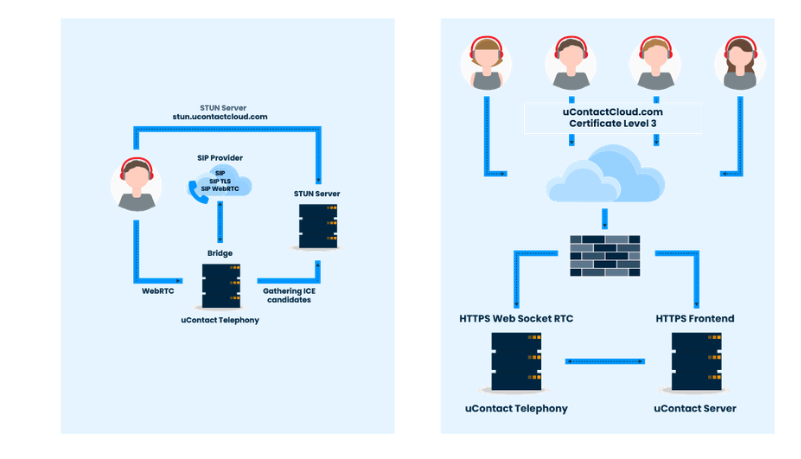
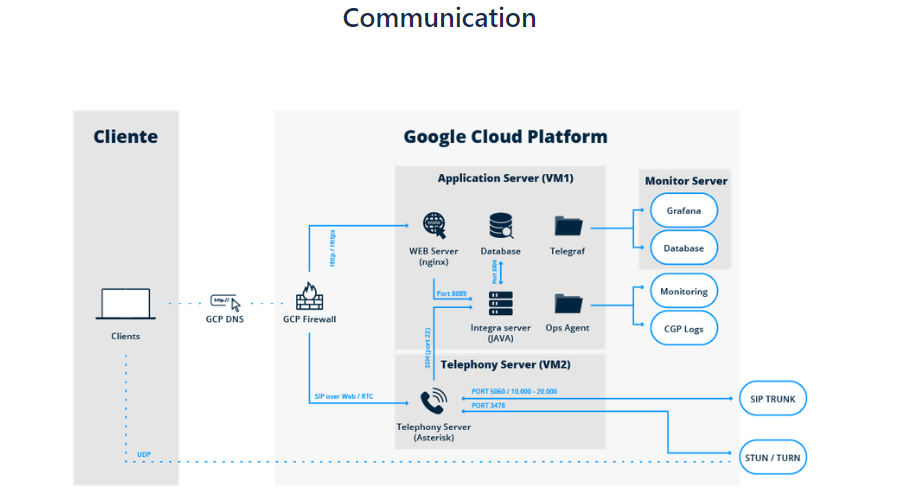
The connection is via HTTPS with a level 3 certificate via (https://xxxx.ucontactcloud.com), uContact uses HTTPS (http2) with a REST API and Secure Websockets (wss).
The connection is made through Secure Websockets https://xxxx.ucontactcloud.com:8089/ws (for SIP signaling).
Our STUN Server (stun.ucontactcloud.com)
Agent and Telephony server negotiate with STUN Server gathering ICE candidates.
After that the connection is made from the agent to the telephony server, bridging the communication with the telephony provider (via SIP, SIP TLS, SIP WebRTC).
The telephony server does the bridging to host all the recordings, transcoding, etc.
Codecs: We use alaw, ulaw, opus, vp8, h264. Al the transcoding part takes action in the telephony server.
QoS: We can do TOS and COS tag (on the server-side) the packets with multiple parameters in different actions (video, audio, text)
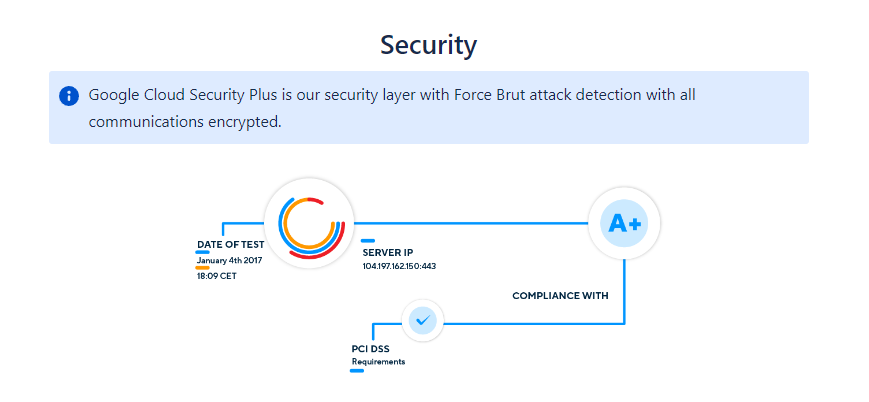
The server prefers cipher suites supporting Perfect-Forward-Secrecy.
The server provides HTTP Strict Transport Security.
The server provides HTTP Public Key Pinning.
X-XSS-Protection
Hardware Sizing (On-Premise)
|
Size |
Agents |
Telephony |
Backend |
Database |
|---|---|---|---|---|
|
Small |
< 30 |
1 |
0 |
0 |
|
Medium |
< 500 |
1 |
1 |
0 |
|
Big |
> 500 |
1 |
1 |
1 |
Accepted Telecommunications Equipment
Digium or Sangoma Cards, Xorcom, Dinstar, KHOMP, SIP Gateways, SIP Hardphones.
The teams of agents and supervisors must have the following minimum requirements:
Agent Desktop
-
Processor: Core i5 2.0 GHz
-
Memory: 8GB RAM
-
Resolution: 1366 x 768 (minimum)
-
Disk: 160 GB
-
Chrome browser
-
2mb symmetric internet connection
Supervisor Desktop
-
Processor: Core i5 2.5 GHz
-
Memory: 8 GB RAM
-
Resolution: 1366 x 768 (minimum)
-
Disk: 160 GB
-
Chrome browser
Component Versions
BBDD: Mysql: 8 or 5.7
WebServer: NGINX 1.17. 0 (latest)
OS: Ubuntu 20.04, 18.04, 16.04
Telephony: Asterisk Modificado branch 13
Frontend: HTML5 y JS
Backend: Java 8
Structure
1/etc/IntegraServer/web/
2                        IntegraPortalWS.war
3						IntegraChannels.war
4						IntegraGamification.war
5                        /forms/
6                        /images/
7                        /uContact/
8                        /workflowdesigner/
9                        /formsdesigner/
10                        /tmp/
11						/webchatclient/
12 /etc/IntegraServer/reports/
13/etc/IntegraServer/server/
14							IntegraServer.jar
15							/jasper/*.jar
16							/jdbc/*.jar
17							/mail/*jar
18							/others/*.jar
19							/ssh/*.jar
20							/ws/*.jar
Network requirements for video calls
Bandwidth
-
1MB/s simétrico
Latency for toll-quality
-
<100 ms total
Jitter
-
< 20 ms jitter
Packet loss
-
< 1 % for voice calls
Codec
-
VP8
Network requirements for VoIP
Bandwidth
-
256 kbps per call
Latency for toll-quality
-
<100 ms total
Jitter
-
< 20 ms jitter
Packet loss
-
< 1 % for voice calls
Codec
-
ulaw, alaw
Required recordings Storage (audio y video)
|
Duration |
Required Storage for audio (.gsm) |
Required Storage for video (.webm) |
|---|
|
Duration |
Required Storage for audio (.gsm) |
Required Storage for video (.webm) |
|---|---|---|
|
1 Minute |
100 kb |
1.5 MB |
|
10 Minutes |
1 MB |
20 MB |
|
20 Minutes |
2.8 MB |
44 MB |
|
30 Minutes |
3.8 MB |
100 MB |
Computer equipment
Terminal Agents and Supervisors
The teams of agents and supervisors must have the following minimum requirements:
Agent Desktop
Processor: Core i5 2.0 GHz.
Memory: 8GB RAM.
Minimum resolution: 1366 x 768 (minimum)
Minimum disk: 160 GB
Internet browser: Chrome (or any browser that is part of the “CHROMIUM” project) (Firefox is not recommended)
2Mb upload/downlink link
Supervisor Desktop Computer
Processor: Core i5 2.5ghz
Memory: 8 GB RAM
Minimum resolution: 1366 x 768 (minimum)
Minimum disk: 160 GB
Internet browser: Chrome (preferably)
guides
uContact Guides
Conference Calls - ENG
- Step 1: Initially, when the call is in progress and to initiate a conference or a multi-way call, we will press the fourth icon shown at the bottom of the Softphone, (Conference Button):
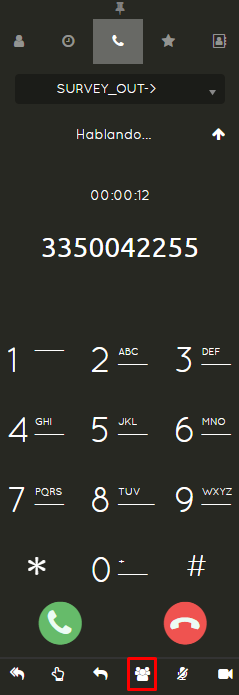
Subsequently, the client/bank or whoever we were talking to will move to the conference room, and apparently the Softphone will end the call.
- Step 2: Then we will make a call to another telephone number, which we also need to bring into the conference. And so on with all the participants we need to add.
We will apply step 1 to the calls that we need to bring into the conference, as many times as necessary.
- Step 3: Once we have sent the required calls to the conference and without having any active call, we will press the conference button, which will send us to the conference room where both people from the previously sent calls are already present.
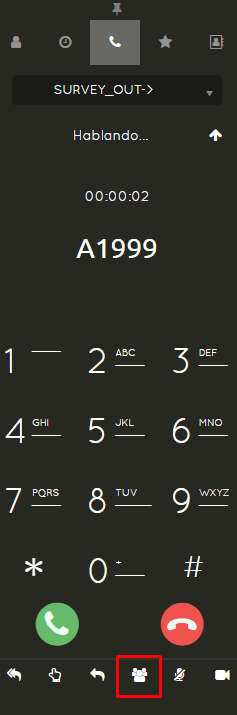
It's important to mention that the people/calls sent to the conference, while in the waiting room, will not be able to hear each other until the administrator joins the conference. Only then will the call have group communication between all participants.
The administrator can remove the last person who entered the conference by pressing *3, and so on if it's necessary to remove the last participants entered. Otherwise, they can simply end the call.
Transfer calls - ENG
In uContact, there are two features that will help us perform effective call transfers.
Attended Transfer
This transfer, as the name indicates, must be answered by the destination person to whom the call is being transferred. It allows communication between the person transferring and the person receiving the transfer, and until the latter answers the call, the transfer will not be completed
Blind Transfer
-Unlike the attended transfer, in this one it does not matter if the destination is available to take the call; it is simply transferred. If it is to an agent or campaign, and at that moment it cannot be attended to, it will go to the agent's or campaign's queue, respectively. In this transfer, there will be no communication between the person transferring and the destination.
The buttons for both types of transfers are located in the Softphone toolbar.
The attended transfer is the first option, showing an icon of two arrows.
The blind transfer is the third option, showing an icon of one arrow.
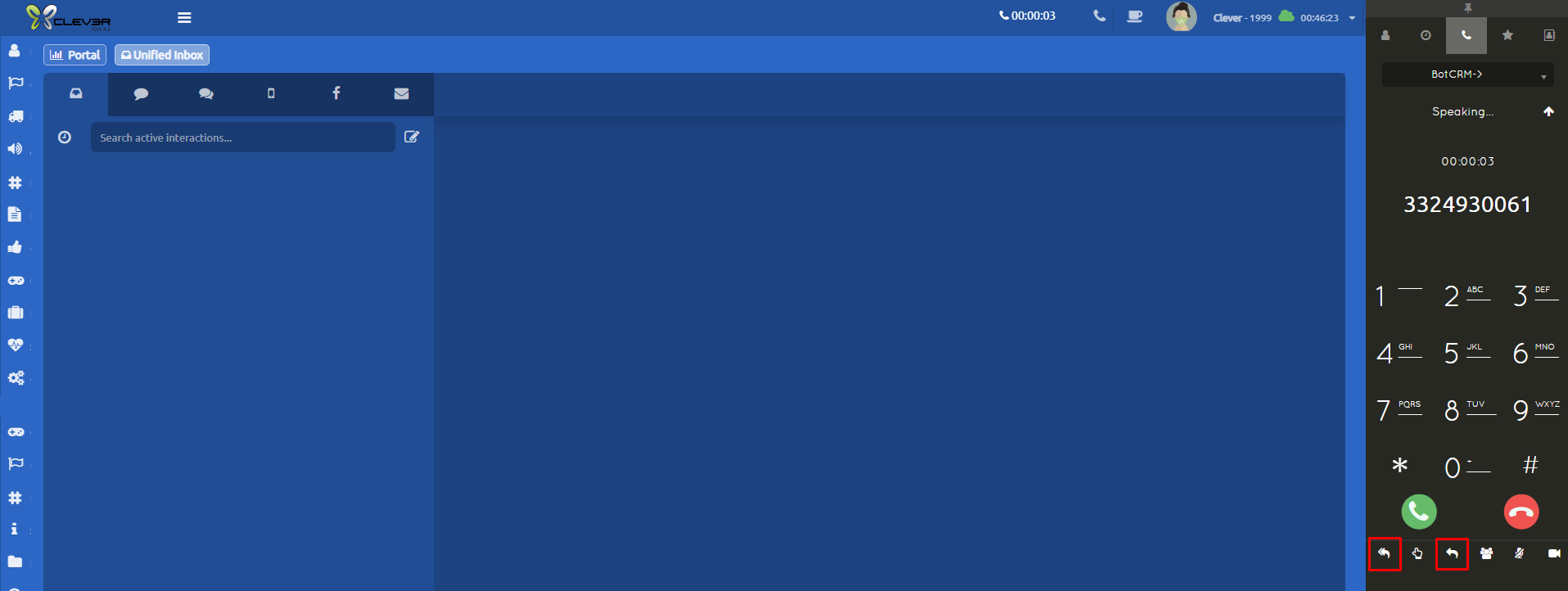
When selecting either of the two transfer icons, whether Attended or Blind, the following menu will be displayed, offering 3 destination options for the transfer: Agents, Campaigns, and External Number
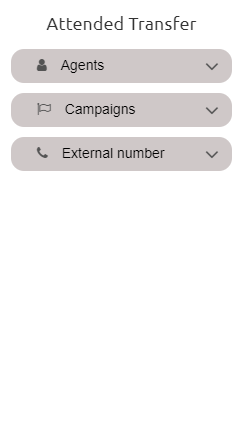
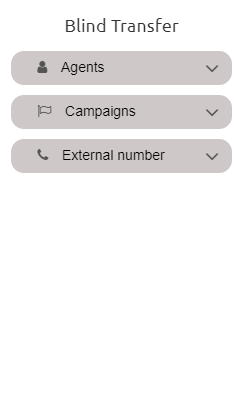
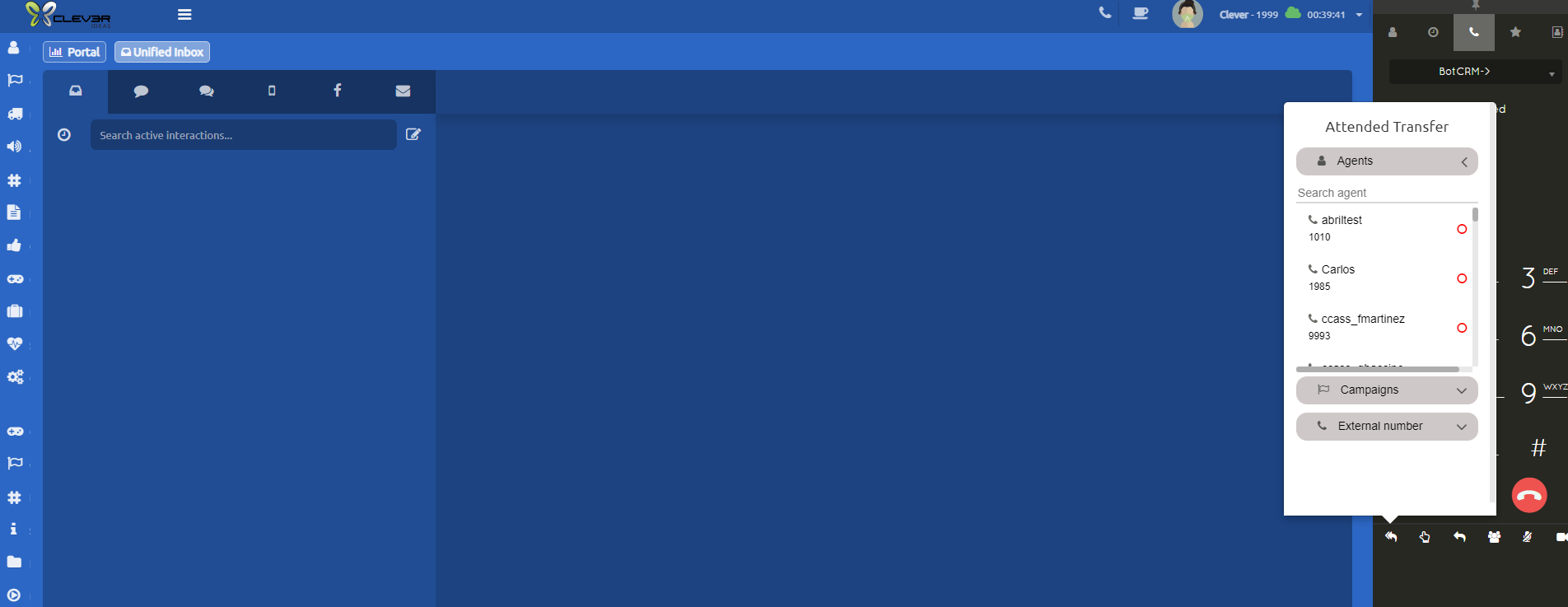
- The Agents option will display all agents and their statuses, whether they are offline, online, or busy either on a call or on a break, (this will depend on the permissions assigned in the security groups).
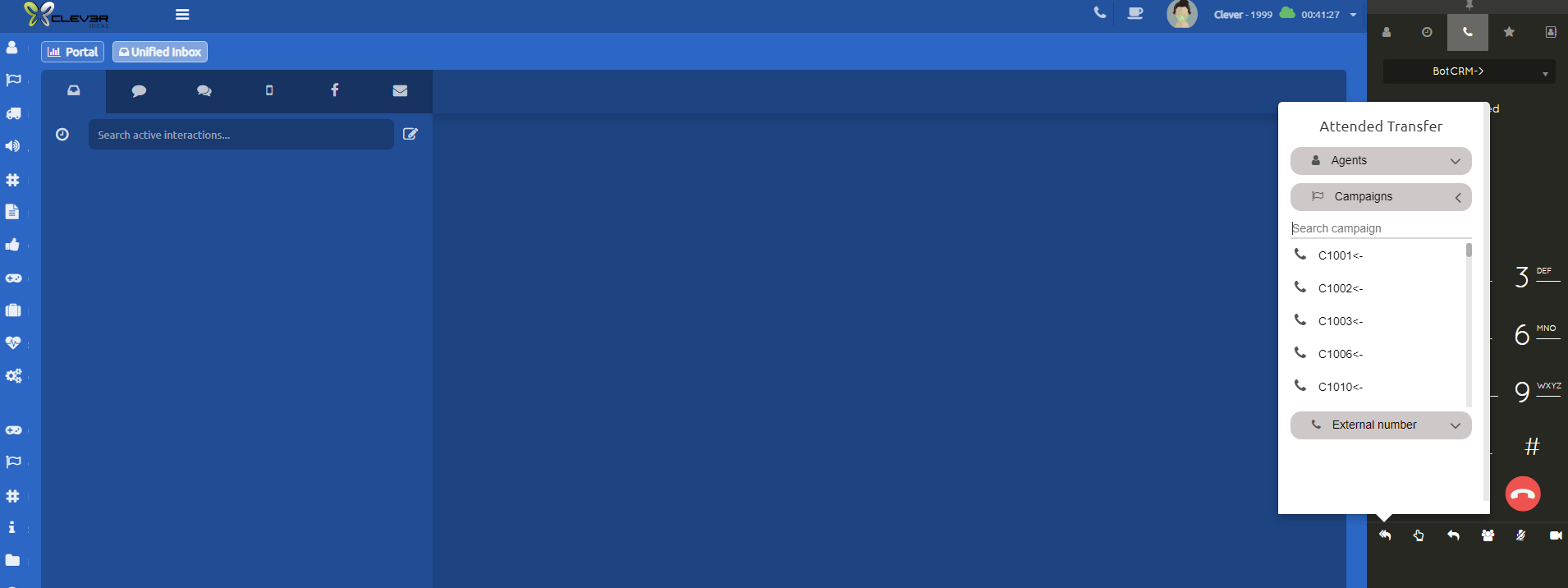
- The Campaigns option will display all campaigns to which you can transfer (this will depend on the permissions assigned in the security groups).
- In the External Number option, we can send the call to any external phone number outside of uContact. The number must be dialed with 10 digits. We can also select this option to transfer to an agent's direct extension, but this will also depend on the permissions assigned in the security groups.
Academy
uContact Agent is a module focused on the call center agent as a total integration solution with functionalities of: data capture, status supervision and communications integrated with the platform.
The Agent's Profile
Take the following training course to complete your uContact #Agent certification. Start with an introductory video that will help you get an overview of an agent's workspace in our solution and walk out an expert.
The Softphone
Learn how to use the uContact Softphone, developed natively in the solution using WebRTC technology. With it you will be able to initiate and/or answer calls directly from the platform just as you would from a desk phone, thus significantly reducing your time between calls.
The Agent's Interface
Personalize your uContact workspace so that your user experience with our solution is as close as possible to your tastes, preferences and personality. How? Watch this video and learn how to set your personal avatar, default wallpaper, and more!
The Unified Inbox
With uContact's unified inbox, agents can connect with customers on the digital channel of their choice without having to switch between browser windows. Here we tell you everything you need to know about how to manage your digital interactions on the same screen using our unified inbox.
The agent Workspace
Training Agenda
Agent
Estimated time: 1 hour
- Operation Requirements
- Agent Interface Description
- Phone
- Breaks
- Forms
- Typifications
- Incoming and outgoing calls
Supervisor
Estimated time: 1 hour
- Overview general functionalities
- Operation Requirements
- Description Interface Supervisor
- Administrator
- Agents
- Campaigns
- Dailers
- Audios
- Supervisor
- Agent Monitoring
- Dailer Monitoring
- Recordings
- Reports