SMS / WAB
SMS/Whatsapp Providers
For more information on the creation of SMS or Whatsapp providers, go to the corresponding pages: SMS Whatsapp APIs
SMS/Whatsapp Campaigns
After creating the provider, we can start creating SMS/Whatsapp campaigns.
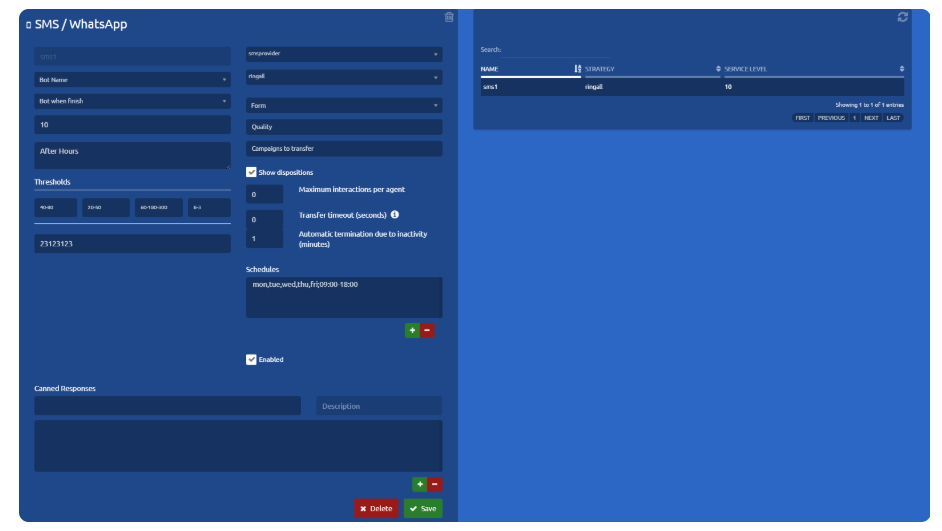
Basic settings
-
Name
Name to identify the SMS/Whatsapp campaign. -
Service level
The service level is the percentage of interactions that were attended/abandoned by the agent before/after a stipulated time limit. -
DID-Ports
In this field, you must enter a code (telephone number, alphanumeric, id, etc.) associated with the campaign for identification purposes. Generally, this information is provided by the provider and may vary. -
SMS provider
Clicking on the combo displays a list of all the SMS/Whatsapp providers that are registered in the system. -
Strategy
It is the behavior that the campaign will have. To learn more about the different strategies go to Strategies - Omnichannel. -
Schedule
The hours in which the SMS campaign will be available, that is, with agents available to answer customer SMS. To add a schedule configuration you must add with the '+' button and a new window will appear or remove a selected one from the list with the '-' button.

Advanced settings
These parameters already have a default value for the correct operation of the campaign.
To know more go to Important Concepts - Omnichannel.
Out of time
This will be the message that will be sent to the client if he sends a message while the campaign is out of hours.
Thresholds
These are metrics to carry out the statistics of the campaigns in real-time, they are measured in time (seconds).
-
Service level
It is the expected time limit for the response of the chats by an agent. -
Churn rate
It is the elapsed time of chats to consider that they were abandoned by customers during the day. -
Chat time
Time elapsed to consider that the chat between agent and client reached the limit. -
ACD
The maximum number of customers waiting to be answered by a chat agent.
Maximum interactions by agent
Limits the number of active interactions an agent can have. The remaining interactions are queued. It is only used for nocall strategies.
Automatic termination due to inactivity (minutes):
This setting allows you to configure the inactivity timeout (in minutes) after which an interaction will be automatically terminated. The timer starts only when an agent has the interaction assigned.
If the interaction is in a queue (for example, in a campaign) or is being transferred, the timeout does not run. Once the interaction is attended again, the inactivity timer resets to zero.
The same applies to incoming interactions: the inactivity timer begins only when an agent starts handling the interaction, not when it enters the queue.
If the configured value is 0, automatic termination is disabled, meaning interactions will not be automatically closed due to inactivity.
Campaigns to Transfer: At this point, one or more campaigns can be selected; these will be the only ones to which generated interactions can be transferred. If none are specifically selected, transfers will be allowed to all campaigns. Additionally, dialers can also be selected. Selecting a dialer as a “campaign to transfer” does not enable transferring interactions to the dialersthemselves. However, when both settings — “Historic interactions from all campaigns” and “Show only campaigns available for transfer” — are enabled, the active interaction history will also load messages sent by the dialers selected as “campaigns for transfer” when loading previous messages.
Enabled
The system can have a campaign registered that is not running without having to delete it completely, in this way the supervisor will not lose relevant data. If it is checked, the campaign can be used.
Pre-setted responses
The campaign may have pre-written responses, which makes it easier and faster for the agent to interact with the customer.