SMS/Whatsapp
The incorporation of SMS/Whatsapp to our service contributes exponentially to the improvement of the customer experience.
SMS campaigns
After creating the provider, we can start creating SMS campaigns.
%2010.21.27.jpg&size=122829&height=1800&width=2880&alt=)
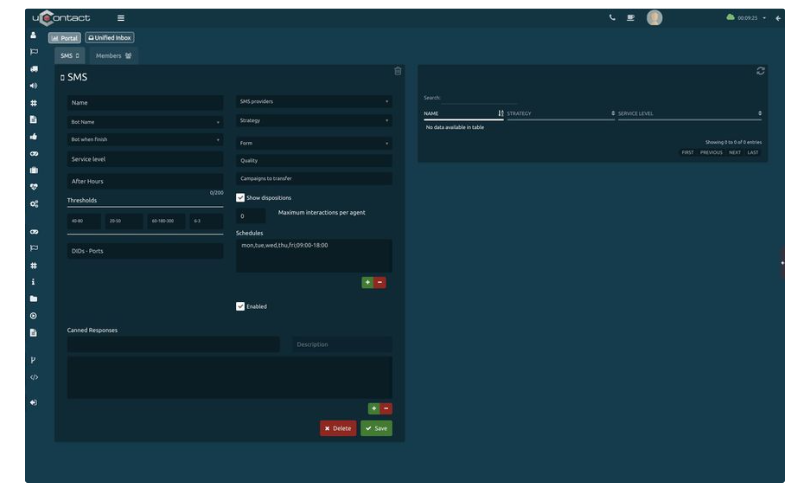
Basic settings
-
Name
Name to identify the SMS campaign. -
Service level
The service level is the percentage of interactions that were attended/abandoned by the agent before/after a stipulated time limit. -
DID-Ports
In this field, you must enter a code (telephone number, alphanumeric, id, etc.) associated with the campaign for identification purposes. Generally, this information is provided by the provider and may vary. -
SMS provider
Clicking on the combo displays a list of all the SMS providers that are registered in the system. -
Strategy
It is the behavior that the campaign will have. To learn more about the different strategies go to Strategies - Omnichannel. -
Schedule
The hours in which the SMS campaign will be available, that is, with agents available to answer customer SMS. To add a schedule configuration you must add with the '+' button and a new window will appear or remove a selected one from the list with the '-' button.
After saving your settings, you will see your campaign in the table on the right where you will find all the campaigns created in the system listed according to your security group.
Advanced settings
These parameters already have a default value for the correct operation of the campaign.
To know more go to Important Concepts - Omnichannel.
Out of time
This will be the message that will be sent to the client if he sends a message while the campaign is out of hours.
Thresholds
These are metrics to carry out the statistics of the campaigns in real-time, they are measured in time (seconds).
-
Service level
It is the expected time limit for the response of the chats by an agent. -
Churn rate
It is the elapsed time of chats to consider that they were abandoned by customers during the day. -
Chat time
Time elapsed to consider that the chat between agent and client reached the limit. -
ACD
The maximum number of customers waiting to be answered by a chat agent.
Maximum interactions by agent
Limits the number of active interactions an agent can have. The remaining interactions are queued. It is only used for nocall strategies.
Enabled
The system can have a campaign registered that is not running without having to delete it completely, in this way the supervisor will not lose relevant data. If it is checked, the campaign can be used.
Pre-setted responses
The campaign may have pre-written responses, which makes it easier and faster for the agent to interact with the customer.
How to add or delete members?
To add or remove agents to campaigns, the user must go to the Members section on the upper left.
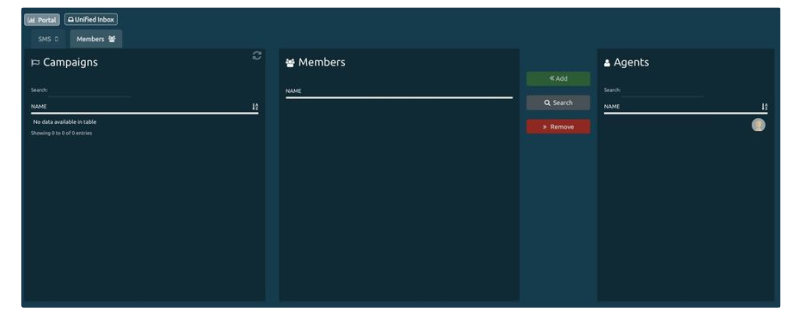
Add member
-
In the Campaigns column, you can select one or more campaigns from which you want to add or remove members.
-
We select one or more agents from the Agents column and press Add.
-
In the Members column we will see the agents added to the campaign.
IMPORTANT The members that are added to the campaign must be previously in a voice campaign, otherwise, the agents will not receive interactions of this type.
SMS dialer
Allows you to send SMS in bulk.
For all dialers, an execution time range will be associated that will dictate the hours and days in which they will be run in order not to carry out actions at improper hours.
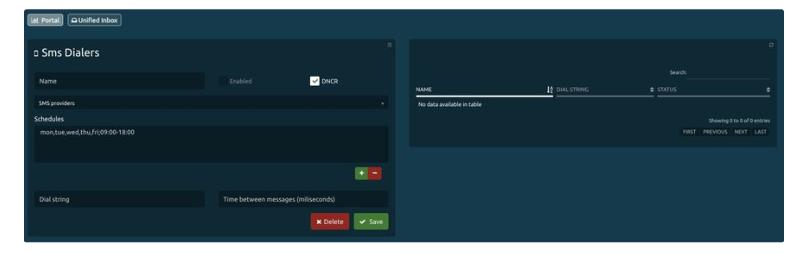
Basic settings
To create our SMS dialer we enter:
-
Name
In order to identify our marker. -
SMS providers
That will be used to send messages. -
Schedules
The schedule in which the dialer will send messages is defined. -
Dial string
Based on the API that SMS sends, a port or range can be configured.-
Dinstar - DinstarWeb
Channel range log, example: (0.3) this means that the message will be sent to 4 channels recursively (0-1-2-3-0 ...). -
Quality
It does not need a dial string. -
Twilio
It does not need a dial string.
-
-
Time between messages
It is the time that the marker takes to send messages simultaneously, it is expressed in milliseconds.
Optional parameters
-
Enabled
Indicates the status of the dialer, if it is active or not. -
DNCR
Allows you to enable the review of the Blacklists registry, for phone numbers that should not be called or sent messages.
SMS dialer operation
Basically, it works in a similar way to the rest of the markers we have, 50 messages from state 1 from the sms_spool table are put in memory ordered by their entry position, it is fixed if it is in the black_list, if it does not send it and puts it in state 3.
States
STATE: 0 NONE
STATE: 1 TO PROCESS
STATE: 3 BLOCKED
Example of CSV base to be uploaded to the dialer.
1campign;destiny;menssage;priorityFor the given campaign:
|
Campaign |
Destiny |
Message |
Device |
idm |
data |
|
test1 |
098344484 |
This is my SMS |
Dinstar |
autonumerico |
extra data |
Our base would be:
1test1;098344484;This is my SMS;9999WebService
1POST
2http://INTEGRASERVER/Integra/resources/SMS/SendSMS
3
4params:
5@FormParam("destination"),
6@FormParam("message"),
7@FormParam("campaign"),
8@FormParam("agent")
Take note!
-
To start a dialer it must be previously Enabled.
-
In the Dropbox Providers, one of the created SMS providers is selected, this allows us to associate a different provider for each dialer.
SMS agent
The agent has different interactions in his inbox and can search for them by campaign name or username.
When opened, it is displayed on the right side of the screen and shows customer interaction and information at the top.
-
SMS campaign name.
-
Customers' number.
.jpg&size=22381&height=792&width=1812&alt=)
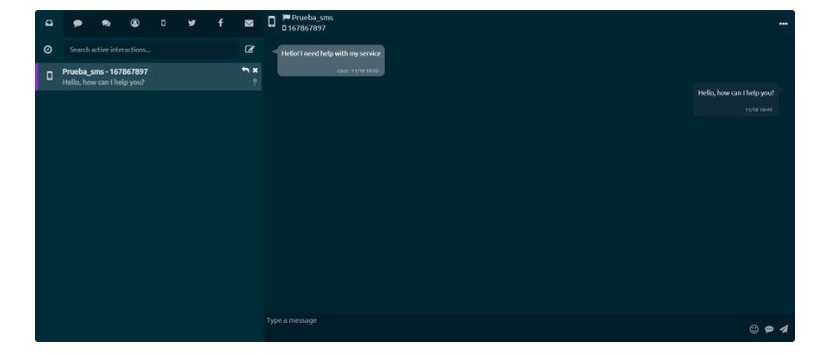
Interaction options
Next to the box where the agent will respond to the client, it contains certain icons that allow us to access the following options:
-
With the first one, a list with emojis is displayed to use in the messages.
-
The following contains the predesigned responses for the campaign. These are inserted automatically once the user has selected them.
-
The last button sends the message that the Agent is writing.
-
In the upper right corner, the agent will find a three-dot icon, with which the customer's previous messages can be displayed.
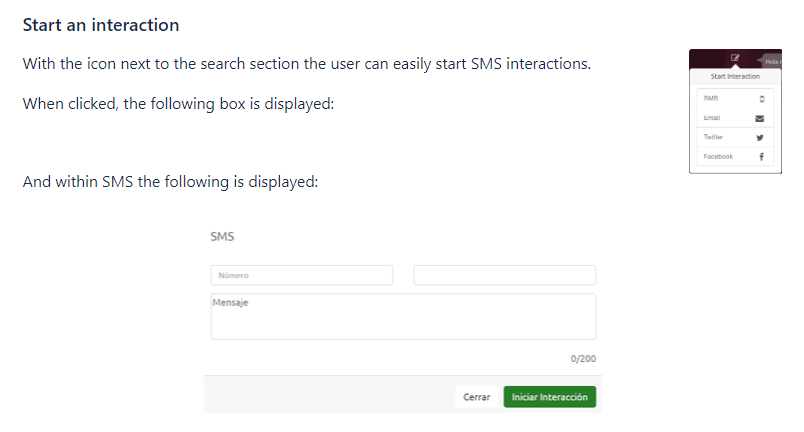
You can also send SMS using the softphone integrated into the portal.
SMS monitorin
Here you can see the real-time statistics of the SMS campaigns.
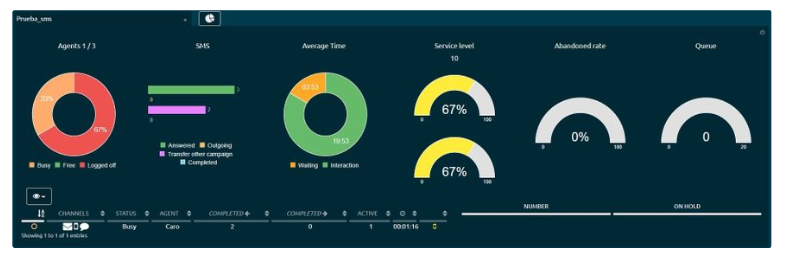
Lower left chart
Icon
Agent status icon. Along with the status icon, it can show: in case the agent is on a call, a phone will appear; and if the agent is in a break, the image corresponding to that break will show.
Channels status
If the agent has an active interaction, a logo will appear. SMS, Webchat, Email, Twitter, among others. The two can show together if it is the case.
Status
Real-time agent status. The states can be disconnected, busy, free, free on break, and busy on break (being any of the available breaks).
Agent
Name of the agent.
Completed
The number of completed SMS.
Active
It indicates the interactions that the agent maintains active.
Time
Time of the last agent state change.
Lower right chart
Displays the data of the SMS clients that are on hold:
Number
Telephone number with which the customer sent the SMS.
On hold
The time that the client has been on hold.
Actions with agents
When clicking on an agent with active interaction, the following options will be displayed:

-
Spy
The supervisor will be able to view the messages exchanged between agent-client in real time. -
Monitor screen
Allows you to view the agent screen in real-time. To see this button, the monitor screen option must be enabled in Configuration - Agents. -
Info
Displays a window with all the agent information. -
Pause
The supervisor pauses the agent. -
Chat with agent
It gives us the ability to send messages to an agent. -
Log out agent
The supervisor will be able to log out the agent. The agent must log his username and password again in order to log in and continue working.
SMS recordings
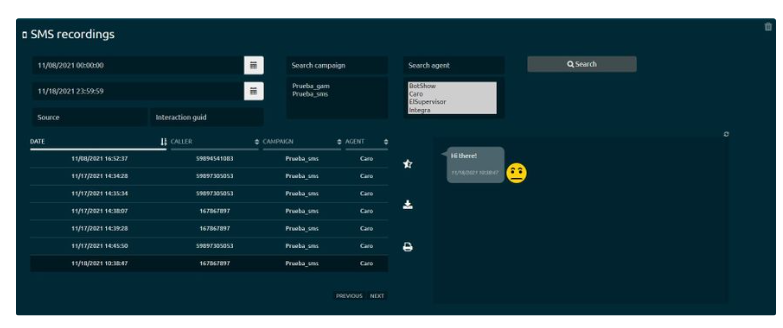
In this section, you can see all SMS conversations.
-
Messages are grouped by interaction
-
Each message has the user who sent it, be it human or bot.
Parameters for filtering
-
Start date: SMS recordings search start date.
-
End date: End date of recordings that we want to obtain from the search.
-
Origin: Inbound number.
-
Campaign: Select SMS campaigns from those available in the list.
-
Agent: Select the agents who attended SMS.
By selecting a conversation, the recording can be downloaded individually.
SMS dialers monitor
It shows all active mobile services, allowing you to manage their activity and information load.
Dashboard
Once a campaign has been selected, you can see its dashboard:
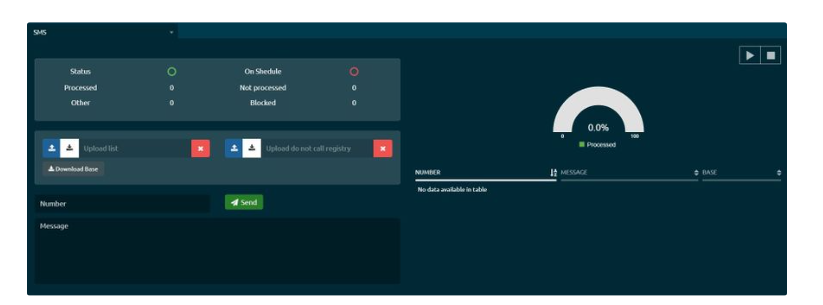
Campaigns
Allows you to select the campaign to monitor.
Status
It shows the general status of the campaign, based on the following statuses:
-
Inactive.
-
Active.
On schedule
It shows if the campaign is on schedule according to the definition it has to run, with the following statuses.
-
Inactive.
-
Active.
Processed
Number of SMS processed by the campaign.
Not processed
Amount of SMS remaining to be processed in the campaign.
Other
Shows the number of SMS with different statuses due to incorrect number format.
Blocked
Shows the number of SMS blocked due to being on the NDCR list.
On the top right corner we have the following two options:
Stop/Start
It allows to stop or start the campaign on demand.
Delete
It allows deleting the campaign data that has not been processed (for example, unprocessed records that have failed or that have been in the NDCR table, or that for some reason want to be canceled).
Upload record not DNCR call
It allows loading a CSV file, with the data of the SMS that should not be sent, indicating the phone number and campaign.
Example:
123578408;marcadortest;
223113758;marcadortest;
322150696;marcadortest;
422016549;marcadortest;
Single message sending
There is the option of sending a unitary text message to a specific and unique number, the following information must be inserted in the lower-left section:
Telephone
Number where to send the text message.
Text
Text containing the message.
After completing the fields, we press the Send button and the message will be sent by the dialer.
Sending mass messages
Outbound SMS are automatically processed by the system after uploading. To upload SMS, a file containing the following must be uploaded (in .csv format).
1campaign;destiny;menssage;priorityExample of .csv
1campsms;098344384;Hey World!;9999;
2campsms;098356484;Hey World!;9999;
3campsms;098378984;Hey World!;9999;
To see information on the status of sent messages and the status of messages waiting to be sent, see Reports.
It is possible to send messages from third-party applications by executing a REST webservice for example:
Whenever a marker is generated, the following criteria must be taken into account for the files and their content:
-
The file name must not have spaces, strange characters, or very long names, an example of a file would be: DISCTEST29042014.csv
-
The first column that refers to the campaign must exist in the system, if it does not exist, it will give an error and will not allow the file to be uploaded.
-
At least the first four columns must exist to upload the file successfully.
-
There should be no blank spaces after the last line in order to avoid records being made without information.
-
Within the variable fields, there cannot be special characters such as ´ ‘“ @ etc, since they can affect the performance of the system. If these characters are found, it will give an error and will not allow the file to be uploaded.
