Guías
Guías de uContact
Llamadas de transferencia - ESP
En uContact, existen dos funcionalidades que nos ayudarán a realizar transferencias efectivas de llamadas.
Transferencia Atendida
- Esta transferencia, como el nombre lo indica, debe ser atendida por la persona destino a la que se le esta transfiriendo la llamada, permite la comunicación entre quien transfiere y quien recibe la transferencia y mientras este ultimo no atienda la llamada, la transferencia no se completará.
Transferencia Ciega
- A diferencia de la transferencia atendida, en esta no se toma en cuenta si el destino esta disponible para atender la llamada, simplemente se transfiere. Si es a un agente o campaña, y en ese momento no puede ser atendida, se irá a la cola del agente o la campaña respectivamente. En esta transferencia no habrá comunicación entre quien transfiere y el destino.
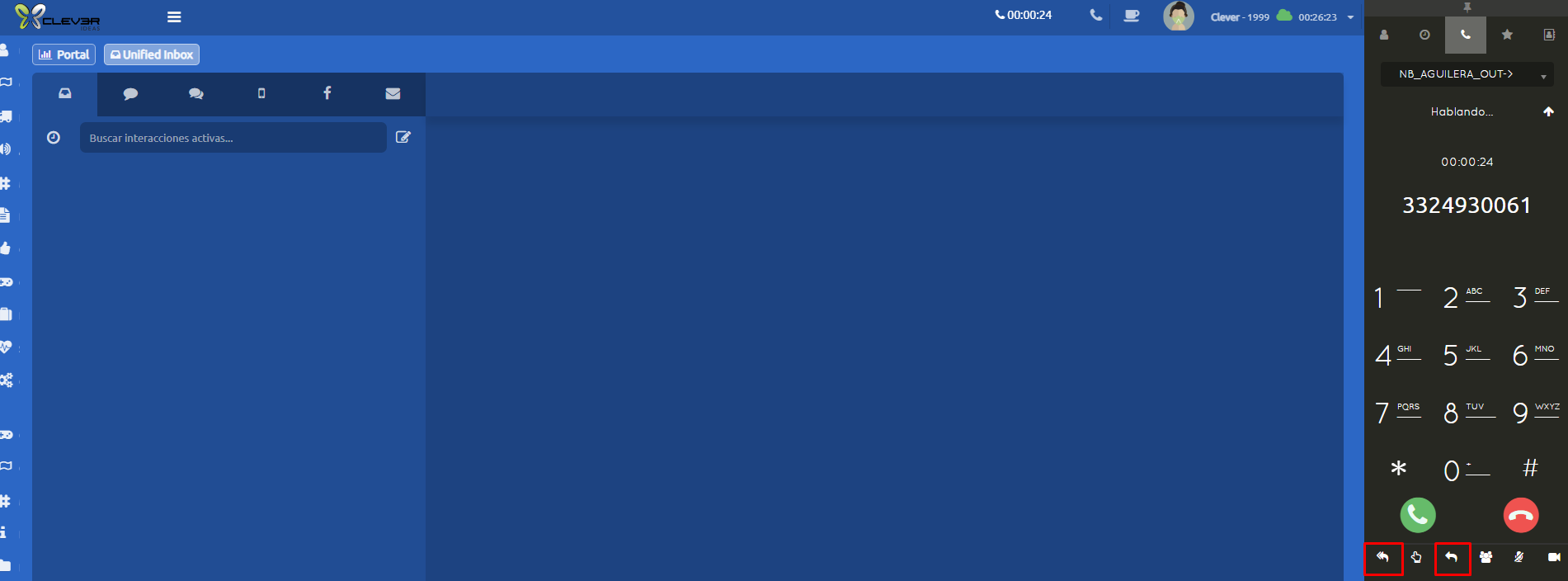
Los botones de ambas transferencias se encuentran en la barra de herramientas del Softphone.
La transferencia atendida se encuentra como primera opción, se muestra el icono de dos flechas.
La transferencia ciega se encuentra como tercera opción, se muestra el icono de una flecha.
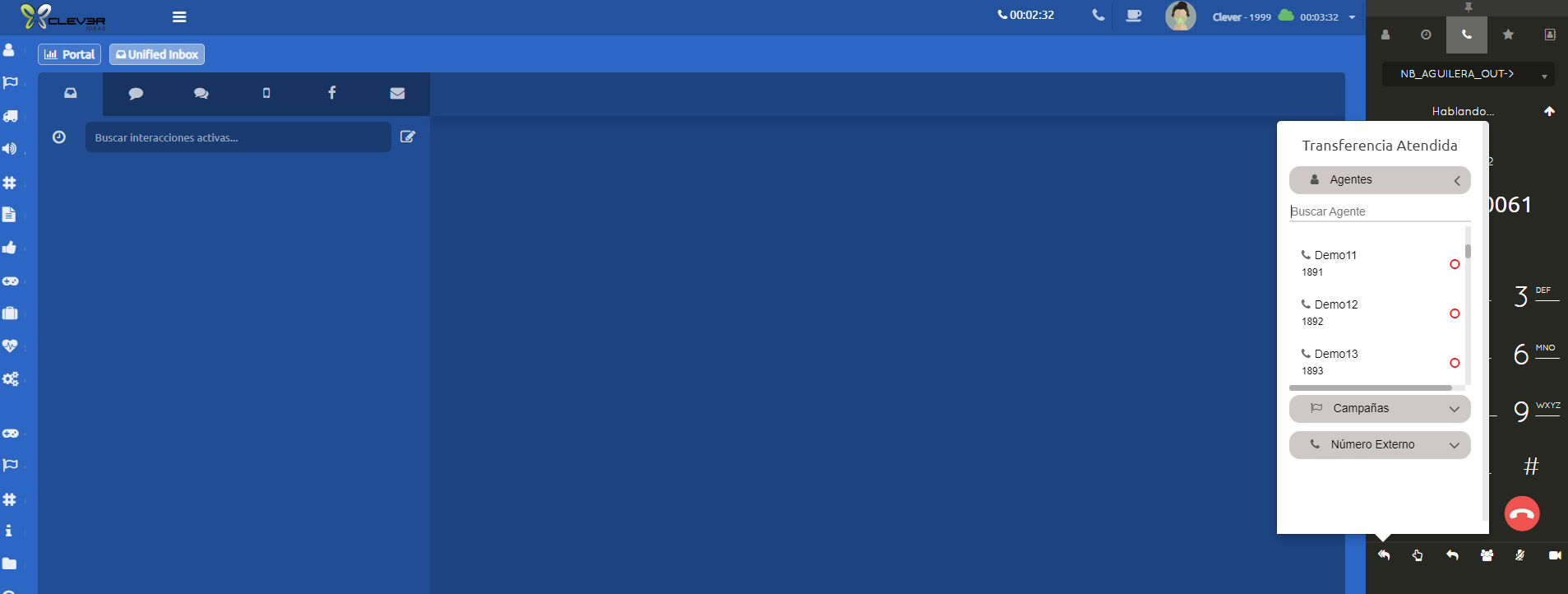
Al seleccionar cualquiera de los dos iconos de transferencia, ya sea Atendida o Ciega, se desplegará el siguiente menú, en el vendrán 3 opciones de destinos a los que se pueden transferir. Agentes, Campañas y Número Externo.
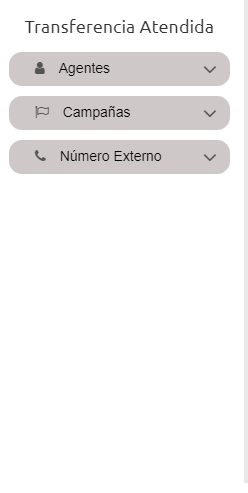
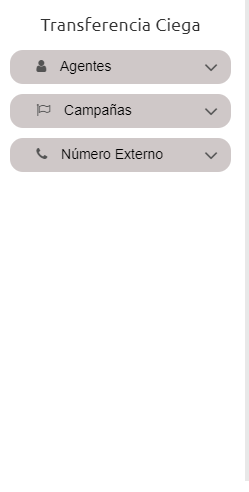
- La opción de Agentes desplegara todos los agentes y sus estatus, si están desconectados, en línea u ocupados ya sea en llamada o alguna pausa, (esto dependerá de los permisos asignados en los grupos de seguridad).
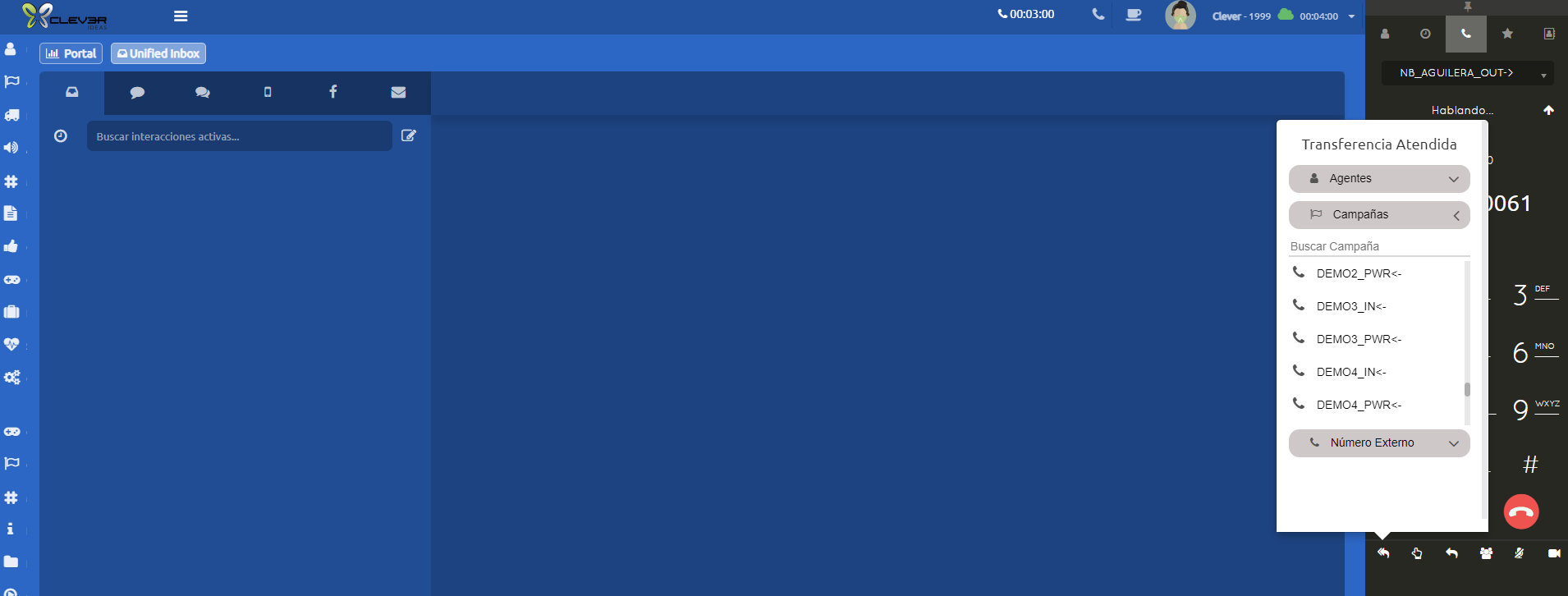
- La opción de Campañas desplegará todas las campañas a las cuales puede transferir, (esto dependerá de los permisos asignados en los grupos de seguridad).
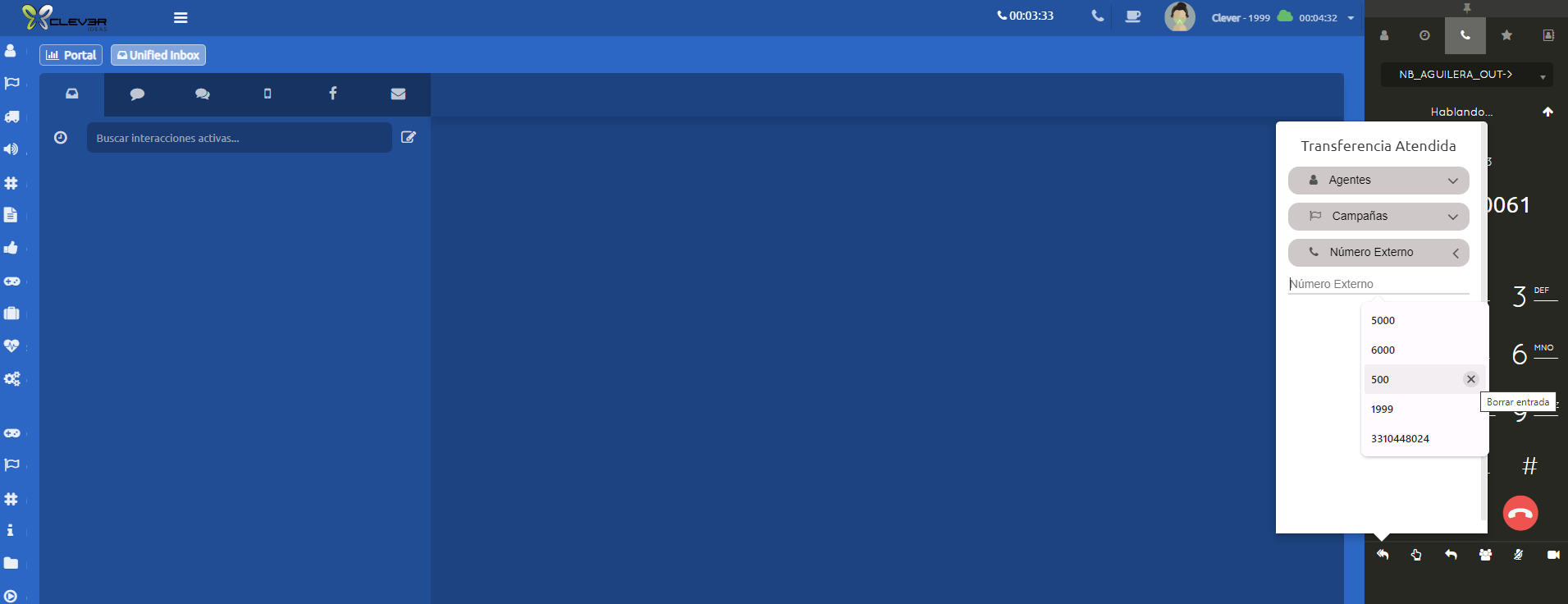
- En la opción de Número Externo, podremos enviar la llamada a cualquier número telefónico externo a uContact, el numero deberá ser marcado a 10 dígitos. También podemos seleccionar esta opción y transferir a la extensión directa de un agente, pero esto también dependerá de los permisos asignados en los grupos de seguridad.
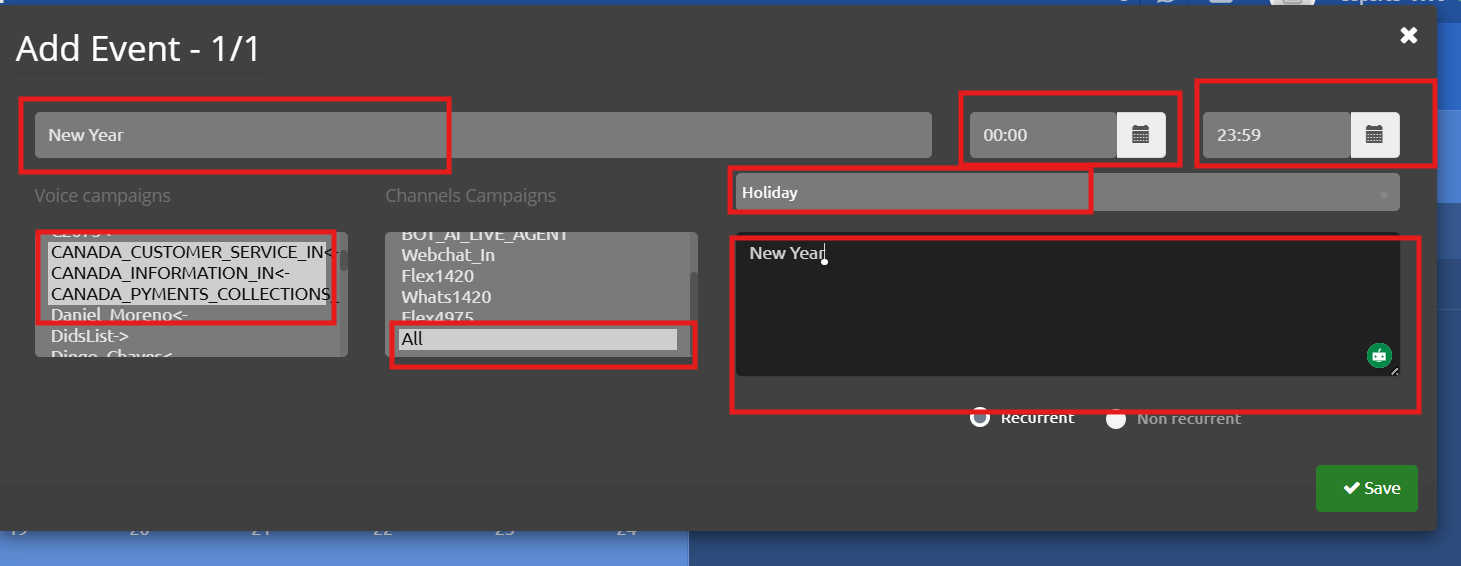
Cómo configurar un "Holiday" en Campañas
Requisito previo indispensable: Para poder llevar a cabo este procedimiento, es obligatorio iniciar sesión en la plataforma con un Perfil de Supervisor.
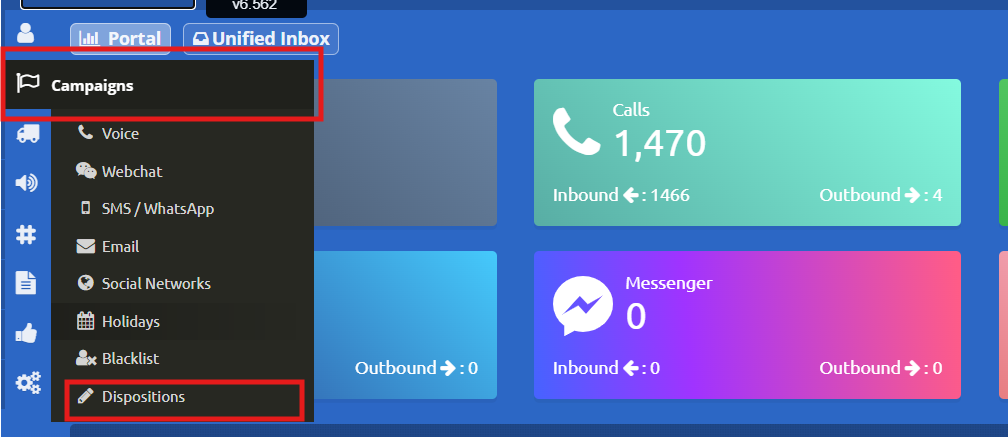
- Dirígete al menú principal del sistema y selecciona la opción Campañas. A continuación, haz clic en el submódulo Holidays.
2. Dentro del apartado de Holidays, localiza y selecciona el día específico que deseas configurar o agregar, al hacer clic sobre el día, se desplegará automáticamente el menú de configuración.
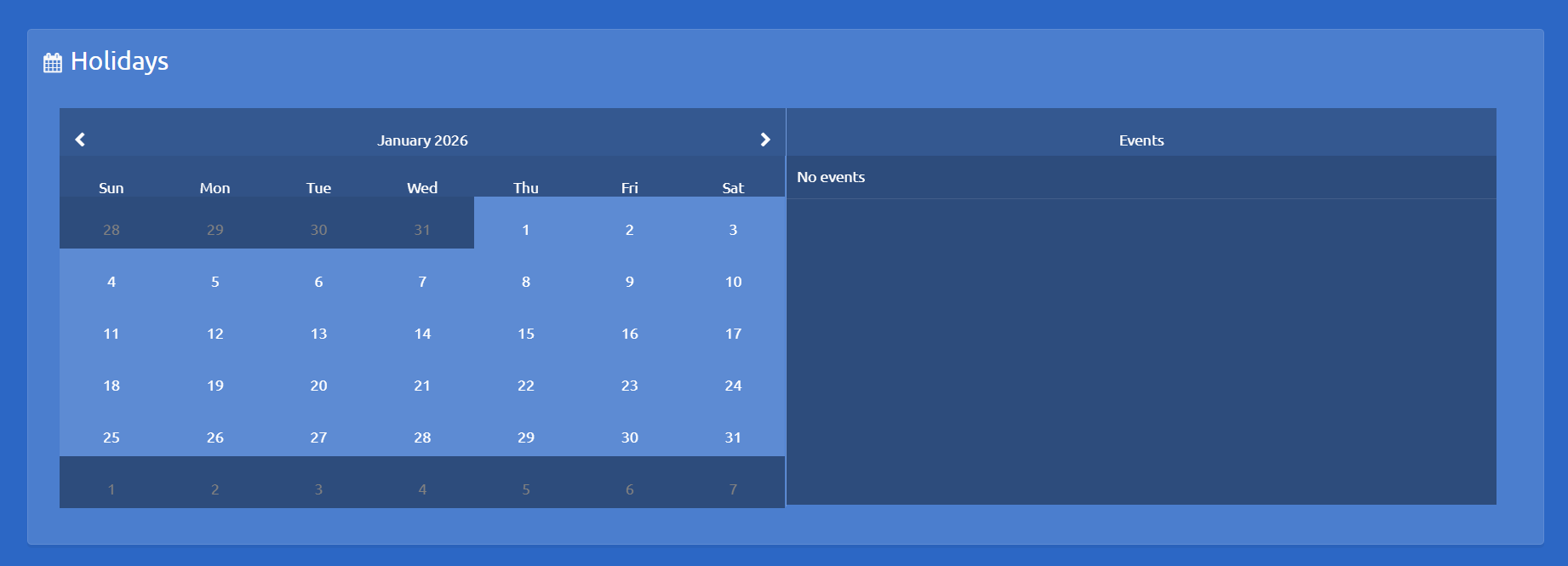
3. Completar los detalles de la configuración: En el menú desplegado, llena los siguientes campos requeridos:
-
Descripción de la campaña: Asigna un nombre claro para identificar el día festivo.
-
Campañas aplicables: Selecciona las campañas específicas en las que este holiday tendrá efecto (presiona la tecla Ctrl para seleccionar múltiples campañas)
-
Canales aplicables: Elige los canales de comunicación donde estará activa la configuración.
-
Horario: Define el rango de horas exacto en el cual aplicará el día festivo.
-
Sonido: Selecciona la pista de audio correspondiente.
-
(Nota: El archivo ha sido cargado previamente a la base de datos de sonidos, con el nombre "holiday").
-
-
Mensaje: Redacta el mensaje.
- Marcamos la opción Recurrent(Se repetira cada año) o Not Recurrent.
-
Guardar los cambios