Administration
This feature enables real-time communication with customers through an online chat. Before using it, the required configurations described below must be completed.
- Name: The name used to identify the Webchat campaign within the system.
- Strategy: Defines the routing behavior the campaign will use when assigning interactions to agents.
- Service Level: Specifies the maximum time (in seconds) agents have to respond to interactions received by the campaign. If an interaction remains in the queue longer than the configured threshold, the service level will decrease. This metric can be monitored in the campaign's Supervisor Dashboard.
- Schedule: Defines the hours during which agents are available to handle interactions. If an interaction is received outside the configured schedule, the system will display an offline message informing the customer. This message can be configured using the Offline Message setting in the Advanced Settings section. Use the "+" button to add a schedule and the "-" button to remove the selected schedule from the list.
After saving the configuration, the campaign will be created in the system and displayed in the table on the right. This table lists all campaigns available in the system based on the user's assigned security group.
Webchat Audio and Video Calls
These features allow agents to communicate with customers through audio and video calls directly within their Clever Chat interactions.
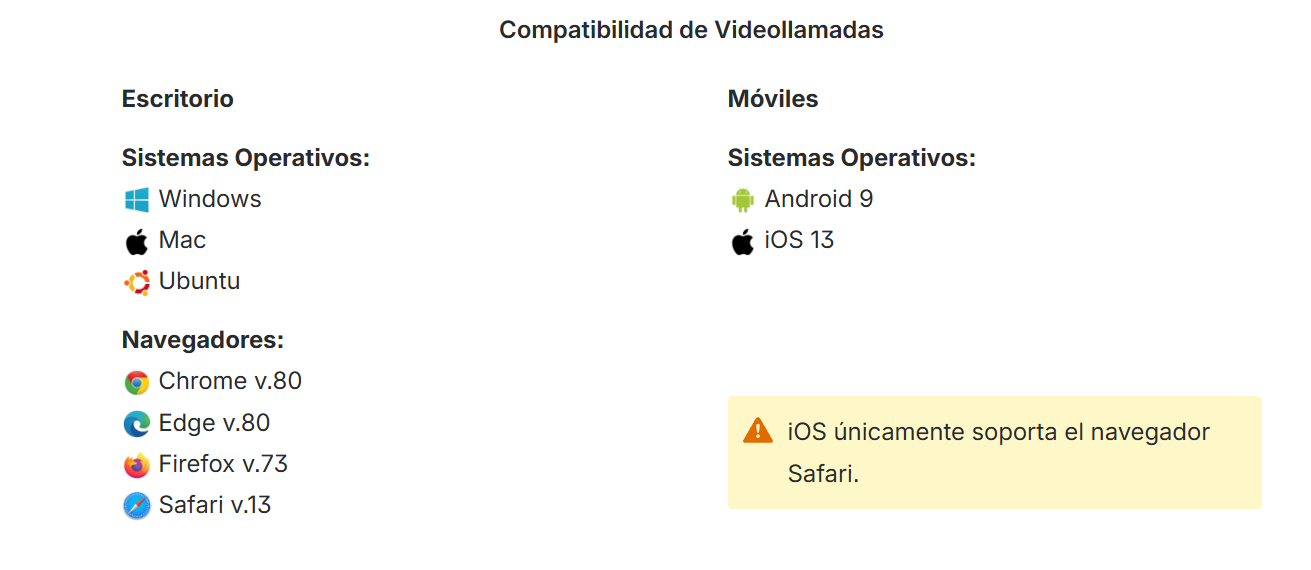
Before using these features, please consider the following requirements:
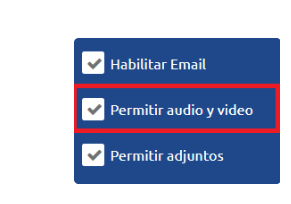
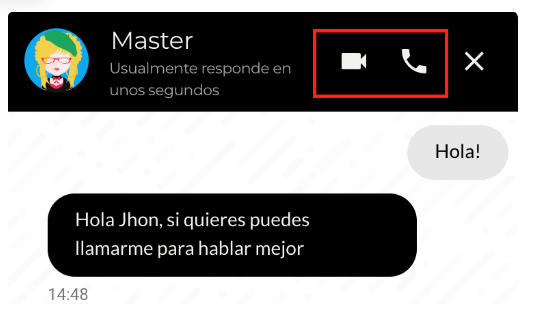
When the Allow Audio and Video option is enabled, customers will be able to see the audio and video call options in the upper-right corner of the Webchat interface after they are connected to an agent.
When the customer clicks either the audio or video call icon, the agent will immediately receive an incoming call notification. By accepting the notification, the agent and the customer will begin an audio or video call, establishing voice communication and, when applicable, a live video connection.
Bots in Clever Chat
Configurable Messages
Clever Chat provides several configurable messages that can be displayed or sent automatically at different stages of the customer interaction. For example, messages can be shown when no agents are available or when the campaign is outside its configured business hours.
Welcome Message
This message is displayed to customers when the Clever Chat campaign is available. Administrators can configure a custom welcome message for each supported language: Spanish (es), English (en), and Portuguese (pt). To do so, select the desired language and enter the corresponding welcome message.
Offline Message
This message is displayed to customers when the campaign is outside its configured business hours. Administrators can configure a custom message for each supported language: Spanish (es), English (en), and Portuguese (pt). To do so, select the desired language and enter the corresponding offline message.
This message is displayed when the maximum number of waiting interactions allowed by the campaign configuration has been reached. Customers attempting to access the chat will be notified with the message configured in this field.
Agent Automatic Message
This message is automatically sent to the customer when the interaction begins.
Offline Message
When the campaign is outside its configured business hours and this option is enabled, customers will be able to leave a message. The message can later be accessed and reviewed under the “Clever Chat Recordings” section.
Comments
At the end of the interaction, the message configured in this field will be displayed.