# WHATSAPP BUSSINES

# Verification Requirements

It is necessary to have a business account on Facebook Business Manager owned by the same business entity.

**More information in [Business verification](https://developers.facebook.com/docs/development/release/business-verification?locale=en_US)**

---

####   
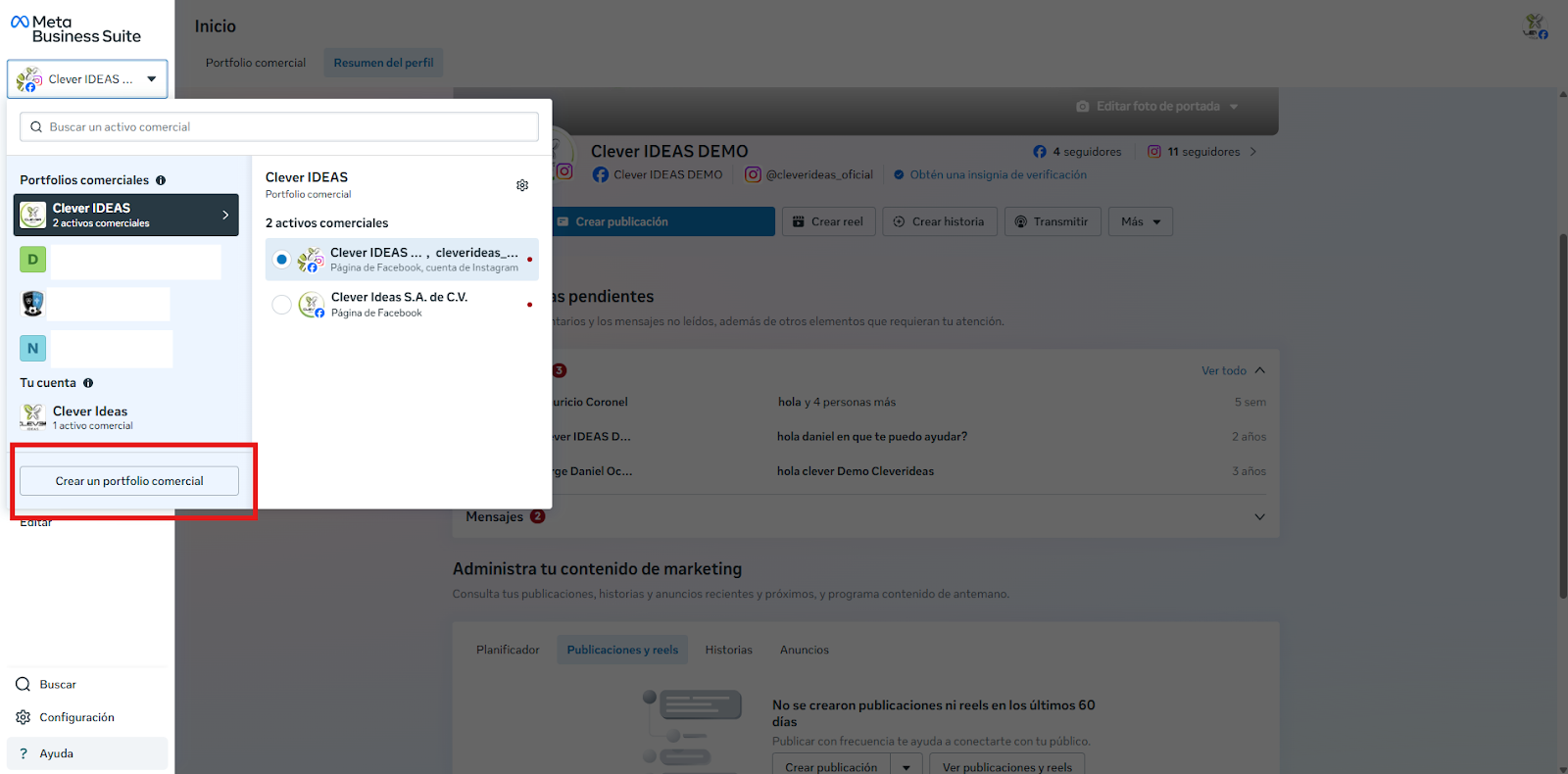
**Steps to follow:**

Log in with Facebook account credentials:

[![image-1660622511038.png](http://docs.cleverideas.com.mx/uploads/images/gallery/2022-08/scaled-1680-/bLHDVEfhrjpQyAeP-image-1660622511038.png)](http://docs.cleverideas.com.mx/uploads/images/gallery/2022-08/bLHDVEfhrjpQyAeP-image-1660622511038.png)

---

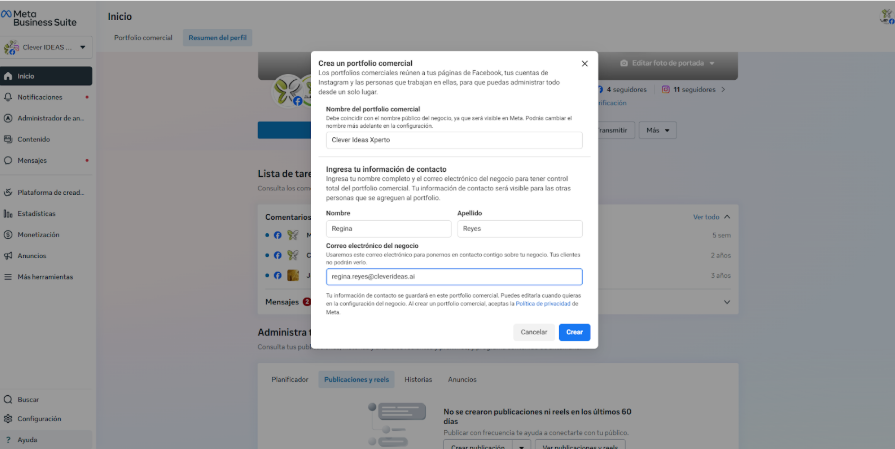
##### **Submit:**

- Business and account name
- Name
- Business Email of your business

#### **Send information...**

[![image-1660622606410.png](http://docs.cleverideas.com.mx/uploads/images/gallery/2022-08/scaled-1680-/NvYCqYdycSRvuteZ-image-1660622606410.png)](http://docs.cleverideas.com.mx/uploads/images/gallery/2022-08/NvYCqYdycSRvuteZ-image-1660622606410.png)

---

##### **The Account Created screen will appear...**

[![image-1660622653578.png](http://docs.cleverideas.com.mx/uploads/images/gallery/2022-08/scaled-1680-/rnKSfKuX9UMqwqSL-image-1660622653578.png)](http://docs.cleverideas.com.mx/uploads/images/gallery/2022-08/rnKSfKuX9UMqwqSL-image-1660622653578.png)

---

##### **Link:** 

##### [https://business.facebook.com/](https://business.facebook.com/)

<p class="callout info">If the account already exists skip this step</p>

# Verification Process

# FBM Verification

### Verification process

<p class="callout warning">If your account has not yet been verified, do it now, otherwise skip this step</p>

---

## **Verification**

##### 1.- Go to Business Settings [Configuración del negocio.](https://www.facebook.com/micro_site/url/?click_from_context_menu=true&country=MX&destination=https%3A%2F%2Fbusiness.facebook.com%2Fsettings&event_type=click&last_nav_impression_id=03A6q8YI9kSJo92NR&max_percent_page_viewed=38&max_viewport_height_px=657&max_viewport_width_px=1366&orig_http_referrer=https%3A%2F%2Fwww.google.com.mx%2F&orig_request_uri=https%3A%2F%2Fwww.facebook.com%2Fbusiness%2Fhelp%2F1181250022022158&primary_cmsid=1181250022022158&primary_content_locale=es_LA&region=latam&scrolled=true&session_id=2TBjDB7xVlNbtBo5a&site=fb4b&extra_data%5bview_type%5d=v3_initial_view&extra_data%5bsite_section%5d=help&extra_data%5bplacement%5d=%2Fbusiness%2Fhelp%2F1181250022022158)

[![image-1660622987427.png](http://docs.cleverideas.com.mx/uploads/images/gallery/2022-08/scaled-1680-/SfejHsWa5abcztIR-image-1660622987427.png)](http://docs.cleverideas.com.mx/uploads/images/gallery/2022-08/SfejHsWa5abcztIR-image-1660622987427.png)

---

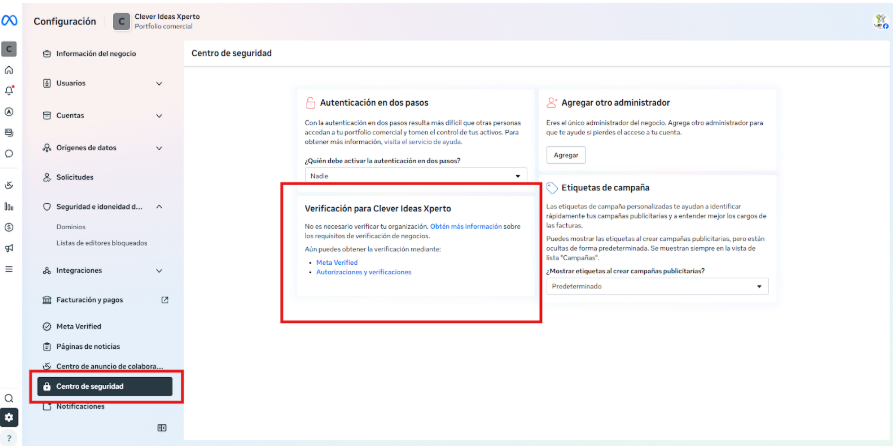
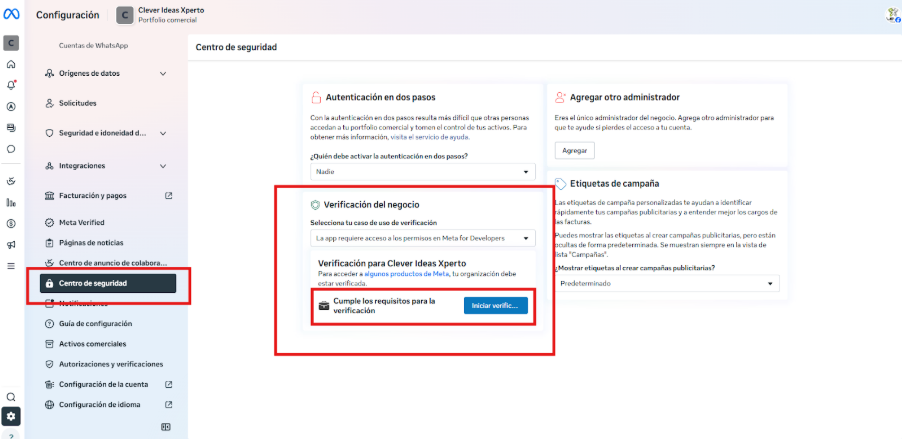
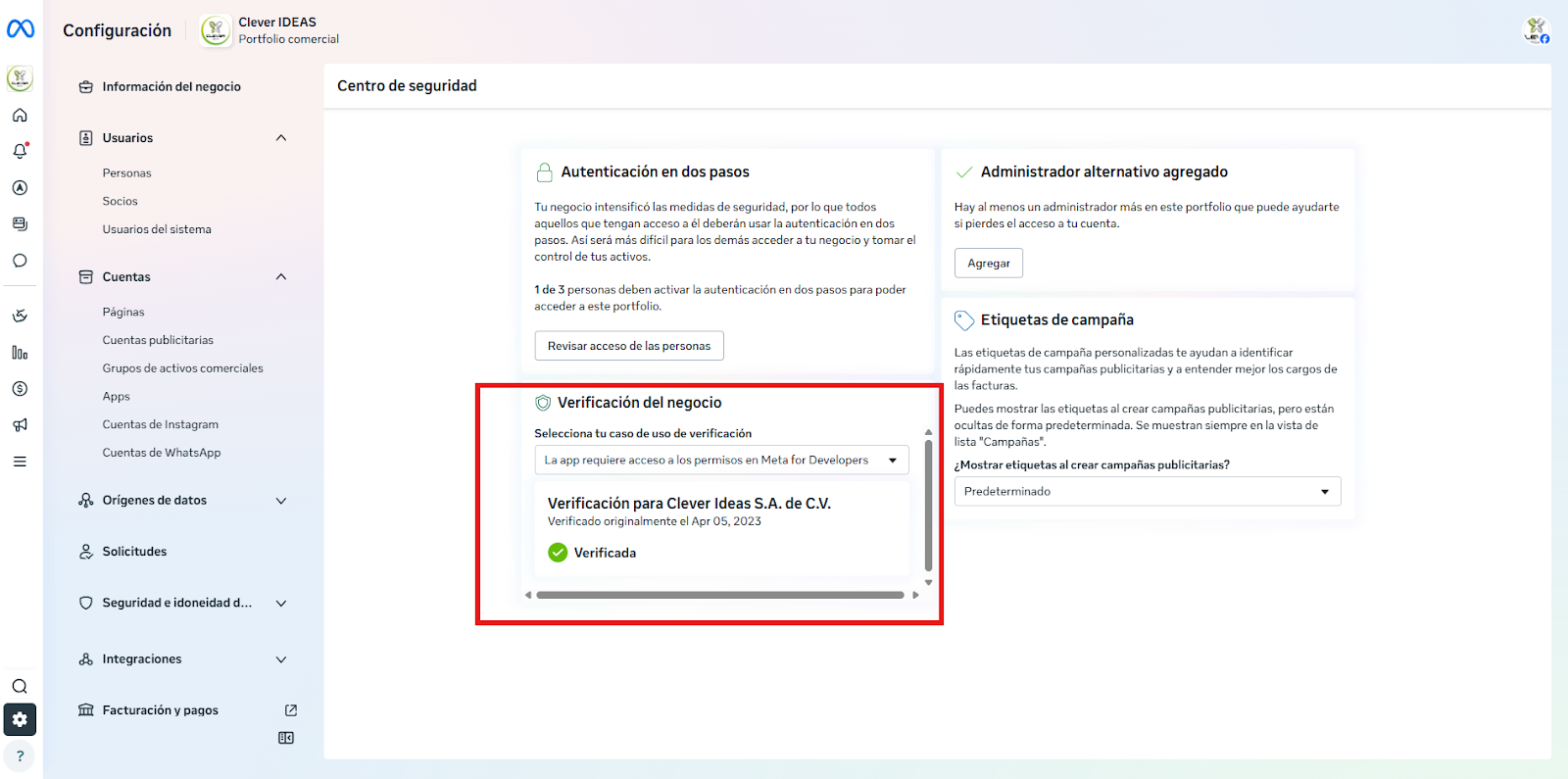
##### 2.- Go to Security Center and click Start verification in the "Business verification" section. [Centro de seguridad](https://www.facebook.com/micro_site/url/?click_from_context_menu=true&country=MX&destination=https%3A%2F%2Fbusiness.facebook.com%2Fsettings%2Fsecurity&event_type=click&last_nav_impression_id=0G92ZLuwFWuxBN9b6&max_percent_page_viewed=36&max_viewport_height_px=657&max_viewport_width_px=1366&orig_request_uri=https%3A%2F%2Fwww.facebook.com%2Fbusiness%2Fhelp%2F2058515294227817%3Fid%3D180505742745347%26recommended_by%3D1095661473946872&primary_cmsid=2058515294227817&primary_content_locale=es_LA&region=latam&scrolled=true&session_id=2EA0KTzaQnK5z4Vxx&site=fb4b&extra_data%5bview_type%5d=v3_initial_view&extra_data%5bsite_section%5d=help&extra_data%5bplacement%5d=%2Fbusiness%2Fhelp%2F2058515294227817)

[![image-1660623047397.png](http://docs.cleverideas.com.mx/uploads/images/gallery/2022-08/scaled-1680-/EXlfPAy1HKlMs6nG-image-1660623047397.png)](http://docs.cleverideas.com.mx/uploads/images/gallery/2022-08/EXlfPAy1HKlMs6nG-image-1660623047397.png)

<p class="callout info"> The "Start Verification" button will be grayed out unless your business needs access to certain features. If it appears grayed out, go to <span style="text-decoration: underline;">**Procedure to activate the Start Verification button**</span></p>

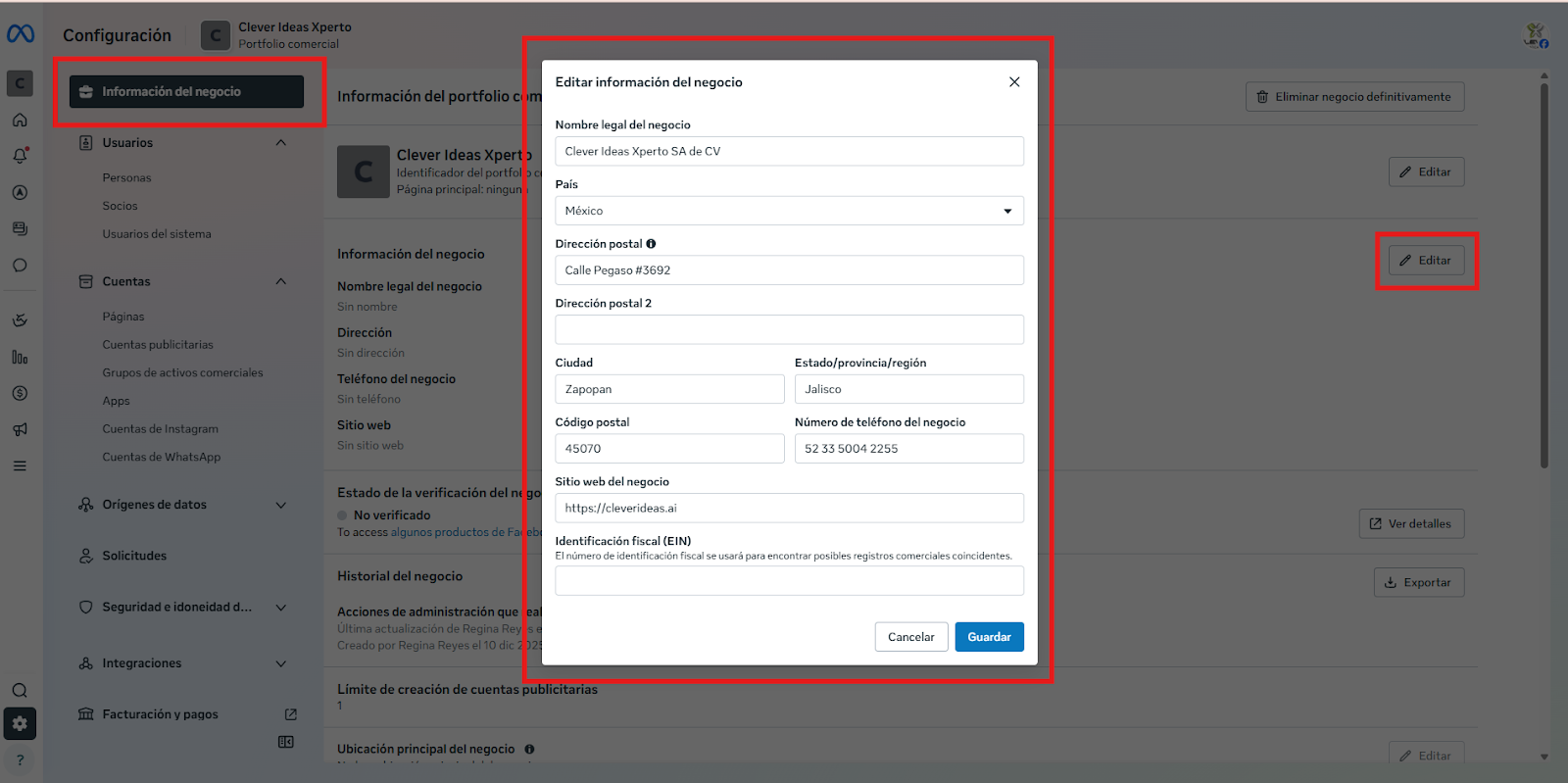
#### 3.- Enter business details

- Legal name of the business.
- Country
- Mailing Address
- Postal address/city
- City
- State
- Postal Code
- Phone number
- Website

<p class="callout warning">Website content must include your company name or logo. Make sure the website can be seen and belongs to your business</p>

---

##### 4.- Click NEXT

[![image-1660623310962.png](http://docs.cleverideas.com.mx/uploads/images/gallery/2022-08/scaled-1680-/oV317hxeb66r83Gf-image-1660623310962.png)](http://docs.cleverideas.com.mx/uploads/images/gallery/2022-08/oV317hxeb66r83Gf-image-1660623310962.png)

---

##### 5.- Select your business

<p class="callout info">Select the correct business from the list, or select "None Matches" if it doesn't appear. If you select "None Matches", skip steps 3-5 and go to: <span style="text-decoration: underline;">**Verification with Document Attachment**</span></p>

[![image-1660623426631.png](http://docs.cleverideas.com.mx/uploads/images/gallery/2022-08/scaled-1680-/brGk25AUt9ukf8oC-image-1660623426631.png)](http://docs.cleverideas.com.mx/uploads/images/gallery/2022-08/brGk25AUt9ukf8oC-image-1660623426631.png)

---

##### 6.- Confirm the business details.

From the dropdown menu, select a phone number you can access and click Next.


[![image-1660623480840.png](http://docs.cleverideas.com.mx/uploads/images/gallery/2022-08/scaled-1680-/TFDAwT68MWYFkHqv-image-1660623480840.png)](http://docs.cleverideas.com.mx/uploads/images/gallery/2022-08/TFDAwT68MWYFkHqv-image-1660623480840.png)

---

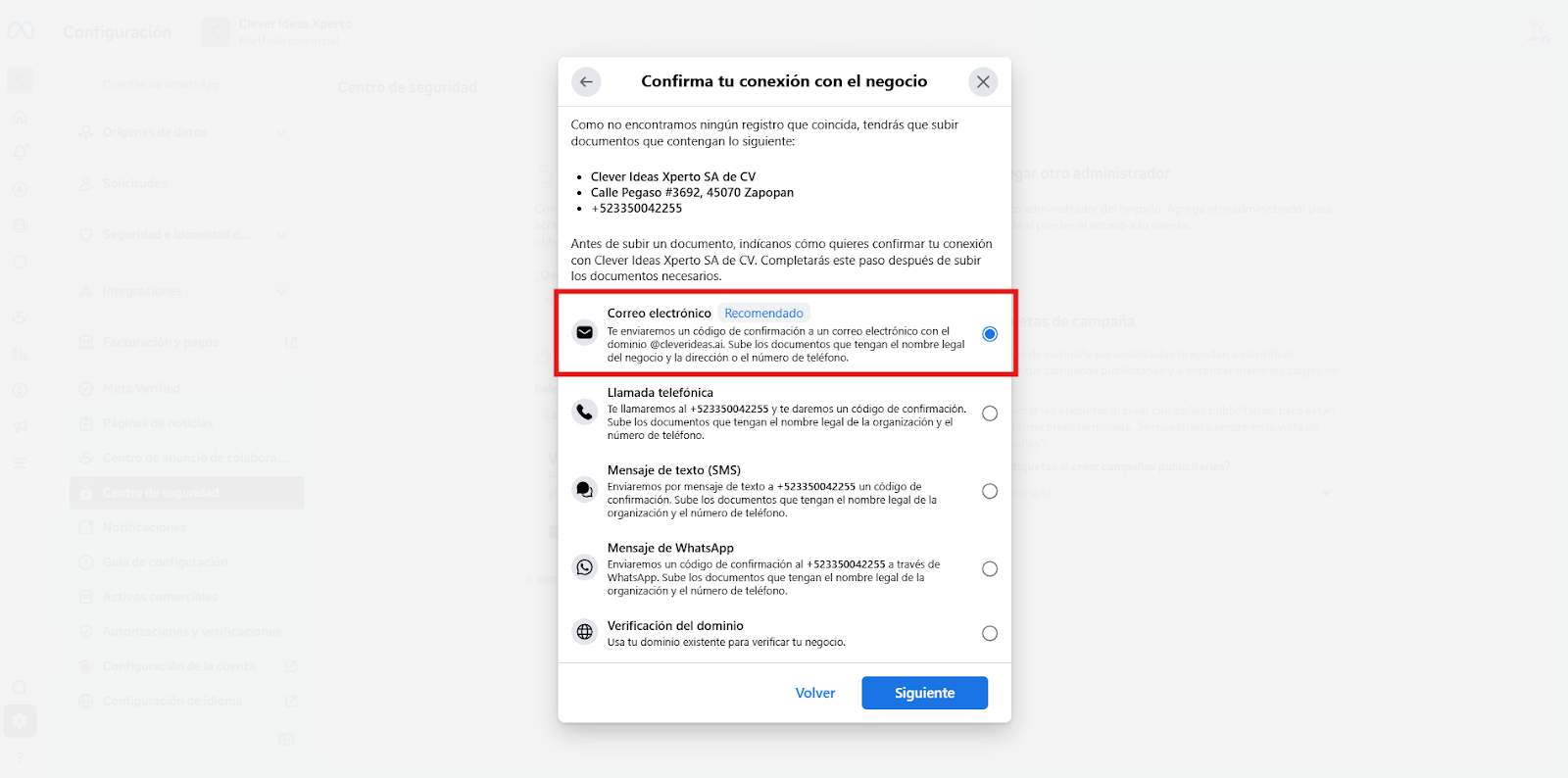
##### 7.- Get a verification code.

Choose if you want to receive the verification code at your business phone number by text, call, or email. **The phone number option may not be available in all countries.**


<p class="callout info">The email domain and web address must match</p>

Or, check your domain...

If the domain is already verified, click "Use domain verification". Otherwise, complete the domain verification process. Then return to the center of security and select "Continue".

[![image-1660623624778.png](http://docs.cleverideas.com.mx/uploads/images/gallery/2022-08/scaled-1680-/PxSqX9X6P87VHEKN-image-1660623624778.png)](http://docs.cleverideas.com.mx/uploads/images/gallery/2022-08/PxSqX9X6P87VHEKN-image-1660623624778.png)

---

##### 8.- Enter the verification code

(not applicable if you use domain verification) Enter the verification code. Click Submit.


[![image-1660623687247.png](http://docs.cleverideas.com.mx/uploads/images/gallery/2022-08/scaled-1680-/9PAtjYRXcCkDjLoE-image-1660623687247.png)](http://docs.cleverideas.com.mx/uploads/images/gallery/2022-08/9PAtjYRXcCkDjLoE-image-1660623687247.png)

---

**9.- If you receive your business verification confirmation, that means you're done. Confirmation may not come immediately. In that case, you will receive a notification when the review is complete. You can also check your status in the security center.**

[![image-1660623741734.png](http://docs.cleverideas.com.mx/uploads/images/gallery/2022-08/scaled-1680-/ISBRdrOqfIr7GgfC-image-1660623741734.png)](http://docs.cleverideas.com.mx/uploads/images/gallery/2022-08/ISBRdrOqfIr7GgfC-image-1660623741734.png)

---

Route: [https://business.facebook.com/](https://business.facebook.com/) **&gt; More Tools &gt;** [Configuración del negocio](https://business.facebook.com/settings/) **&gt; Security Center.**

#####   


##### More Information:

<div class="pointer-container" id="bkmrk-%C2%A0-4"><div class="pointer anim is-page-editable"><svg class="svg-icon" data-icon="link" role="presentation" viewbox="0 0 24 24" xmlns="http://www.w3.org/2000/svg"></svg><div class="input-group inline block"> <button class="button outline icon" data-clipboard-target="#pointer-url" title="Copiar Enlace" type="button"><svg class="svg-icon" data-icon="copy" role="presentation" viewbox="0 0 24 24" xmlns="http://www.w3.org/2000/svg"></svg></button></div><svg class="svg-icon" data-icon="edit" role="presentation" viewbox="0 0 24 24" xmlns="http://www.w3.org/2000/svg"></svg></div></div>- Business verification information [Información sobre la verificación del negocio.](https://www.facebook.com/business/help/1095661473946872?id=180505742745347)
- Verify a business

# Activate Verification home button

##### Create App from Facebook Developers

1. Within<span style="color: #3598db;"> <span style="color: #236fa1;">https://business.facebook.com/</span></span> go to More Tools
2. Go to Business Settings

[![image-1668709314780.png](https://docs.cleverideas.com.mx/uploads/images/gallery/2022-11/scaled-1680-/WVgSKtvyn1FMpiNU-image-1668709314780.png)](https://docs.cleverideas.com.mx/uploads/images/gallery/2022-11/WVgSKtvyn1FMpiNU-image-1668709314780.png)

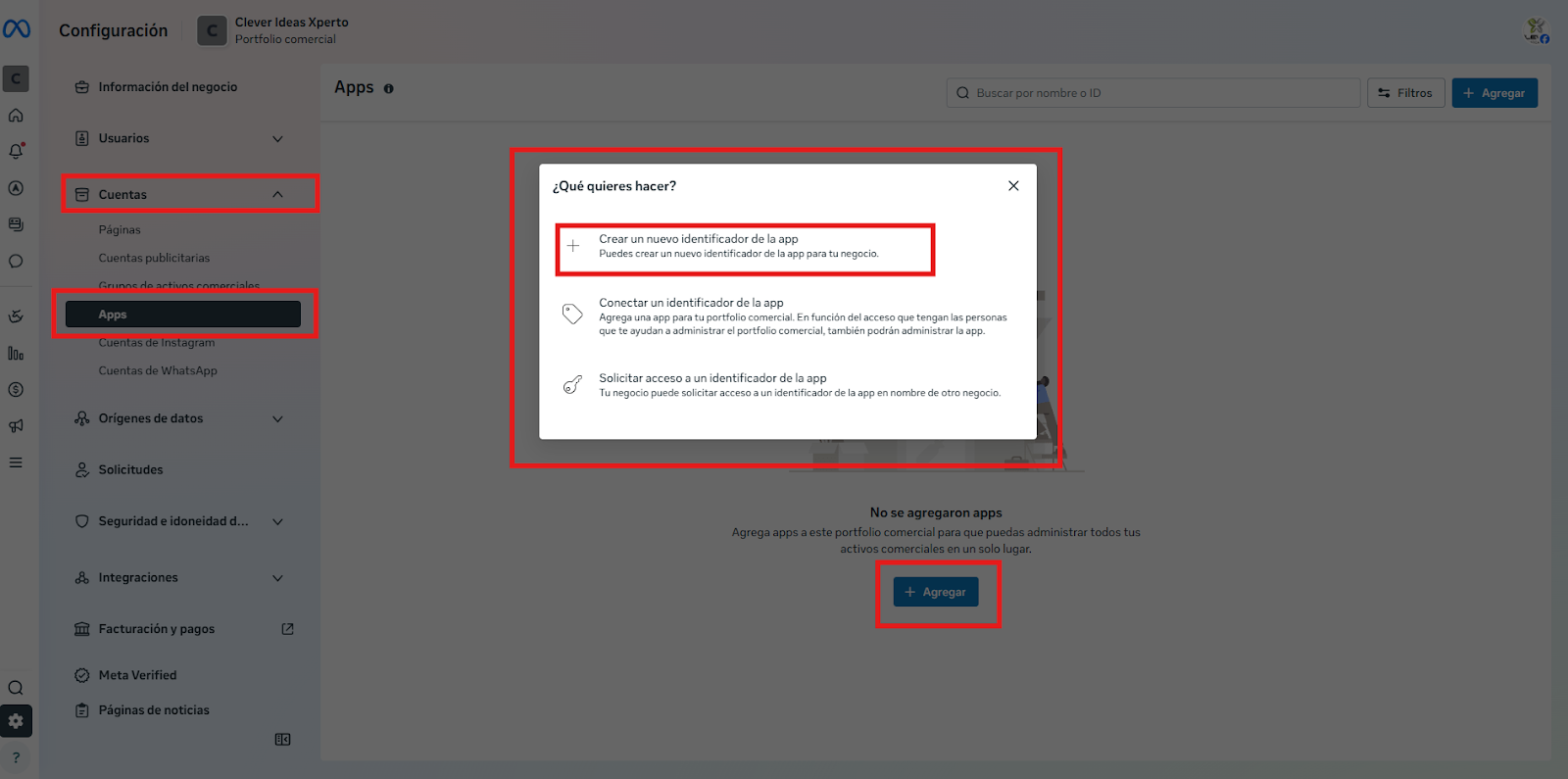
 3.- In the menu on the left go to Apps.

 4.- Click the blue Add button. 3 options should appear, click on the third: Create a new app identifier.

<p class="callout warning">If the third option to Create a new app identifier doesn't appear, you need to create a new app from Facebook for Developers.</p>

[![image-1668709412044.png](https://docs.cleverideas.com.mx/uploads/images/gallery/2022-11/scaled-1680-/XgIuO5z622JLxMQI-image-1668709412044.png)](https://docs.cleverideas.com.mx/uploads/images/gallery/2022-11/XgIuO5z622JLxMQI-image-1668709412044.png)

[![image-1668709424003.png](https://docs.cleverideas.com.mx/uploads/images/gallery/2022-11/scaled-1680-/VwmLCGXBycYmrcJI-image-1668709424003.png)](https://docs.cleverideas.com.mx/uploads/images/gallery/2022-11/VwmLCGXBycYmrcJI-image-1668709424003.png)

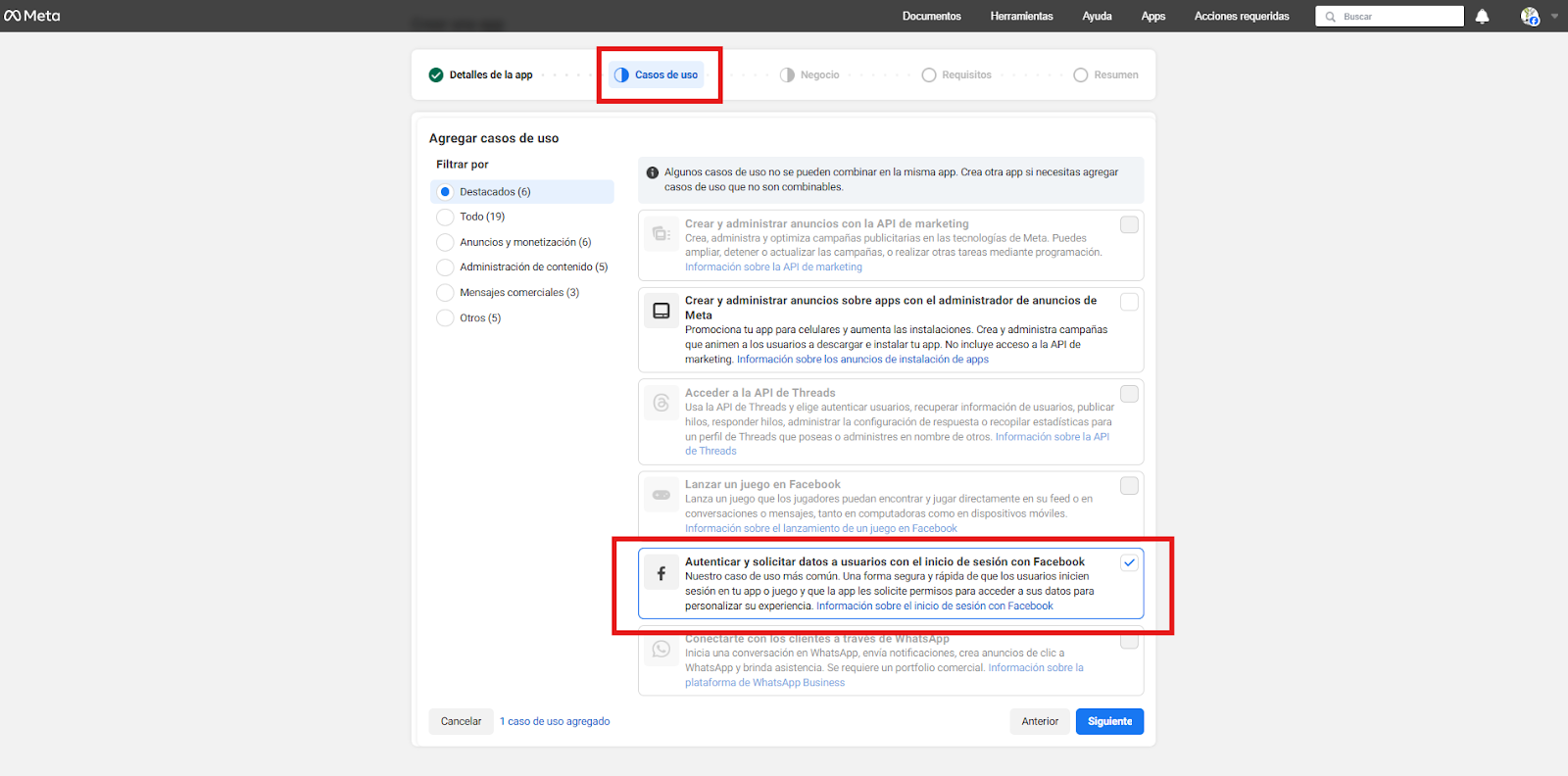
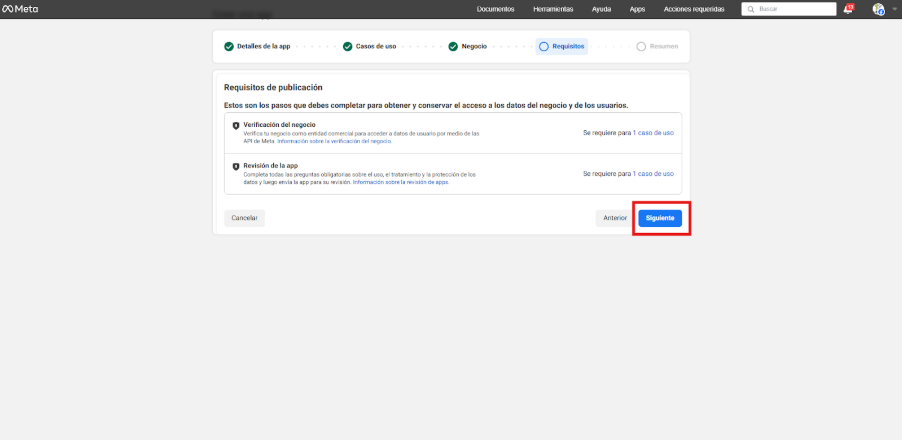
##### In the What do you need your app to do? select the last option More options and then Continue.

[![image-1668709468025.png](https://docs.cleverideas.com.mx/uploads/images/gallery/2022-11/scaled-1680-/ILvNAIwj9QtUge2k-image-1668709468025.png)](https://docs.cleverideas.com.mx/uploads/images/gallery/2022-11/ILvNAIwj9QtUge2k-image-1668709468025.png)

##### Another window will appear. What do you need your app to do?, where you must select Other and click on continue

[![image-1668709520549.png](https://docs.cleverideas.com.mx/uploads/images/gallery/2022-11/scaled-1680-/pSedvwGR5KDF4h3C-image-1668709520549.png)](https://docs.cleverideas.com.mx/uploads/images/gallery/2022-11/pSedvwGR5KDF4h3C-image-1668709520549.png)

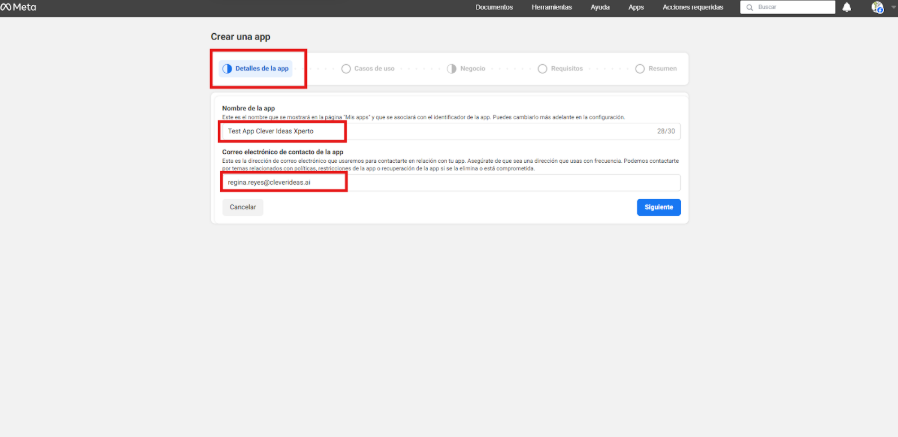
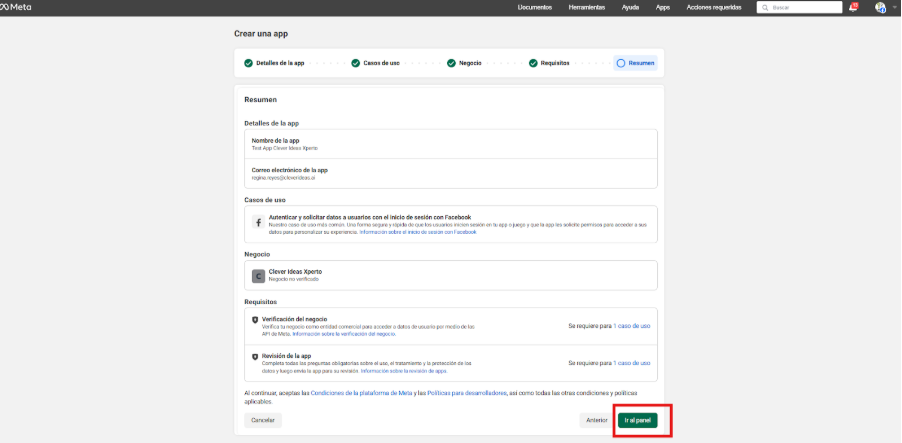
##### Fill in the fields: Display name of the app with a name that you identify later, and verify that the email matches the same as your Facebook account.

#####   
Click on Create app

[![image-1668709612353.png](https://docs.cleverideas.com.mx/uploads/images/gallery/2022-11/scaled-1680-/KIR3uPdVjJWJV0au-image-1668709612353.png)](https://docs.cleverideas.com.mx/uploads/images/gallery/2022-11/KIR3uPdVjJWJV0au-image-1668709612353.png)

##### Go back to Business Settings and refresh the page.  
Go to the Security Center where you can already see the Start verification button activated.

---

### If after creating the app the button still does not appear and/or is disabled, proceed with the next step:

#####   


##### Associate fanpage to news page

Go to Pages and check that your main fanpage is correctly linked.

[![image-1668709867822.png](https://docs.cleverideas.com.mx/uploads/images/gallery/2022-11/scaled-1680-/oNxeu6YTXhN3uzJK-image-1668709867822.png)](https://docs.cleverideas.com.mx/uploads/images/gallery/2022-11/oNxeu6YTXhN3uzJK-image-1668709867822.png)

  
Then go to Registration, then to News Page and then select the Select Pages option that will be found in the center of the screen. Select your main fanpage and then Done.

[![image-1668709905827.png](https://docs.cleverideas.com.mx/uploads/images/gallery/2022-11/scaled-1680-/MxeHiJh6vbwW3g05-image-1668709905827.png)](https://docs.cleverideas.com.mx/uploads/images/gallery/2022-11/MxeHiJh6vbwW3g05-image-1668709905827.png)

<p class="callout warning">The fanpage must have at least 90 days of being created.</p>

---

#### Create a new app from Facebook for Developers

- Go to https: [https://developers.facebook.com/](https://developers.facebook.com/)
- Log in or create an account with the same email with which the Facebook account you want to verify (or that of an administrator) is administered.
- Go to My apps.

[![image-1668710477341.png](https://docs.cleverideas.com.mx/uploads/images/gallery/2022-11/scaled-1680-/UQJyVMLcEebwz1vN-image-1668710477341.png)](https://docs.cleverideas.com.mx/uploads/images/gallery/2022-11/UQJyVMLcEebwz1vN-image-1668710477341.png)

##### Click Create app

[![image-1668710529326.png](https://docs.cleverideas.com.mx/uploads/images/gallery/2022-11/scaled-1680-/gmyoMqY6v5CommrX-image-1668710529326.png)](https://docs.cleverideas.com.mx/uploads/images/gallery/2022-11/gmyoMqY6v5CommrX-image-1668710529326.png)

##### In the What do you need your app to do? select the last option More options and then Continue.

[![image-1668710573152.png](https://docs.cleverideas.com.mx/uploads/images/gallery/2022-11/scaled-1680-/EFKWOuhccvGjN3WM-image-1668710573152.png)](https://docs.cleverideas.com.mx/uploads/images/gallery/2022-11/EFKWOuhccvGjN3WM-image-1668710573152.png)

##### Another window will appear, What do you need your app to do?, where you must select Other and click Continue.

[![image-1668710623171.png](https://docs.cleverideas.com.mx/uploads/images/gallery/2022-11/scaled-1680-/n8TGaweteLQGVrVv-image-1668710623171.png)](https://docs.cleverideas.com.mx/uploads/images/gallery/2022-11/n8TGaweteLQGVrVv-image-1668710623171.png)

#####   
Fill in the fields: Display name of the app with a name that you identify later, and verify that the email matches the same as your Facebook account.  


##### **Click on Create app**

[![image-1668710670687.png](https://docs.cleverideas.com.mx/uploads/images/gallery/2022-11/scaled-1680-/mYgtd1JCnogUVLVB-image-1668710670687.png)](https://docs.cleverideas.com.mx/uploads/images/gallery/2022-11/mYgtd1JCnogUVLVB-image-1668710670687.png)

- Go back to Business Manager and reload the page.
- Perform from the procedure of step d.

# Verification and Annex of documents

##### Go to Business Settings.

[![image-1668779838294.png](https://docs.cleverideas.com.mx/uploads/images/gallery/2022-11/scaled-1680-/LN5xnwMcwaYKIt9t-image-1668779838294.png)](https://docs.cleverideas.com.mx/uploads/images/gallery/2022-11/LN5xnwMcwaYKIt9t-image-1668779838294.png)

##### Go to Security Center and click Start verification in the "Business verification" section.

[![image-1668779864765.png](https://docs.cleverideas.com.mx/uploads/images/gallery/2022-11/scaled-1680-/h9x6HnPOxJApcuA8-image-1668779864765.png)](https://docs.cleverideas.com.mx/uploads/images/gallery/2022-11/h9x6HnPOxJApcuA8-image-1668779864765.png)

<p class="callout info">The "Start Verification" button will be grayed out unless your business needs access to certain features. If it appears grayed out, go to **Procedure to activate the Start Verification button**</p>

---

####   
Enter your business information.

- Legal name of the business.
- Country
- Mailing Address
- Postal address/city
- City
- State
- Postal Code
- Phone number
- Website

<p class="callout warning">Website content should include your company name or logo.) (Make sure the website can be seen and belongs to your business</p>

##### **(Next)**

[![image-1668780029302.png](https://docs.cleverideas.com.mx/uploads/images/gallery/2022-11/scaled-1680-/3h4KqXyPU7Uj1wVN-image-1668780029302.png)](https://docs.cleverideas.com.mx/uploads/images/gallery/2022-11/3h4KqXyPU7Uj1wVN-image-1668780029302.png)

#####   
Verify the legal name of the business.

<p class="callout info">Upload a standard official document that matches the legal business name you specified.</p>

Examples:

- Commercial license
- Certificate of Constitution or statute of the company
- Tax or VAT registration certificate.
- R.F.C.

**Select language**

(Upload Photo or PDF file and Next)

[![image-1668780143353.png](https://docs.cleverideas.com.mx/uploads/images/gallery/2022-11/scaled-1680-/EL3cSWryJsNbblRF-image-1668780143353.png)](https://docs.cleverideas.com.mx/uploads/images/gallery/2022-11/EL3cSWryJsNbblRF-image-1668780143353.png)

#### Verify the address or phone number of the business.

Upload a document that lists your legal business name along with the mailing address or phone number you specified.

Examples:

- Utility bill, such as electricity or telephone.
- Bank statement with address.
- Business license with address or phone.

(Upload photo or PDF file and Next)

[![image-1668780196062.png](https://docs.cleverideas.com.mx/uploads/images/gallery/2022-11/scaled-1680-/WiIqIXfnHY6zYKCP-image-1668780196062.png)](https://docs.cleverideas.com.mx/uploads/images/gallery/2022-11/WiIqIXfnHY6zYKCP-image-1668780196062.png)

<p class="callout info">After business verification is complete, it will NOT be possible to change the company's corporate name, address, phone number, website, or tax number.</p>

#### Get a verification code.

Choose an option to request the verification code.

Examples:

- Business contact phone number.
- Business contact email address.

<p class="callout warning">Email domain and web address must match</p>

[![image-1668780310043.png](https://docs.cleverideas.com.mx/uploads/images/gallery/2022-11/scaled-1680-/A924ETnAThHJakt7-image-1668780310043.png)](https://docs.cleverideas.com.mx/uploads/images/gallery/2022-11/A924ETnAThHJakt7-image-1668780310043.png)

##### Enter verification code.

[![image-1668780605266.png](https://docs.cleverideas.com.mx/uploads/images/gallery/2022-11/scaled-1680-/pxQZzmZ6OEXgcLmH-image-1668780605266.png)](https://docs.cleverideas.com.mx/uploads/images/gallery/2022-11/pxQZzmZ6OEXgcLmH-image-1668780605266.png)

##### If you receive your business verification confirmation, that means you're done. Confirmation may not come immediately. In that case, you will receive a notification when the review is complete. You can also check your status in the security center.

[![image-1668780645446.png](https://docs.cleverideas.com.mx/uploads/images/gallery/2022-11/scaled-1680-/ow1iGNYLO6EGpEAX-image-1668780645446.png)](https://docs.cleverideas.com.mx/uploads/images/gallery/2022-11/ow1iGNYLO6EGpEAX-image-1668780645446.png)

# Q&A

# Message limits

Message limits determine the maximum number of business-initiated conversations that a phone number can start in a continuous 24-hour period. These limits do not apply to user-initiated conversations. A company-initiated conversation begins when the first company message is delivered and ends 24 hours later.

There are four levels of message limits:

- One thousand company-initiated conversations with unique customers in a rolling 24-hour period.
- Ten thousand company-initiated conversations with unique customers in a rolling 24-hour period.
- One hundred thousand company-initiated conversations with unique customers in a rolling 24-hour period.
- An unlimited number of company-initiated conversations in a rolling 24-hour period.

Message limits automatically increase or decrease based on your phone number status, phone number quality rating, and how often you start conversations with unique customers.

Businesses and phone numbers start with 1,000 business-initiated conversations (**with 1,000 unique customers**) in a rolling 24-hour period. If you reach your message limit, you will be able to start more conversations once any of the active conversations end.

For example: