
Agent
This section shows the Webchat interaction from the agent profile.
Interaction View
The agent will have access to different interactions in their inbox and will be able to search for them by campaign name or user name.
When an interaction is opened, it expands on the right side of the screen, displaying the conversation and customer information at the top.
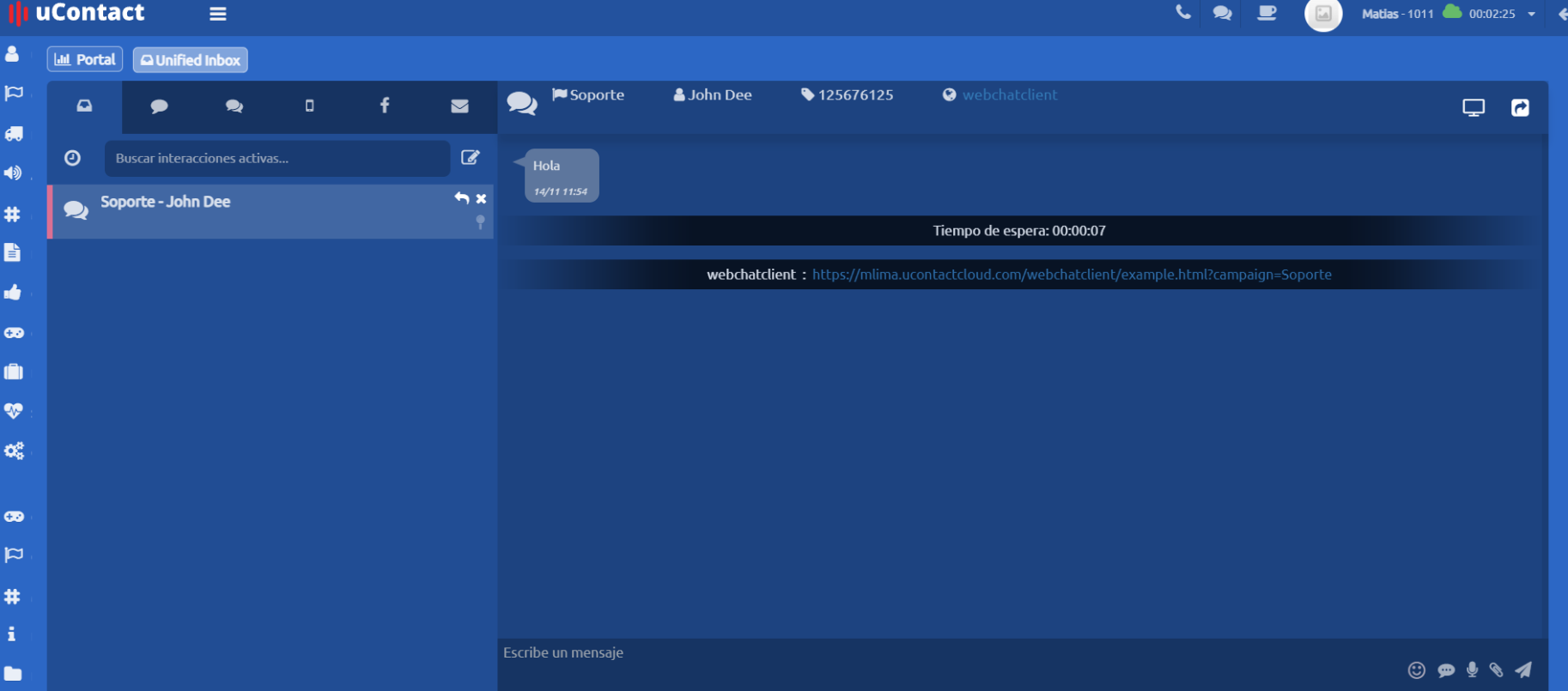
- Webchat Campaign Name
- Contact Phone Number
- Contact Name
- Contact Email
At the beginning of the conversation, the customer’s waiting time is displayed, showing the time elapsed from when the message was sent until the interaction was answered by an agent.
Interaction Options
The customer will be able to make voice calls and video calls with the agent.
The first option is the emoji icon. When clicked, it displays a list of emojis that can be used in messages.
To the right, next to the message input box where the agent responds to the customer, there is an icon containing the campaign’s predefined responses. Once selected, these responses are automatically inserted into the message.
Next to it, there is the icon for sending voice messages.
To the right, there is the button for attaching files.
In the upper-right corner, the agent will find a three-dot menu icon that allows access to the customer’s previous messages.